
how to remove bloatware from android without root usually means one of three things: uninstall what Android allows, disable what can’t be removed, and block the rest from running in the background so it stops eating storage, battery, and attention.
If you’ve ever opened your app drawer and thought, “I didn’t install half of this,” you’re not imagining it. Carriers and manufacturers often preload apps, and while some are harmless, others keep sending notifications, requesting permissions, or quietly updating in the background.
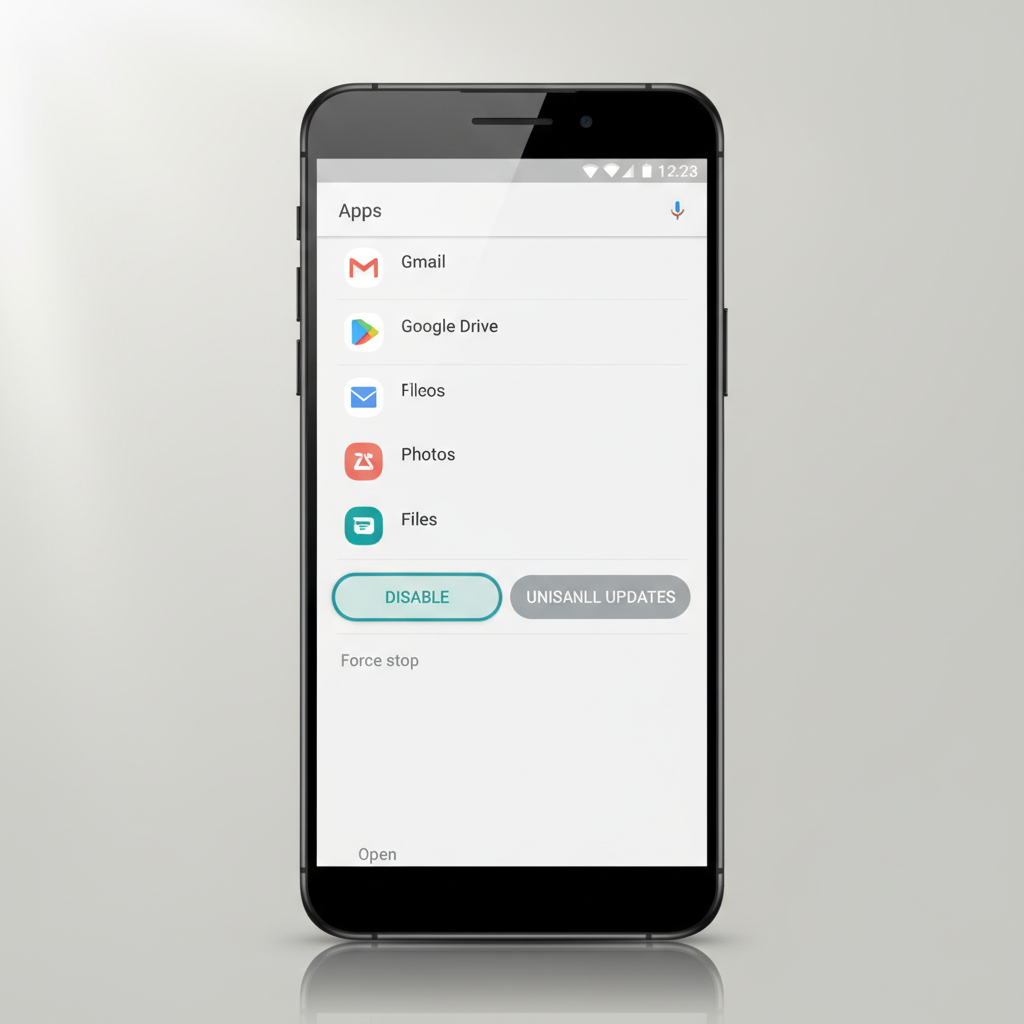
This guide focuses on safe, practical cleanup for U.S. Android users, without rooting and without “mystery” tools. You’ll learn how to identify bloatware, what to remove versus disable, and how to keep it from coming back after updates.
What counts as bloatware (and what doesn’t)
Bloatware is any preinstalled app you didn’t ask for and don’t need, especially if it duplicates features you already use or runs processes you can’t justify. Not all preinstalled apps are bad, though, and confusing the two is where people break things.
- Common bloatware: carrier apps, trial games, shopping apps, “device manager” promos, duplicate browsers, duplicate email clients.
- Often useful: core services (Google Play services), system UI, phone/contacts, messaging, security updates, OEM camera/gallery components.
- Gray area: manufacturer assistants, “smart” device hubs, theming stores. Some people love them, others never open them.
According to Google Android documentation, some apps are part of the system image and may not be uninstallable in the usual way, which is why disabling and permission tightening matter so much on non-rooted phones.
Quick self-check: is this app safe to remove, disable, or leave alone?
Before you start tapping “Disable,” do a fast classification. This is the quickest way to avoid removing something that quietly supports calls, texts, biometrics, or system updates.
Decision checklist
- Do you recognize it? If the name is vague (for example, “System Service”), treat it carefully.
- Is there an Uninstall button? If yes, Android considers it removable in your configuration.
- Is it tied to a hardware feature? Anything for fingerprint, camera, calling, or “SIM toolkit” deserves caution.
- Does it show “Installed from Google Play”? If it was updated via Play, you can often uninstall updates even when you can’t uninstall the app.
- Do you have a replacement? If you disable a launcher, messaging app, or browser, have your preferred one installed and set as default.
Best no-root methods to remove bloatware (from easiest to more advanced)
When people search how to remove bloatware from android, they usually want a clean home screen and fewer background drains, not a risky hack. These options stay within normal Android controls.
1) Uninstall what you can (the clean win)
Go to Settings → Apps (or Apps & notifications), pick the app, then tap Uninstall. If you only see Disable, jump to the next method.
- Also check the app drawer: long-press an app icon and look for Uninstall.
- Open Google Play Store → Manage apps & device → Manage to remove optional apps you installed and forgot about.
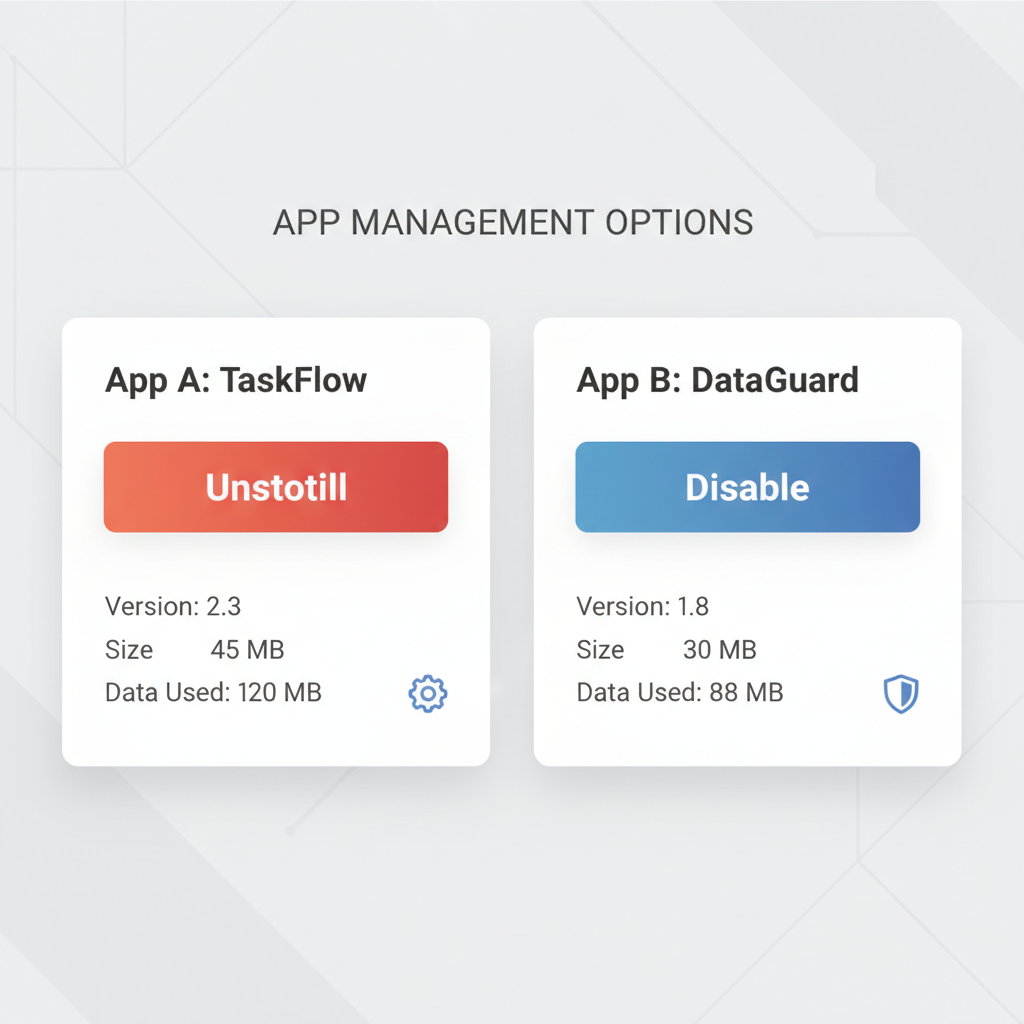
2) Disable preinstalled apps (the realistic win)
Disabling prevents the app from running and removes it from your launcher in most cases. It’s often the closest thing to “removal” without root.
- Settings → Apps → select app → tap Disable
- If available, tap Uninstall updates first, then disable
- Reboot once after a batch of disables, it helps you notice if anything important got affected
3) Restrict background activity and battery usage (when disable is blocked)
Some apps refuse to be disabled. In many cases, you can still reduce their impact.
- Settings → Apps → (app) → Battery → choose Restricted (wording varies by Android version)
- Settings → Apps → (app) → Mobile data & Wi‑Fi → turn off Background data if available
- Settings → Notifications → block spammy notifications at the source
This approach won’t free the same storage as uninstalling, but it often improves day-to-day experience fast.
4) Remove app permissions you didn’t agree to
If a preinstalled app keeps popping up or tracking, trimming permissions can be the calmest solution.
- Settings → Apps → (app) → Permissions
- Set sensitive permissions to Don’t allow where it still works
- Pay attention to Location, Nearby devices, Phone, SMS, and Accessibility access
According to Federal Trade Commission (FTC) consumer guidance on mobile privacy, limiting app permissions and reviewing data access are practical steps to reduce unwanted collection and exposure.
A practical “bloatware cleanup” plan you can finish in 30–45 minutes
If you want structure, use this sequence. It avoids the common pattern of disabling random apps, then spending an hour figuring out what broke.
- Step 1: Update your phone and Play Store apps, then restart.
- Step 2: Uninstall obvious third-party preloads (games, shopping, duplicate utilities).
- Step 3: Disable OEM/carrier apps you never use, in small batches of 3–5.
- Step 4: Restrict battery/background and notifications for anything you can’t disable.
- Step 5: Re-check storage and battery for a few days, then do a second pass.
What you can expect from each method (quick comparison table)
Different phones behave differently, but this table matches what many users see on modern Samsung, Google Pixel, Motorola, and carrier-branded Android devices.
| Method | Works without root? | Frees storage? | Stops background activity? | Risk level |
|---|---|---|---|---|
| Uninstall | Yes | Usually yes | Yes | Low |
| Disable | Yes | Sometimes (limited) | Mostly yes | Low–medium |
| Uninstall updates | Yes | Yes (some) | Not necessarily | Low |
| Restrict battery/background | Yes | No | Reduces | Low |
| Permission + notification cleanup | Yes | No | Indirectly | Low |
Common mistakes that make bloatware feel “impossible” to remove
A lot of frustration comes from expecting one magic button. Android’s rules are stricter for system apps, and vendors vary.
- Disabling core services: if you disable something like “System UI” or a required Google service, you may get crashes or missing features.
- Removing a default without setting a replacement: disable the built-in browser, then links stop opening the way you expect.
- Cleaning too aggressively in one go: doing 20 apps at once makes it hard to identify what caused a problem.
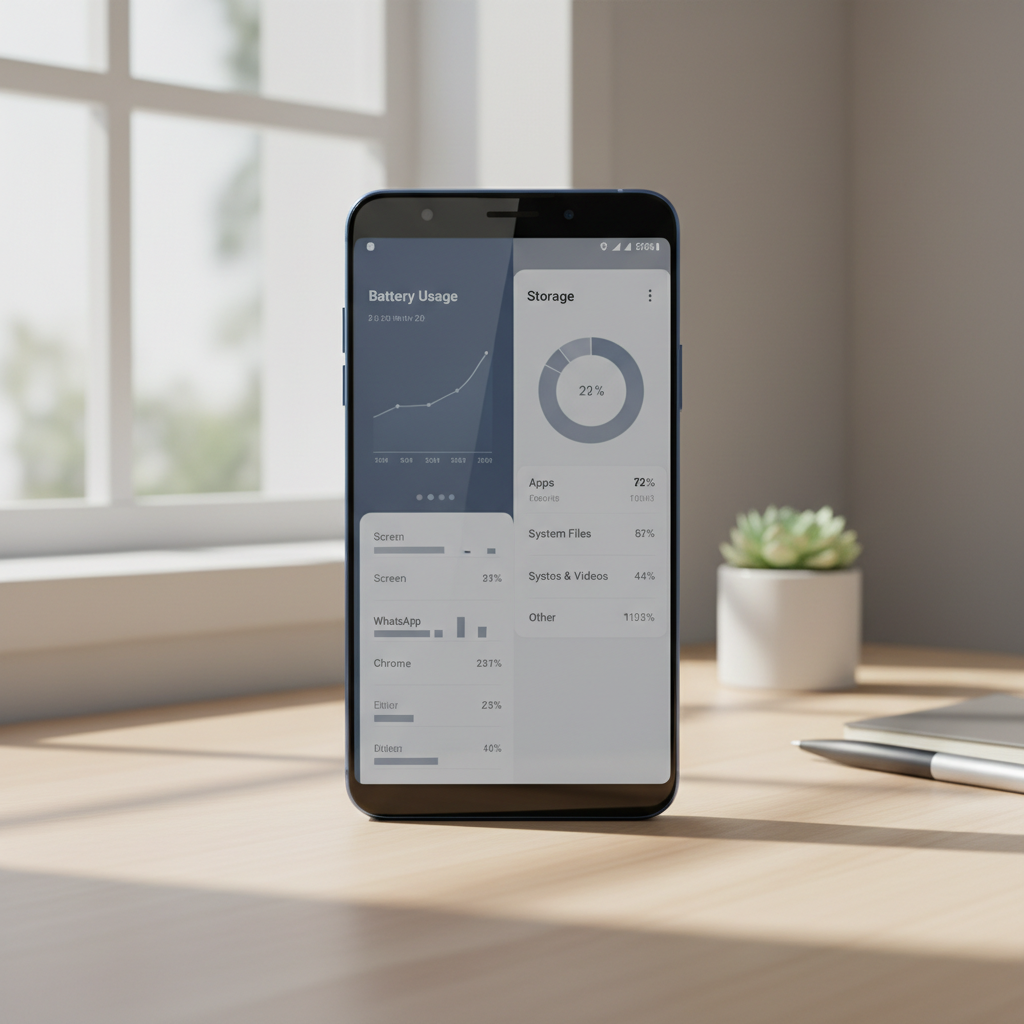
- Confusing storage with performance: disabling may not reclaim much space, but it can still reduce annoyance and battery drain.
When you should consider extra help (or at least slow down)
If your phone is managed by an employer or school, or if you rely on carrier-specific features, pushing too far can create annoying side effects. Also, some “debloat” apps ask for broad Accessibility access, which can be sensitive from a privacy standpoint.
- Work or school device: check with IT before removing management-related apps.
- Persistent crashes after disabling: re-enable the last few apps you changed, then restart.
- You’re considering ADB commands: it can be safe in careful hands, but if you’re not sure what a package name does, ask someone experienced or use a reputable repair shop.
According to Android’s security guidance, keeping devices updated and avoiding unnecessary high-privilege access is a sensible baseline, especially when you’re troubleshooting system behavior.
Key takeaways (so you don’t overthink it)
- Start with uninstall, then disable, and only then move to restrictions and permissions.
- Small batches beat big sweeps, you’ll know what changed.
- “Removed” doesn’t always mean more storage, but it often means fewer notifications and less background noise.
- Non-root cleanup is still worth it, especially on carrier-branded models.
Conclusion: a cleaner Android without risky shortcuts
If your goal is a calmer phone, the most reliable path is boring on purpose: uninstall what Android allows, disable what you don’t use, then tighten battery, data, permissions, and notifications for the rest. Do that, and how to remove bloatware from android becomes less of a one-time “purge” and more of a maintenance habit that keeps the device feeling lighter.
Pick five obvious apps today, remove or disable them, then watch battery and storage for two or three days. That feedback loop is what makes your next pass easier.
If you need a more hands-off route, many carriers and manufacturers offer support chat or in-store help for app management, and a reputable local repair shop can usually guide you without pushing you toward risky rooting steps.