
how to fix google maps not working on your phone usually comes down to three buckets: your connection, your phone permissions, or the app’s data getting stuck.
If Maps won’t load, keeps crashing, or the blue dot drifts like you’re teleporting, it’s more than annoying, it can derail commutes, deliveries, travel days, and even basic meetups. The good news, most fixes take minutes, and you can usually tell which bucket you’re in pretty fast.
I’ll walk you through quick checks first, then deeper fixes for iPhone and Android, plus a short table that matches symptoms to likely causes, so you don’t waste time doing random resets.

Quick triage: identify what “not working” really means
Before you change settings, name the symptom. “Google Maps not working” can mean very different things, and each has a different fix path.
Common symptoms and what they usually point to
| What you see | Most likely cause | Fastest fix to try |
|---|---|---|
| Blank map / endless loading | Weak data, VPN/proxy, app cache corruption | Toggle Airplane Mode, disable VPN, reopen app |
| Blue dot wrong / GPS jumps | Location accuracy settings, sensor/calibration, Low Power Mode | Turn on precise/high accuracy location, recalibrate |
| App crashes on open | Buggy update, low storage, corrupted app data | Update app/OS, restart phone, free storage |
| Routes won’t start / “Searching for GPS” | Permissions denied, background location blocked | Check location permission for Maps, allow while using |
| Offline maps not available | Storage limits, download expired, account issue | Redownload region on Wi‑Fi |
60-second checklist (do these before anything else)
- Restart Google Maps and then restart the phone if it still misbehaves.
- Toggle Airplane Mode on/off to refresh cellular and GPS.
- Switch between Wi‑Fi and cellular to isolate a network issue.
- Check if other apps load data; if not, it’s not a Maps problem.
- Try Maps in a different place (indoors vs outdoors) since GPS reception varies.
Fix the basics: connection, VPN, and date/time
When Maps can’t load tiles, reviews, or routes, connectivity is the quiet culprit more often than people want to admit. Even “full bars” can hide DNS or VPN weirdness.
What to do
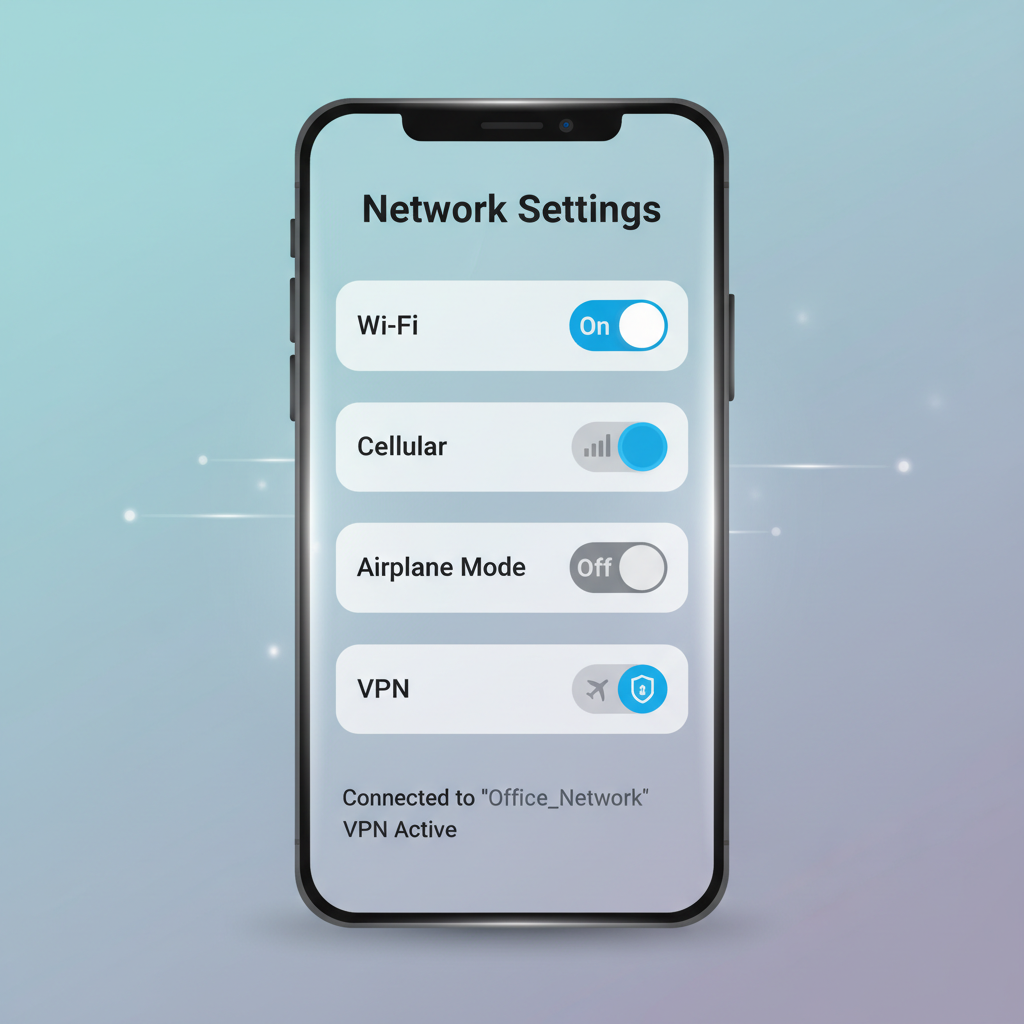
- Disable VPN/proxy temporarily. Many VPNs route traffic in ways that break location-based services.
- Turn off Data Saver / Low Data Mode and test again. It can throttle background calls Maps relies on.
- Set date/time to automatic. Incorrect time can cause authentication and sync issues.
- On public Wi‑Fi, open a browser and complete any captive portal sign-in page.
According to Google Support, unstable connectivity and restricted background data are common reasons Google apps fail to load content reliably.
Check permissions and location accuracy (the real make-or-break step)
If you’re searching “how to fix google maps not working” because navigation can’t find your position, permissions and accuracy settings matter more than clearing caches.
iPhone (iOS) essentials
- Go to Settings > Privacy & Security > Location Services, make sure Location Services is on.
- Find Google Maps, set location to While Using the App (or Always if you truly need it).
- Turn on Precise Location for better turn-by-turn guidance.
Android essentials (varies by manufacturer)
- Go to Settings > Location, ensure location is on.
- Open App permissions for Google Maps, allow location While in use.
- In Location settings, enable High accuracy or Google Location Accuracy where available.
One more thing people miss: background restrictions
On both iOS and Android, aggressive battery settings can pause Maps when the screen dims. If your route freezes mid-drive, look for battery optimization settings and allow Maps to run normally.
Clear stuck app data (without nuking everything)
When the app opens but behaves oddly, clearing temporary data often fixes it. This is also a common answer to “how to fix google maps not working” after a big update.
Android: clear cache first, then storage if needed
- Settings > Apps > Maps > Storage
- Tap Clear cache, reopen Maps and test.
- If issues persist, consider Clear storage (this resets app data and may sign you out).
iPhone: offload or reinstall (since there’s no “clear cache” button)
- Settings > General > iPhone Storage > Google Maps
- Try Offload App (keeps documents), then reinstall from the same screen.
- If it still crashes, delete the app and reinstall from the App Store.
Key point: If you rely on offline maps, re-check downloads after reinstalling, they sometimes need to be added again.
Update the app, update the OS, and watch storage
Maps crashing at launch or failing to render can come from a bad app build, an outdated OS, or simply a phone that’s running on fumes.
- Update Google Maps in the App Store or Google Play.
- Update iOS/Android if you’re several versions behind, compatibility issues happen.
- Keep at least a few GB of free storage. Low storage can trigger app crashes, slow caching, and failed updates.
According to Apple Support, low device storage can affect app performance and system stability, which shows up as crashes, freezing, or features not loading.

Fix GPS drift and “blue dot” issues (especially in cities)
When Maps “works” but your location is wrong, the phone may be struggling with GPS signal, Wi‑Fi positioning, or compass calibration. Downtown areas, parking garages, and dense neighborhoods can make it worse.
Try these practical fixes
- Step outside or near a window for 30–60 seconds to reacquire GPS.
- Toggle location off/on, then reopen Maps.
- On Android, make sure Wi‑Fi scanning and Bluetooth scanning (if available) are allowed for better accuracy.
- Calibrate compass: in Maps, tap the blue dot, then follow the calibration prompt if it appears.
- Avoid magnetic mounts or cases that can interfere with sensors; if the compass points the wrong way, swap mounts and re-test.
Driving safety note
If you’re troubleshooting in a car, pull over safely. If you suspect your phone mount blocks sensors or causes overheating, change the setup rather than fighting the app.
When it’s not your phone: outages, account issues, and corrupted offline maps
Sometimes you do everything right and Maps still fails. In those moments, it helps to check what’s outside your control.
- Service disruption: try loading Google Maps on another device or on maps.google.com. If both fail, wait and retry.
- Google account sync: sign out and sign back in if your saved places or timeline won’t load.
- Offline maps: downloads expire; re-download regions on Wi‑Fi, especially before trips.
According to Google Support, offline map areas can require periodic updates, and expired downloads can lead to missing navigation data even when the app opens normally.
Practical “do this in order” plan (so you don’t bounce around)
If you want one clean sequence, this is usually the least frustrating path for how to fix google maps not working on a phone.
- Quick triage: Airplane Mode toggle, switch Wi‑Fi/cellular, reopen app.
- Disable VPN and check automatic date/time.
- Verify permissions: location allowed, precise/high accuracy enabled.
- Clear stuck data: Android cache, iPhone offload/reinstall.
- Update everything: Maps, OS, and free up storage.
- Fix GPS drift: recalibrate, move outdoors, adjust mounts.
Key takeaways
- Loading issues usually trace back to network/VPN or corrupted cache.
- Wrong location usually traces back to accuracy settings or sensor calibration.
- Crashes often improve with updates, storage cleanup, or reinstalling.
Wrap-up: get Maps reliable again, then prevent repeats
Most people fix Google Maps by tightening permissions, turning on precise or high-accuracy location, and clearing whatever data got stuck after an update. If you only do one preventive step, keep Maps updated and avoid overly aggressive battery restrictions, that combo prevents a lot of repeat failures.
If the app still fails after a reinstall and an OS update, and other navigation apps also can’t lock GPS, the issue may be device-level hardware or carrier-related, in that case it’s reasonable to contact your phone manufacturer, carrier, or a qualified repair shop for guidance.
FAQ
- Why is Google Maps not working on my phone but works on Wi‑Fi?
That often points to cellular data restrictions, poor signal, or a VPN/APN configuration issue. Try toggling Airplane Mode, disabling VPN, and checking whether Maps has permission to use cellular data. - How do I fix Google Maps stuck on “Searching for GPS”?
Check location permission first, then enable precise/high accuracy location. If you’re indoors or in a garage, step outside briefly so the phone can re-lock GPS. - Does clearing cache delete my saved places?
On Android, clearing cache typically does not remove saved places, but clearing storage can sign you out and reset app settings. Saved places are tied to your Google account, so they usually come back after sign-in. - Why does Google Maps keep crashing after an update?
It can be an app bug, low storage, or corrupted local data. Updating again (if a patch exists), freeing storage, and reinstalling are the most reliable fixes. - How can I improve Google Maps accuracy in a city?
Enable precise/high accuracy location, allow Wi‑Fi/Bluetooth scanning where available, and recalibrate the compass. Tall buildings can still cause drift, so expect some fluctuation. - Will Low Power Mode affect Google Maps navigation?
It can, especially if background activity and location updates get limited. If navigation freezes or lags, test with Low Power Mode off. - What if Google Maps works, but directions audio is missing?
Check phone volume, silent mode, Bluetooth routing, and in-app navigation sound settings. If audio routes to a car system unexpectedly, disconnect Bluetooth and try again.
If you’re trying to fix Google Maps quickly before a trip, it can be easier to run a short “pre-flight” check: update the app, confirm location permission, download an offline area, then test a sample route while you still have time to adjust settings.