
how to fix blue screen windows 11 usually comes down to one thing: figuring out whether the crash is driven by a bad driver, a Windows update issue, failing storage or memory, or a heat/power problem, then fixing the right layer instead of trying random tweaks.
Blue Screen of Death errors feel dramatic because they interrupt work and can loop on reboot, but the good news is most Windows 11 BSODs are diagnosable if you slow down and collect a few details. A stop code, a recent change, and a couple of logs often narrow it fast.
This guide walks you through a practical flow: stabilize the machine, read the clues, try the most reliable fixes first, then move toward deeper hardware checks only if needed. You will also get a quick table that maps common stop codes to likely causes and next actions.
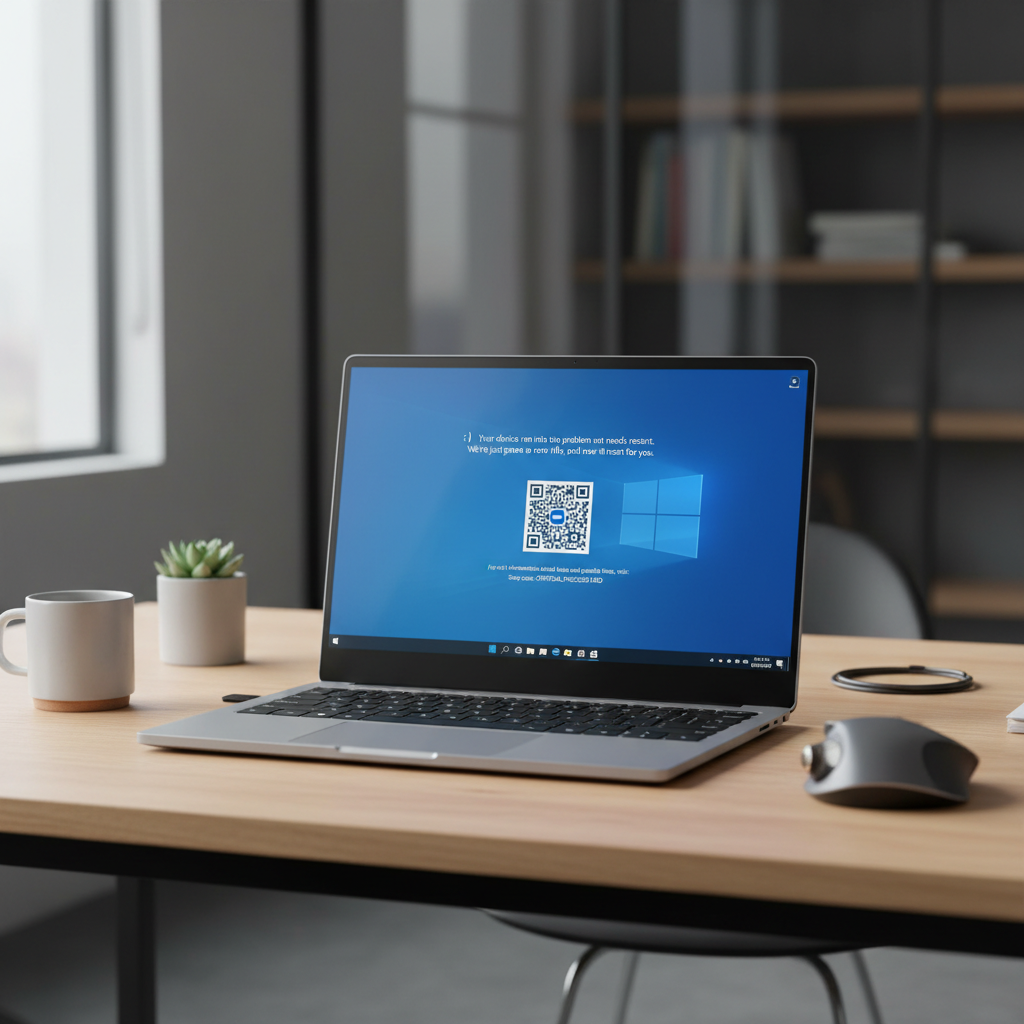
Start by stabilizing Windows 11 (so you can troubleshoot)
If the system blue screens once and then boots normally, you can troubleshoot in normal mode. If it blue screens repeatedly, aim for stability first, otherwise every fix attempt turns into guesswork.
Quick stabilization steps
- Disconnect non-essential peripherals: external drives, docks, new USB devices, extra monitors. One flaky device or cable can trigger driver faults.
- Undo recent changes: any new driver, antivirus, “PC optimizer,” overclock, or BIOS tweak, reverse it if possible.
- Boot Safe Mode if crashes repeat: Settings → System → Recovery → Advanced startup → Restart now → Troubleshoot → Advanced options → Startup Settings → Restart → press 4 for Safe Mode.
According to Microsoft, Safe Mode loads a minimal set of drivers and services, which helps isolate whether a third-party driver or startup software is involved.
Read the clues: stop code, minidump, and reliability history
Before you “fix,” capture what Windows is trying to tell you. You do not need to be an IT pro, you just need a few identifiers.
What to record
- Stop code on the blue screen (example: MEMORY_MANAGEMENT, CRITICAL_PROCESS_DIED).
- Any driver file name shown (often ends with .sys).
- What changed recently: Windows update, GPU driver update, new app, new RAM/SSD, travel with a laptop, power outage.
Where to look in Windows 11
- Reliability Monitor: search “Reliability history” in Start, then open it and check red X events around the crash time.
- Event Viewer: Windows Logs → System, filter for Critical errors around reboot time (Kernel-Power is common after a crash and is more a symptom than a cause).
- Minidumps: C:\Windows\Minidump (if present). If you are comfortable, you can inspect with tools like WinDbg, but it is optional for most people.
Common Windows 11 BSOD stop codes and what they often mean
Stop codes are not perfect, but they point you toward the right bucket: memory, storage, drivers, or system files. Here is a practical cheat sheet.
| Stop code (example) | Often points to | Good first moves |
|---|---|---|
| CRITICAL_PROCESS_DIED | Corrupted system files, driver conflict | DISM/SFC, uninstall recent drivers/apps |
| MEMORY_MANAGEMENT | RAM instability, bad driver, paging issues | Windows Memory Diagnostic, remove XMP/overclock |
| WHEA_UNCORRECTABLE_ERROR | Hardware/firmware (CPU, RAM, SSD), overheating | Check temps, update BIOS, reseat hardware |
| INACCESSIBLE_BOOT_DEVICE | Storage driver, disk issue, update rollback needed | Startup Repair, storage controller drivers, CHKDSK |
| DPC_WATCHDOG_VIOLATION | Storage/GPU driver timing issues | Update/roll back drivers, firmware for SSD |
Fix driver-related blue screens (the most common real-world cause)
If you are searching how to fix blue screen windows 11 after a driver update, you are not alone. GPU, Wi‑Fi, storage, and chipset drivers cause a lot of repeat BSODs, especially right after updates or device changes.
Do these in this order
- Roll back the driver: Device Manager → right-click device → Properties → Driver → Roll Back Driver (if available).
- Update from the right source: prefer the PC maker (Dell/HP/Lenovo) for laptops, or the motherboard maker for desktops, then GPU maker (NVIDIA/AMD/Intel) for graphics.
- Uninstall problematic drivers/software: if a new VPN, antivirus, RGB utility, or “driver updater” came right before the crash, remove it temporarily.
- Clean GPU driver install: if GPU-related stop codes appear, use the vendor’s clean install option; for stubborn cases, safe removal tools are sometimes used, but follow official guidance and be careful.
A small but important point: Windows Update can install drivers too. If your BSOD started right after a Windows update, check optional driver updates and consider rolling back the specific driver rather than rolling back the whole OS first.
Repair Windows system files and disk issues (safe, high-payoff steps)
When crashes feel “random,” system file corruption or disk errors are often in the background. These checks are generally safe and worth doing early.
Run SFC and DISM
Open Windows Terminal (Admin) and run:
- DISM: DISM /Online /Cleanup-Image /RestoreHealth
- SFC: sfc /scannow
According to Microsoft, DISM can repair the Windows image used by SFC, and SFC verifies and restores protected system files.
Check the drive
- Run: chkdsk C: /scan
- If it reports issues it cannot fix online, you may be prompted to schedule a repair at restart.
If the stop code suggests boot/storage trouble, also check for SSD firmware updates from the SSD manufacturer, firmware issues are less common, but they do happen.
Test memory, temperatures, and power (when BSODs keep returning)
If you already tried driver and system repairs and Windows 11 still blue screens, shift your mindset to stability. Hardware instability often shows up as “different stop codes every time,” especially under load.
Memory (RAM) checks
- Turn off overclocks/XMP in BIOS temporarily, even if it “used to be fine.”
- Run Windows Memory Diagnostic: search it, choose Restart now and check for problems.
- If you have multiple RAM sticks, test with one stick at a time (slow, but revealing).
Heat and power sanity checks
- Watch temperatures: if crashes appear during gaming, video calls, or exports, overheating is plausible.
- Laptops: test on AC power with the original charger if possible, weak adapters can cause instability.
- Desktops: a degrading PSU can cause sudden reboots and BSODs, diagnosing may require a shop.
If the blue screen started after an update: rollback smartly
Sometimes the cleanest answer to how to fix blue screen windows 11 is rolling back a specific update, but do it with intent, not panic. Rolling back everything can reintroduce older security issues and may not address the trigger.
- Uninstall a recent quality update: Settings → Windows Update → Update history → Uninstall updates.
- Use System Restore if you have a restore point from before the crashes.
- Pause updates briefly after stabilizing, then update again once drivers and firmware are current.
If you suspect a feature update (like a major version jump), it can be worth checking your PC manufacturer support page for Windows 11-specific drivers and BIOS notes before retrying the update.
Key takeaways (quick checklist before you give up)
- Collect the stop code and confirm whether the crash links to a recent change.
- Driver issues lead the list, especially GPU, Wi‑Fi, storage, and chipset.
- Run DISM + SFC and a disk scan, they are boring but effective.
- Remove overclocks and test RAM if stop codes vary or crashes happen under load.
- Escalate carefully to BIOS updates, firmware updates, and hardware diagnostics when software fixes stall.
When to get professional help (and what to bring)
If Windows 11 blue screens keep happening after driver cleanup, DISM/SFC, and basic hardware checks, a repair shop or IT pro can save time, especially when the machine is used for work. It is also the safer choice if you suspect failing storage and you have important data.
- Bring photos of the stop code, a list of recent changes, and any minidump files you can copy.
- If you hear unusual clicking from a hard drive, or the system cannot see the boot drive reliably, stop repeated reboot attempts and consider data recovery advice.
For business devices, it may be worth checking warranty support first, opening the chassis or flashing BIOS can affect coverage depending on vendor terms.
Conclusion: a calm, repeatable way to stop Windows 11 BSODs
Most blue screens are fixable once you treat them like a diagnosis problem, not a superstition problem. Start by stabilizing the PC, capture the stop code, then work from drivers to system repairs to hardware stability checks, in that order.
If you can only do two things today, do this: roll back or reinstall the most recently changed driver, then run DISM and SFC overnight. If the crashes still return, shift to RAM and temperature checks, and consider getting hands-on help before it turns into data loss.