
Top free browser extensions for privacy can dramatically cut down tracking, creepy retargeting, and accidental data leaks, but only if you pick the right mix and configure them well.
If you have ever searched for a product once and then watched ads follow you for days, that is the practical side of online tracking, and extensions are often the fastest “do something today” fix without changing your whole browser or paying for a new tool.
One quick note before we get tactical, privacy extensions are not all the same, some block ads, some block trackers, some force encryption, and some prevent sites from fingerprinting your device, so stacking random add-ons can cause broken websites and a false sense of safety.
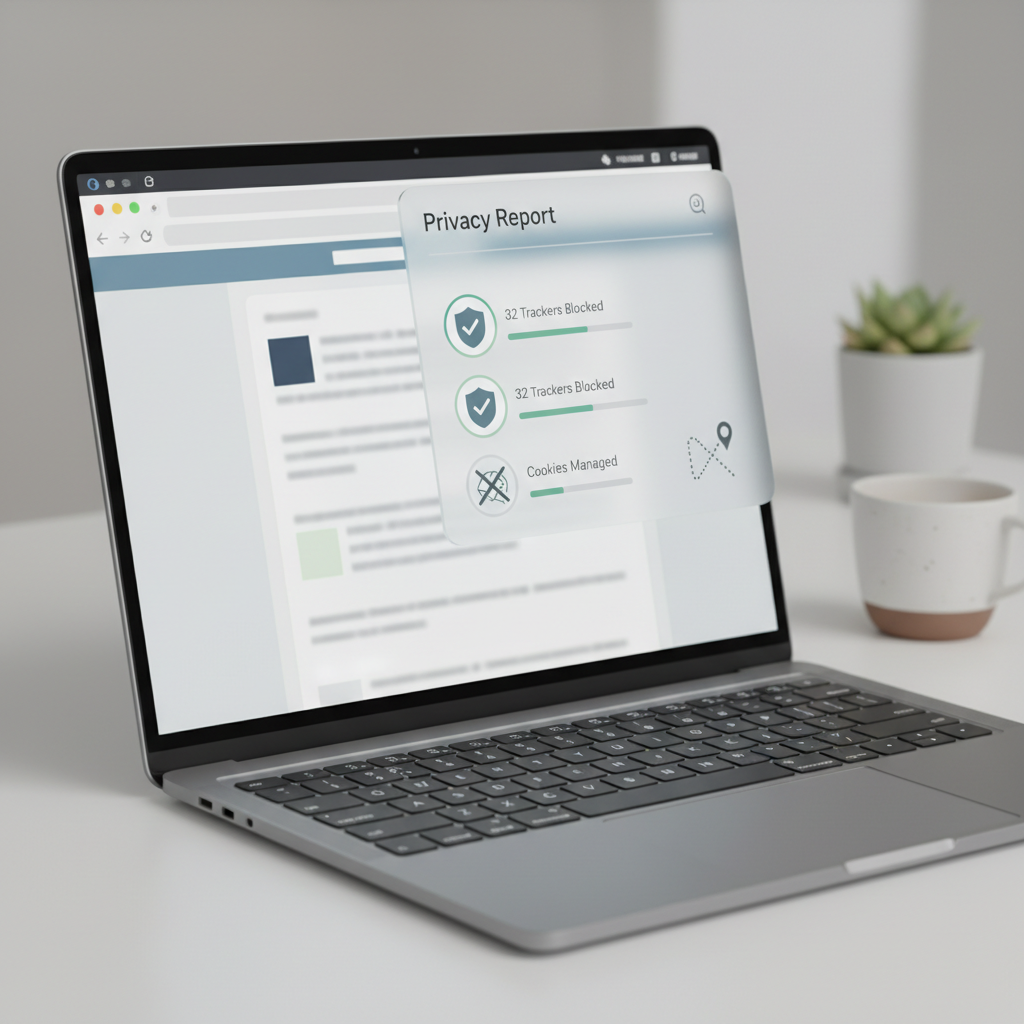
Below is a practical shortlist, how to choose based on your browsing habits, and setup tips that usually matter more than adding yet another extension.
What “privacy” extensions actually protect you from (and what they don’t)
Most people install one tool and expect it to cover everything, but privacy problems come in different shapes.
- Trackers: third-party scripts that follow you across sites, often for ads and analytics.
- Malvertising: shady ad networks that can deliver scams or harmful redirects.
- Fingerprinting: sites infer identity from device traits like fonts, screen size, extensions, and more.
- Unencrypted traffic: weaker connections where data is easier to intercept, especially on public Wi‑Fi.
- Data over-sharing: sites collecting more info than needed through embedded widgets and social plugins.
What extensions usually do not solve on their own: password reuse, phishing, data broker exposure, or an account that is already compromised. For those, you often need a password manager, 2FA, and better account hygiene.
According to the Federal Trade Commission (FTC)... consumer privacy risks often involve data collection practices and misuse, so reducing routine tracking is useful, but it is still only one layer of your overall security posture.
Quick comparison table: top picks and who they’re for
If you just want a solid default setup, start with one content blocker plus one “connection/privacy hygiene” tool. More than that can be overkill for many people.
| Extension | Best for | Key strength | Common tradeoff |
|---|---|---|---|
| uBlock Origin | Most users | Efficient ad + tracker blocking | May break some sites until you allowlist |
| Privacy Badger | Set-and-forget users | Learns and blocks trackers | Less control than advanced blockers |
| ClearURLs | Link sharers | Removes tracking parameters | Rarely breaks referral or login links |
| LocalCDN | Performance + privacy | Reduces third-party CDN calls | Occasional site compatibility issues |
| HTTPS Everywhere (legacy) | Limited modern need | Forces HTTPS where possible | Many browsers now do this natively |
Key takeaway: if you install only one extension from this list, uBlock Origin is the most broadly useful for many people, assuming you are comfortable allowing a site when something stops working.

The best free browser extensions for online privacy (what each one does)
uBlock Origin (content blocker)
This is the workhorse for ads and trackers. It is lightweight, configurable, and widely trusted in the privacy community, which is why it shows up in so many “top free browser extensions for privacy” lists.
- Use it if: you want fewer ads, fewer trackers, and faster page loads.
- Do this after installing: keep default filter lists on, then add allowlists for sites you want to support.
Privacy Badger (tracker blocking with minimal effort)
Privacy Badger is usually appealing if you dislike tinkering. It focuses on third-party tracking behavior rather than traditional ad blocking lists, which can make it feel simpler day to day.
- Use it if: you want something less hands-on than advanced rules and filter management.
- Watch for: occasional login or embedded content oddities on some sites.
ClearURLs (removes tracking junk from links)
Many links include tracking parameters like campaign IDs. ClearURLs strips a lot of that before the page loads, which is small but meaningful privacy hygiene, especially if you share links with friends or in work chats.
- Use it if: you copy/paste links often and want cleaner URLs.
- Watch for: rare cases where a site relies on parameters for routing, you may need to disable it per site.
LocalCDN (reduces third-party requests)
Some sites pull common libraries from big third-party CDNs, which can increase cross-site visibility. LocalCDN serves some of those resources locally when possible.
- Use it if: you want fewer third-party calls and sometimes better performance.
- Reality check: it is not magic, it helps in specific cases and can cause occasional layout issues.
Container or site isolation tools (browser-dependent)
If you use Firefox, multi-account containers or similar isolation approaches can reduce cross-site tracking by keeping cookies separated. Chrome has profiles and other isolation-like approaches, though not identical.
- Use it if: you want Facebook, Google, shopping, and work logins separated.
- Watch for: extra friction, you have to keep habits consistent.
Self-check: which setup fits your browsing style?
If you are unsure what to install, answer these quickly. Your “yes” answers point to the right stack.
- You browse news and recipe sites and hate popups and autoplay ads, yes → prioritize a strong content blocker.
- You share links in Slack, iMessage, or email daily, yes → add URL tracking removal.
- You stay logged in to many accounts at once, yes → consider containers or stronger cookie controls.
- You use public Wi‑Fi at airports or cafés, yes → ensure HTTPS behavior is solid, consider a reputable VPN if appropriate.
- You do online shopping frequently and notice aggressive retargeting, yes → focus on third-party tracker blocking and cookie isolation.
A common pattern: one good blocker plus one “clean links / reduce leakage” add-on tends to outperform a messy pile of overlapping tools.
Practical setup steps that make a real difference
Installing extensions is the easy part, the small configuration choices are where people either win or get frustrated.
1) Keep your extension count low and intentional
Two to four privacy extensions is plenty for many users. More add-ons can increase browser fingerprint uniqueness, and they also raise the odds something conflicts and silently stops working.
2) Use allowlists instead of turning protection off globally
If a site breaks, avoid disabling your blocker entirely. Add that site to an allowlist, or temporarily disable on that domain only, then re-enable after you finish the task.
3) Review permissions like you would review an app
Extensions with “read and change all your data on all websites” can be legitimate for blockers, but it is still a big permission. Install from official stores, avoid clones, and do not keep extensions you no longer use.
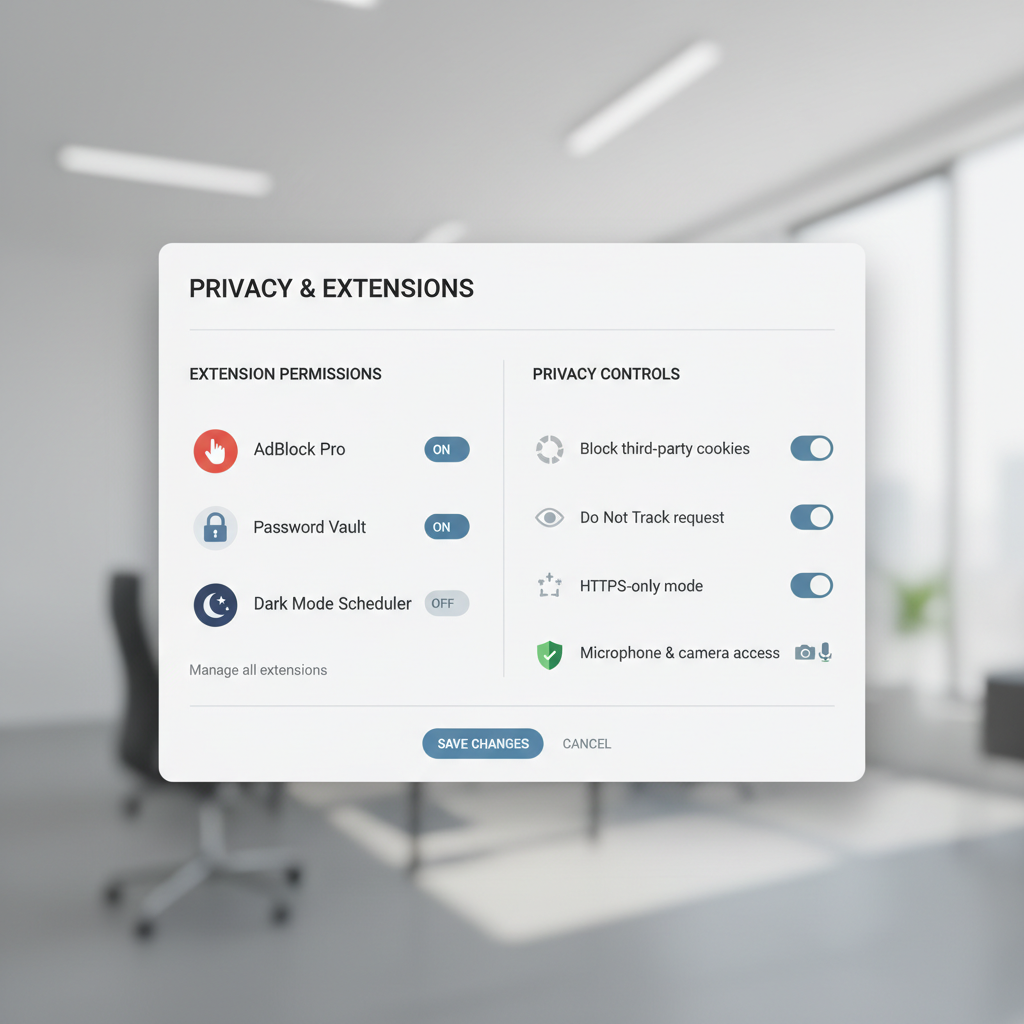
4) Pair extensions with built-in browser controls
Many browsers now include tracking protection, cookie controls, and HTTPS preferences. In practice, combining built-in settings with top free browser extensions for privacy often reduces breakage, because you can keep the extension stack simpler.
- Turn on stricter third-party cookie blocking if available.
- Clear site data for domains you no longer trust.
- Use separate profiles for work vs personal when possible.
Common mistakes and “privacy theater” to avoid
- Installing multiple ad blockers: you get conflicts, duplicate filtering, and weird page behavior.
- Trusting random extensions: the risk is not hypothetical, browser add-ons can be abused, so stick to well-known projects and verify the publisher.
- Confusing privacy with anonymity: blocking trackers helps, but it does not automatically hide who you are from sites you log into.
- Ignoring updates: outdated browsers and extensions can leave gaps that no settings tweak will fix.
According to the Cybersecurity and Infrastructure Security Agency (CISA)... keeping software updated is a foundational security practice, which matters here because extensions live inside your daily browsing workflow.
When you may want professional help or a different solution
If your concern is personal safety, harassment, or stalking, extensions may not be enough, and you may want to talk with a qualified security professional or a local support organization that understands digital safety planning. The right approach can depend on your device, accounts, and threat model.
If you manage a small business, a clinic, or any team handling sensitive customer data, you may need formal policies, managed browsers, endpoint protection, and staff training rather than relying on individual add-ons.
Conclusion: a simple privacy stack that stays usable
The best setup is the one you keep enabled. For many people, a strong blocker plus a link-cleaning extension is a practical baseline, then add container-style isolation if you juggle many logins or want stricter separation.
Action ideas for today: install one trusted blocker, browse for a day, then fix breakage with allowlists instead of turning protection off. After that, add one “hygiene” extension like ClearURLs if it fits how you share and click links.
FAQ
What are the top free browser extensions for privacy for most people?
For a broad audience, a reputable content blocker such as uBlock Origin plus a link-cleaning tool like ClearURLs covers a lot of everyday tracking. If you need less tinkering, Privacy Badger can be a reasonable alternative, though results vary by site.
Can privacy extensions slow down my browser?
They can, especially if you run several blockers that overlap. In many cases a single efficient blocker improves performance by preventing heavy ad scripts, but stacking too many add-ons can backfire.
Do these extensions work on Chrome, Safari, and Firefox?
Availability depends on the browser and its extension policies. Many popular options support Chrome and Firefox, while Safari has a smaller ecosystem and sometimes different versions of similar tools.
Will an ad blocker stop websites from tracking me completely?
It usually reduces tracking significantly, but “completely” is a high bar. Fingerprinting, first-party tracking, and logged-in services can still identify you in many situations.
Is using Incognito/Private Mode enough for privacy?
Private mode mainly limits what is stored on your device locally, like history and cookies after the session. It does not automatically stop tracking scripts during the session, so extensions and browser settings still matter.
Should I use a VPN with privacy extensions?
A VPN can help in specific scenarios, like reducing exposure on public Wi‑Fi or masking your IP address from certain observers, but it is not a replacement for tracker blocking. If you are unsure, consider your threat model and pick a reputable provider.
Why do some sites break after I install privacy extensions?
Many sites rely on third-party scripts for video players, comment systems, payments, or login. When those scripts are blocked, parts of the site can fail, which is why allowlisting specific sites is often the cleanest fix.
If you are trying to set up a clean, low-drama privacy stack and would rather not troubleshoot broken pages yourself, a managed browser policy, a curated extension bundle, or a guided setup session can be a more efficient route than experimenting for weeks.