
how to fix chrome not responding windows usually comes down to one of three things: a stuck tab, a heavy extension, or Windows 11 running tight on memory or disk, and the fastest fix depends on which bucket you’re in.
If you’re seeing “Not Responding” in the title bar, Chrome isn’t just slow, it’s failing to process input in time, which can happen even on a solid PC if one process spikes CPU, RAM, or GPU resources.
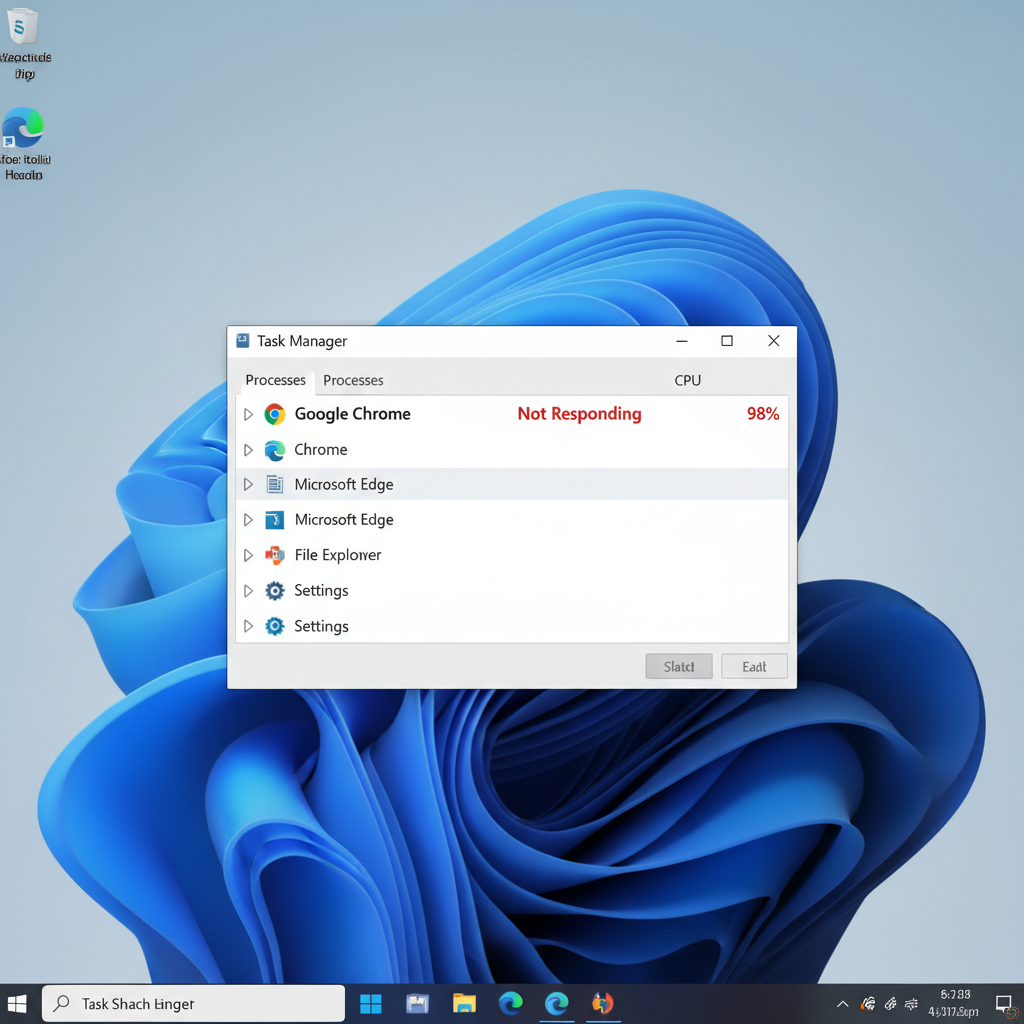
What makes this worth fixing properly is the pattern: if you only force-close Chrome, the freezes often return the next day, and you lose time, tabs, and sometimes form entries. A few targeted checks can make it stable again without wiping your whole setup.
I’ll walk through a practical flow: quick triage, then the common root causes on Windows 11, then the “deeper” fixes like profiles, acceleration, and repair. Pick the steps that match what you’re seeing.
Quick triage: get Chrome back without guessing
When Chrome stops responding, you want to both recover your session and capture a clue about what caused the hang. Do this in order.
1) End the right process (and save your session if possible)
Try waiting 20–30 seconds first, especially if Chrome says “Waiting for cache” or you just reopened lots of tabs. If it stays frozen:
- Press Ctrl + Shift + Esc to open Task Manager.
- Find Google Chrome, expand it, and look for a tab or GPU process using a lot of CPU/RAM.
- End only the worst offender if it’s obvious; otherwise end the main Chrome task.
Then reopen Chrome. If it offers “Restore pages,” accept it, but keep an eye on which tab triggers the freeze again.
2) Try Chrome’s built-in Task Manager (when it still opens)
If Chrome is sluggish but not fully locked:
- Open Chrome Task Manager with Shift + Esc.
- Sort by Memory footprint or CPU.
- End the tab or extension that’s spiking.
This is one of the quickest ways to confirm whether a specific site, extension, or “GPU Process” is the trigger.
Most common causes on Windows 11 (and what they look like)
“Not responding” isn’t one bug, it’s a symptom. Here are the usual culprits and the tells that help you choose the right fix.
- Extensions misbehaving: freezes appear after updates, on certain sites, or after Chrome runs awhile.
- Corrupted cache / bloated profile: Chrome opens, then stalls on startup or when loading many tabs.
- Hardware acceleration / GPU driver issues: black screens, tab flicker, freezes when scrolling video-heavy pages.
- Low system resources: Windows 11 feels slow too, disk stays at high usage in Task Manager.
- Security software or policies: Chrome hangs during downloads, on specific networks, or only in a work environment.
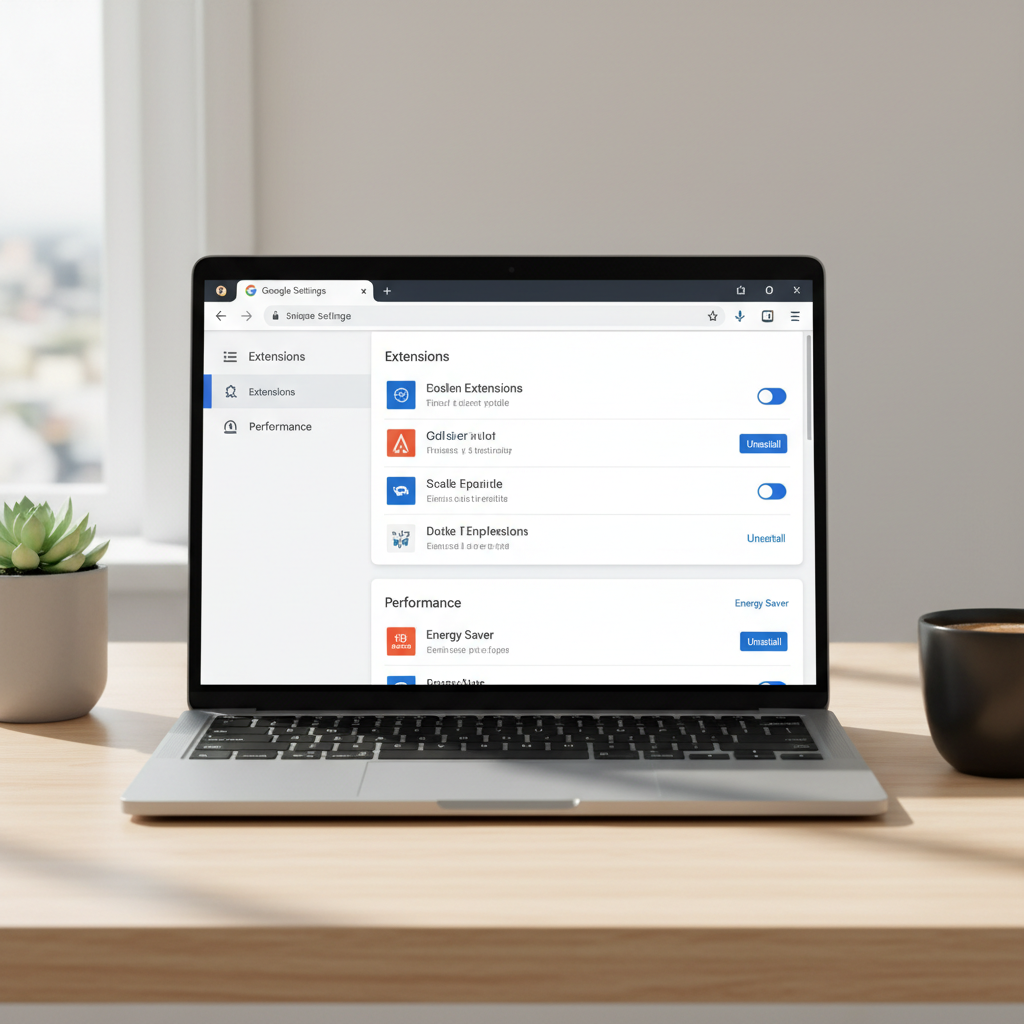
According to Google Chrome Help, disabling extensions and testing in a clean state is a standard first step when diagnosing crashes or freezes, because add-ons can hook into pages and slow or block the main thread.
Self-check checklist: identify your situation in 2 minutes
If you’re not sure where to start, answer these quickly. Your “yes” answers point to the next section.
- Does Chrome freeze only on one website? Likely a site script issue, cache problem, or an extension interacting with that site.
- Does it happen right after Windows starts? Often startup load, too many tabs, or a heavy profile.
- Do video sites trigger it? Hardware acceleration or GPU driver conflict shows up a lot here.
- Does Incognito work fine? That often points to extensions (Incognito typically runs with fewer add-ons).
- Is RAM above ~80% or disk pegged? System resource pressure, or another app competing.
One important reality check: if Windows 11 itself is lagging, Chrome fixes won’t fully stick until you relieve system pressure.
Fixes that work most of the time (in a sensible order)
These steps are safe, reversible, and usually enough for most “Chrome not responding” cases on Windows 11.
Disable extensions (the highest ROI move)
- Go to chrome://extensions.
- Toggle off all extensions.
- Restart Chrome, then test your usual sites.
- Re-enable extensions one by one until the freeze returns.
If you find the culprit, remove it or look for an alternative. Many “productivity” extensions are helpful until they quietly become the problem.
Clear cache (not necessarily cookies)
- Open chrome://settings/clearBrowserData.
- Select Cached images and files.
- Time range: All time if this problem is persistent.
Clearing cache can fix broken resources and weird rendering loops without signing you out everywhere, which is why it’s a good middle ground.
Update Chrome and Windows 11
- Chrome: menu → Help → About Google Chrome → update and relaunch.
- Windows: Settings → Windows Update → check for updates.
According to Microsoft Support, keeping Windows updated can include driver and stability improvements, which matters when the freeze is tied to graphics or system components.
When it’s the GPU: hardware acceleration and drivers
If scrolling, video playback, or switching tabs triggers the hang, try this. It’s a small switch, but it changes how Chrome renders content.
Turn off hardware acceleration (test first)
- Go to chrome://settings/system.
- Toggle off Use hardware acceleration when available.
- Click Relaunch.
If stability improves, you can keep it off, or update your GPU driver and retry later. Some machines run perfectly with acceleration off, others need it for smooth video, so treat it as a practical tradeoff.
Update graphics drivers (especially after a Windows update)
Use your PC maker’s support app (Dell/HP/Lenovo) or the GPU vendor tool (Intel/NVIDIA/AMD). Device Manager can work, but it doesn’t always pull the newest stable driver for your model.
Deeper repairs: profile reset, new user data, and system checks
If you still wonder how to fix chrome not responding windows after the basics, the issue may live in your Chrome profile or Windows environment. These take a bit longer, but they’re often the “real” fix.
Try a fresh Chrome profile (low risk, very revealing)
- In Chrome, click your profile icon → Add → create a new profile.
- Don’t install extensions yet, test browsing first.
If the new profile stays stable, your original profile may have corrupted local data, runaway extensions, or settings that don’t play nicely anymore.
Reset Chrome settings (keeps bookmarks, can remove bad settings)
- Go to chrome://settings/reset.
- Select Restore settings to their original defaults.
This can disable extensions and reset startup/search settings. It won’t delete bookmarks, but some site settings may revert.
Check disk and memory pressure (Windows 11 matters here)
- Task Manager → Performance: check Memory and Disk.
- Close heavy apps, pause cloud sync temporarily, and restart the PC.
- Make sure you have reasonable free disk space; tight storage can slow caching and paging.
If disk usage stays near 100% for long periods, Chrome can look “frozen” even when it’s just waiting on I/O.
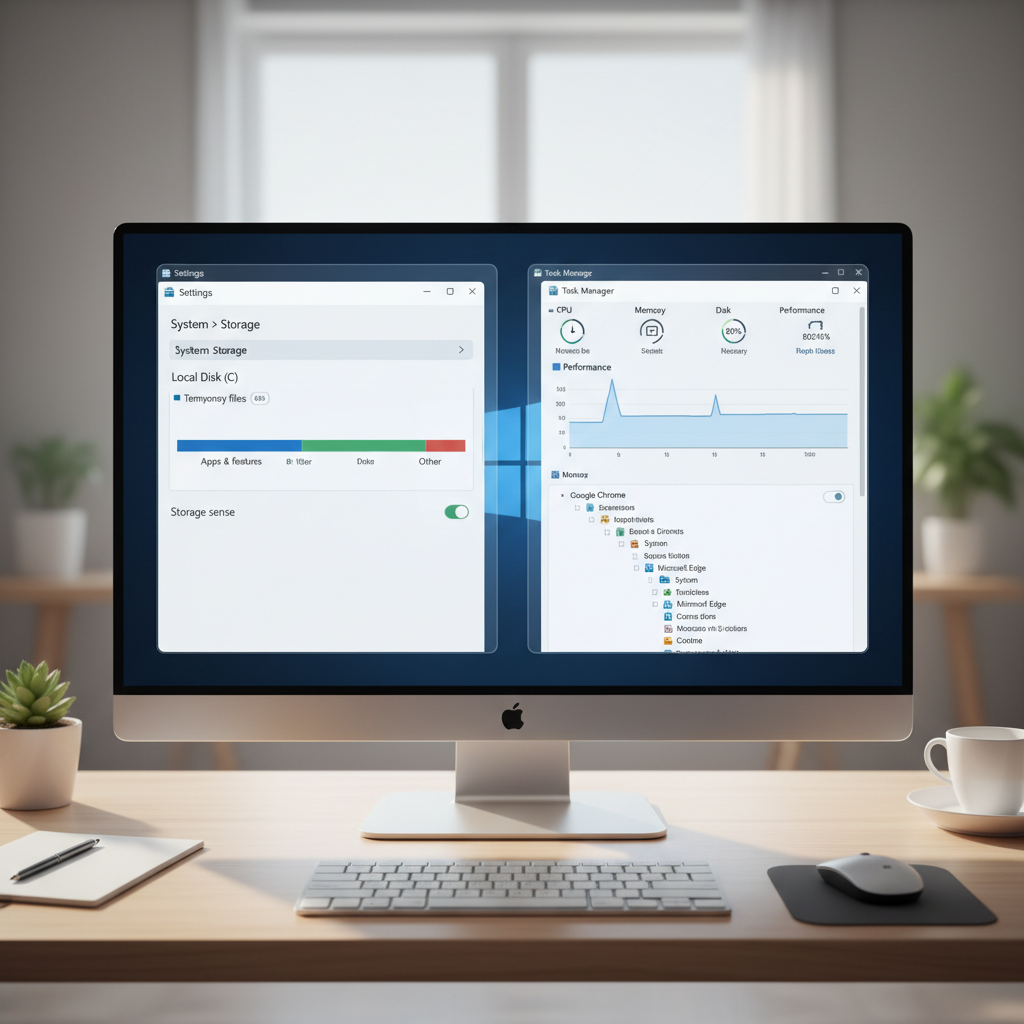
According to Google Chrome Help, creating a new profile or resetting settings is a common troubleshooting step when Chrome behavior persists across restarts, because local profile data can become inconsistent over time.
Practical “what to try next” table
If you want a quick decision aid, use this table and start with the least disruptive action.
| Symptom on Windows 11 | Most likely cause | Try this first | Then this |
|---|---|---|---|
| Freezes only on one site | Site script, cache, extension conflict | Clear cache for all time | Disable extensions, test Incognito |
| Freezes during video/scrolling | GPU acceleration or driver | Turn off hardware acceleration | Update GPU driver |
| Chrome hangs on startup | Too many tabs, heavy profile | Start without restoring tabs | New Chrome profile, reset settings |
| Windows feels slow too | Low RAM, disk pressure, background apps | Restart, close heavy apps | Free disk space, check startup apps |
| Hangs on downloads | Security software, network filtering | Try another network | Review security software settings |
Key points and common mistakes to avoid
- Don’t clear everything by default. Cache-only cleanup solves a lot without forcing sign-ins everywhere.
- Don’t ignore “one bad extension.” Even reputable add-ons can break after an update.
- Be careful with random “registry cleaners.” They rarely address browser hangs and can create new problems.
- Restart matters. A real reboot clears stuck GPU and memory states more reliably than closing a window.
If the freeze happens in a managed work PC, policies or endpoint security might be involved, and you may need IT to confirm what’s being enforced.
Conclusion: a clean path to stable Chrome on Windows 11
If you came here for how to fix chrome not responding windows, start with extension isolation, cache cleanup, and updates, then test hardware acceleration and drivers if the hangs look graphics-related. When the issue persists, a fresh profile or reset usually tells you whether Chrome itself is “broken” or just weighed down.
Your simplest action plan: disable all extensions and relaunch, then turn them back on one at a time until you catch the offender. If that doesn’t move the needle, test with hardware acceleration off and a new profile, those two steps settle a surprising number of stubborn freezes.
If you need a more hands-off way to prevent repeated browser stalls, consider setting up a lightweight maintenance routine: monthly Chrome update check, quarterly extension audit, and keeping enough free disk space for Windows 11 to breathe.