
how to factory reset samsung phone safely comes down to two things, protecting your data and avoiding lockouts like Google’s Factory Reset Protection (FRP) after the reset.
If your Galaxy is freezing, stuck in a boot loop, running out of storage no matter what you delete, or you’re selling it and want a clean wipe, a factory reset is often the fastest way back to a stable phone. The problem is, many resets go wrong for predictable reasons: no backup, no charger, forgotten passwords, or skipping the step that removes accounts before handing the phone to someone else.
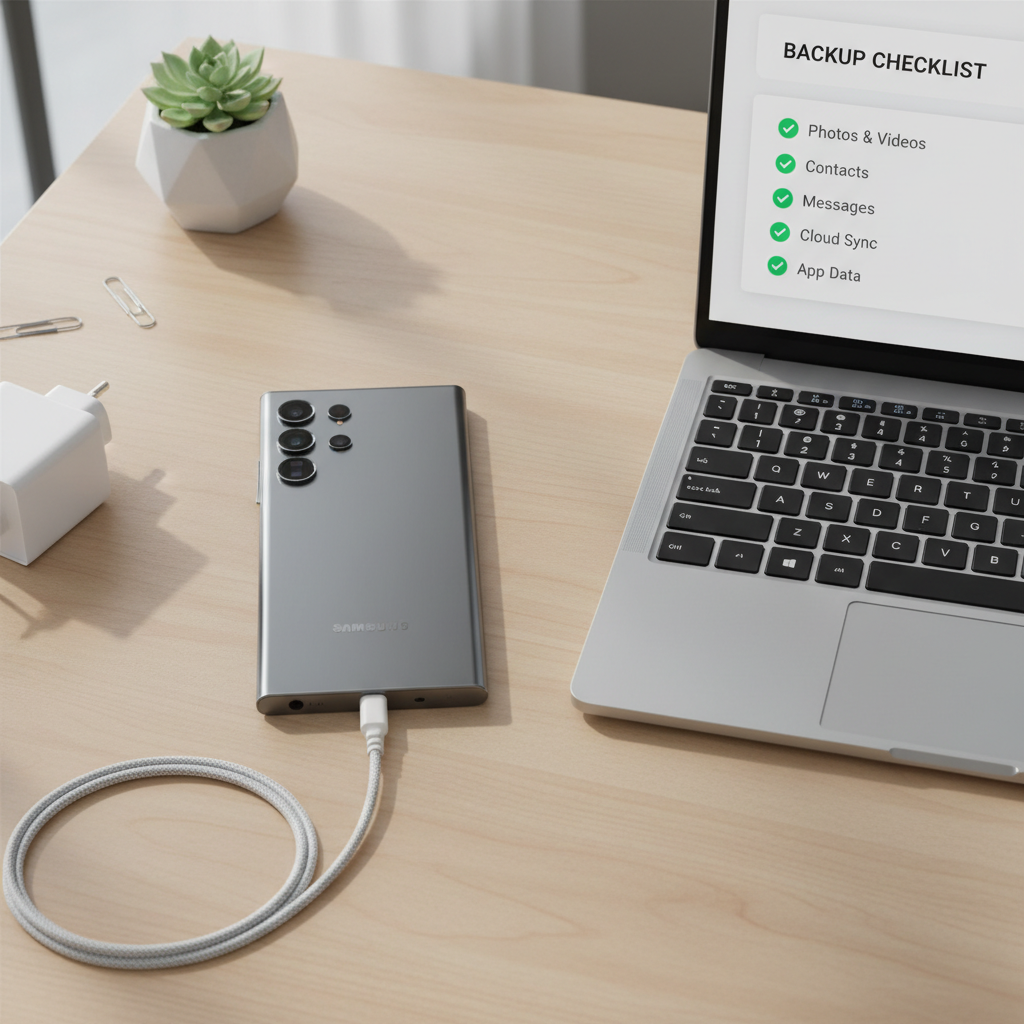
This guide focuses on the safer methods, what to do before you wipe, which reset route fits your situation, and how to reduce the chances of getting stuck at the sign-in screen afterward.
Before you reset: the safety checklist that prevents regrets
A factory reset erases user data on the phone. You can sometimes recover bits and pieces with forensic tools, but for normal users, you should assume it’s gone once the process finishes.
According to Google, Factory Reset Protection may require you to sign in with the Google account previously on the device after a reset, which is meant to deter theft. That’s helpful for security, but painful if you no longer remember the credentials.
- Back up what matters: photos, videos, messages, notes, authenticator apps, and any files stored locally.
- Know your sign-ins: Google account email + password, and your Samsung account credentials.
- Charge the phone: aim for 50%+ battery, or keep it on a reliable charger.
- Remove accounts if you’re selling/giving away: sign out of Google and Samsung accounts first, then reset.
- Check eSIM details: in some cases you may need to re-download your eSIM, so keep carrier login info handy.
Quick self-check: which reset method fits your situation?
Not every reset path is equal. If the phone still boots normally, resetting from Settings is simplest. If it won’t boot, you’ll likely need Recovery Mode.
| Situation | Best method | Why it’s safer |
|---|---|---|
| Phone works, you can open Settings | Reset from Settings | Least friction, fewer button combos, prompts guide you |
| Phone stuck, freezing, or boot-looping | Recovery Mode wipe | Works even when Android won’t load |
| You’re selling or trading in | Sign out accounts, then Settings reset | Reduces FRP/account lock issues for next owner |
| You forgot your screen lock PIN | Recovery Mode wipe (then sign in after) | Removes lock screen, but still requires account sign-in |
Method 1: Factory reset from Settings (recommended when the phone still works)
If your Galaxy is responsive, this is usually the cleanest route for how to factory reset samsung phone without extra drama.
Step-by-step (most Samsung Galaxy models)
- Open Settings.
- Go to General management (sometimes System depending on model).
- Tap Reset > Factory data reset.
- Scroll, review what will be erased, then tap Reset.
- Enter your PIN/password if prompted, then confirm Delete all.
Let the phone restart and complete setup. Don’t interrupt the process, even if it seems to pause on the Samsung logo for a while.
Method 2: Factory reset using Recovery Mode (for boot loops or a frozen phone)
This option is the go-to when your device can’t reach Settings. Button combos vary by model, and that’s where people get stuck.
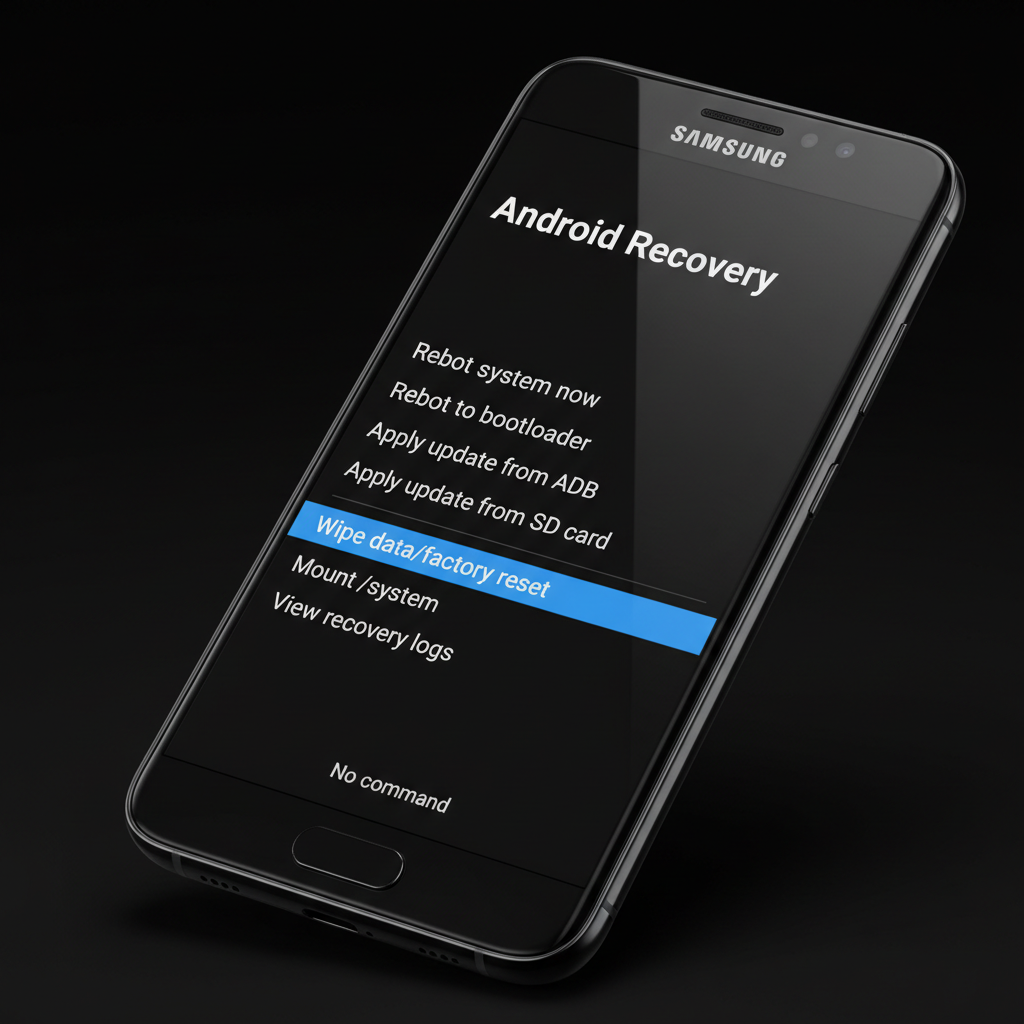
General steps (works for many recent Galaxy devices)
- Power the phone off.
- If your model requires it, connect the phone to a computer via USB (some newer devices enter Recovery more reliably when connected).
- Press and hold the correct button combo until Recovery Mode appears. Common combos are Volume Up + Power, or Volume Up + Power + Bixby on older models.
- Use volume buttons to navigate to Wipe data/factory reset, then press Power to select.
- Confirm Factory data reset.
- Select Reboot system now.
If you’re not seeing Recovery Mode, look up the exact combo for your model name (for example, Galaxy S23 vs A-series can behave slightly differently). Don’t guess for 20 minutes, it wastes time and makes the process feel harder than it is.
Don’t get locked out: FRP, Samsung account, and what to do before selling
The reset itself is only half of the story. The other half is access after the wipe, especially if you’re resetting because you forgot the screen lock or you bought a used device.
What usually triggers problems
- You reset without removing the Google account, then can’t sign back in.
- You forgot your Samsung account credentials and the phone asks for it during setup.
- You reset a phone you plan to sell, and the next owner hits an activation lock screen.
Safer approach if you still have access to the phone
- Go to Settings > Accounts and backup > Manage accounts.
- Remove your Google account and Samsung account from the device.
- Turn off screen locks (optional but helpful for handoff), then proceed with factory reset.
If you no longer remember the credentials, try account recovery before you wipe. According to Google, you can use their account recovery flow to regain access to a Google account, and that often saves you from a frustrating setup loop later.
Backup options that actually work (and what they miss)
A lot of people assume “Google backup” means everything returns exactly as it was. In reality, backups are helpful, but uneven across app types.
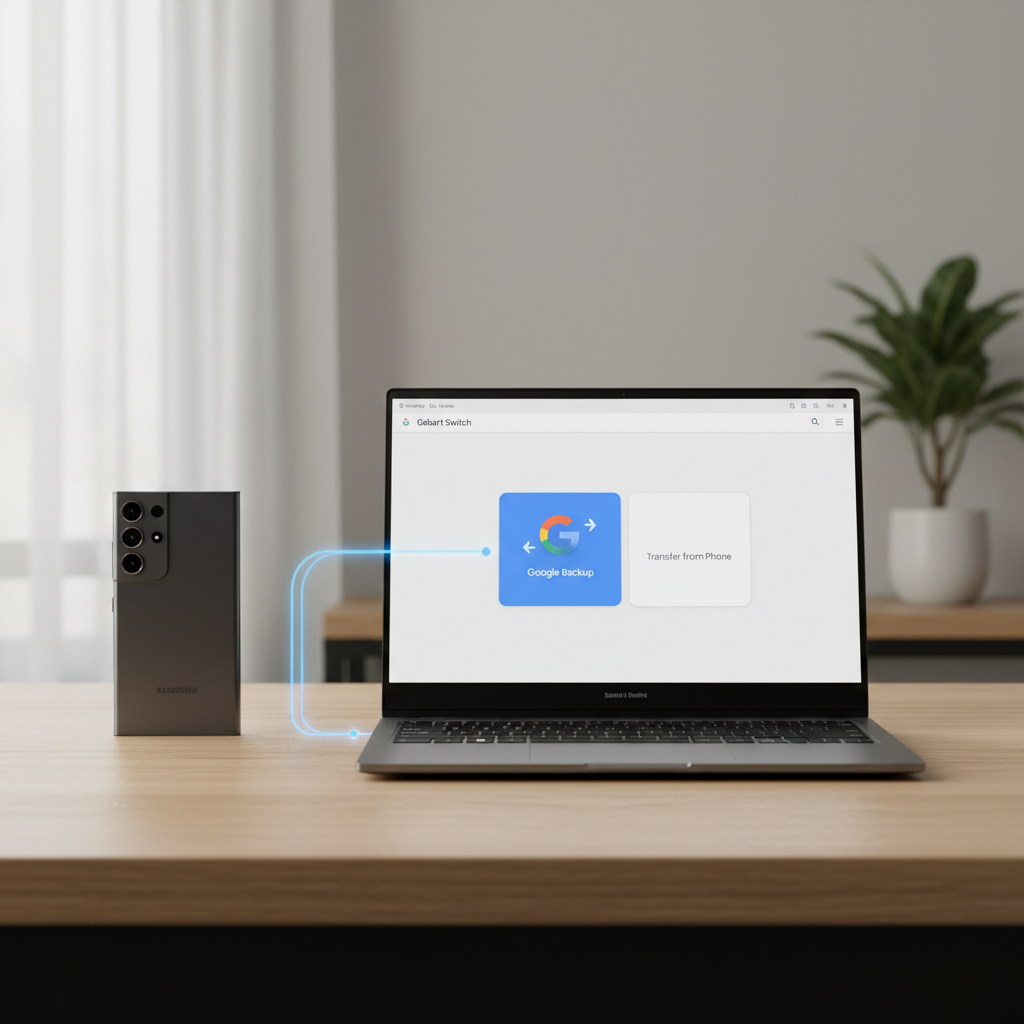
Common backup routes
- Google Backup: settings, some app data, call history, some messages depending on configuration, device settings.
- Samsung Cloud (availability varies): Samsung apps and settings in many cases.
- Smart Switch (PC/Mac or phone-to-phone): often the most complete for photos, videos, contacts, and local files.
Items people forget until it’s too late
- Authenticator apps (2FA codes): you may need to export or re-enroll.
- Encrypted notes or app-specific vaults: many require in-app export.
- WhatsApp or other chat backups: confirm in-app backup completed, not just enabled.
Practical reset tips: make the process smoother in real life
If you’re doing this because the phone behaves badly, it’s tempting to rush. Slowing down 5 minutes usually prevents an hour of cleanup.
- Update first, if the phone is stable enough: sometimes a system update fixes the issue without wiping.
- Try a lighter reset when appropriate: resetting network settings can fix Wi-Fi/Bluetooth weirdness without erasing files.
- Take screenshots of key settings: home screen layout, VPN settings, important toggles, it helps during rebuild.
- Remove SD card if you want it untouched: most factory resets don’t wipe SD by default, but double-check prompts.
If your main goal is resale, also remember to disable any “Find My” services tied to your accounts. According to Samsung, their Find My Mobile service can help locate devices and manage locks, so you want your account properly removed before transfer.
Common mistakes (and how to avoid them)
Most factory reset failures are not mysterious, they’re predictable.
- Resetting with unknown Google credentials: recover the account first, or be ready for verification during setup.
- Interrupting the wipe: don’t force restart during reset screens, keep it charged.
- Assuming backups include everything: double-check photos, chats, and authenticator exports.
- Using random “unlock” tools: many are risky, may violate policies, and can expose your data.
When it makes sense to get professional help
If you’re dealing with a device you don’t fully own, or you suspect hardware trouble, a reset might not be the right first move.
- If the phone reboots constantly, overheats, or won’t charge, the issue could be battery, port, or board related, a technician can confirm.
- If you’re locked out after resetting and can’t verify accounts, contact Samsung Support, your carrier, or Google account recovery. For stolen devices, follow local legal guidance and talk to professionals.
- If the phone belongs to a company (MDM-managed), IT may need to remove management enrollment before a wipe.
Conclusion: the safe way to reset without turning it into a problem
For most people, the safest path is simple: back up, confirm account access, remove accounts if you’re handing the phone off, then reset from Settings. If Android won’t boot, Recovery Mode can still finish the job, but you should expect sign-in checks afterward.
Key takeaway: treat a factory reset like a transfer of ownership of your data, not just a troubleshooting button.
If you want a quick next step, pick one: verify you can log into your Google account right now, or run a Smart Switch backup before you touch the reset screen.
FAQ
How do I factory reset a Samsung phone if the screen is unresponsive?
Use Recovery Mode to wipe data. Power off, enter Recovery with the model-specific button combo, then select wipe data/factory reset. If you can’t power off normally, you may need a forced restart, but behavior varies by model.
Will a factory reset remove viruses or malware on my Samsung Galaxy?
In many cases, yes, because user-installed apps and their data get erased. If the device is compromised at a deeper level (rare for typical users), symptoms may persist, and you may want help from Samsung support or a repair shop.
How long does a Samsung factory reset take?
Often it’s within minutes, but setup and restoring backups can take longer, especially with lots of photos or slower Wi-Fi. If it sits on a logo screen for a while, that can be normal during the wipe.
Does factory reset delete everything on a Samsung phone?
It deletes local user data on internal storage. Content synced to Google Photos, Google Drive, or other cloud services usually remains in the cloud, but you should confirm sync status before wiping.
What should I do before selling my Samsung phone after a factory reset?
Remove Google and Samsung accounts first, then reset. After the wipe, go through the welcome screen just enough to confirm it activates without asking for your old credentials, then power it off for the buyer.
How to factory reset samsung phone without password?
If you mean the screen lock password, Recovery Mode can wipe the device. If you mean your Google/Samsung account password, the reset won’t bypass account verification, so do account recovery first to avoid getting stuck.
Will my SIM card or phone number be erased during a factory reset?
Your phone number stays with your carrier account, not the phone. The SIM itself typically isn’t erased, but eSIM setups can require reactivation, so keep carrier credentials available.
If you’re resetting because the phone keeps crashing or you’re preparing for a trade-in and want a cleaner handoff, it can help to write down your Google and Samsung logins, confirm backups finished, then choose the reset method that matches your situation instead of forcing the fastest option.