
how to disable startup apps windows 11 is mostly about taking back control of what runs the moment you sign in, so your PC boots faster and feels less cluttered.
If Windows 11 takes forever to reach the desktop, the usual culprit is a long startup list, chat apps, update helpers, cloud sync tools, and “tray” utilities all trying to launch at once. Some are useful, many are optional, and a few are there just because the installer checked a box.
The good news is you rarely need “cleanup” software to fix this. Windows already gives you a few solid places to manage startup behavior, and once you understand which apps are safe to disable, you can usually cut boot friction without breaking anything important.
Key takeaways: disable non-essential apps, keep security and driver-related items, and change one thing at a time so you can roll back quickly if something feels off.
Why startup apps slow down Windows 11 (and what that means)
Startup apps compete for CPU time, disk activity, and network access right when Windows is trying to load your profile and services. Even “light” apps can add up when several try to update, sync, and load background components simultaneously.
- Boot time increases: more items launching means more work before the desktop feels responsive.
- Login lag: you might sign in fast, then wait for the system to “settle.”
- Background drain: apps can keep running in the tray, using RAM and battery.
- More interruptions: pop-ups, update prompts, and auto-open windows.
According to Microsoft Support, Task Manager can show the estimated startup impact of apps, which helps prioritize what to disable first.
Quick self-check: which startup apps should you keep vs. disable?
Before you toggle anything off, do a quick sanity check. A lot of people over-correct, then wonder why a fingerprint reader app or audio console stopped working.
Usually safe to disable (for most people)
- Chat/meeting apps you don’t need at sign-in (Teams, Discord, Slack)
- Game launchers and overlays
- “Helper” apps for updaters (Adobe/Google update helpers, vendor notifiers)
- Music/streaming apps that auto-launch
- Cloud sync tools if you don’t rely on immediate syncing at login
Be cautious with these
- Security software: antivirus and endpoint protection components
- Hardware and driver tools: touchpad gestures, graphics/audio control panels, docking station utilities
- Accessibility tools: screen readers, input helpers you need immediately
- Backup agents: if they’re your only protection against data loss
If you’re unsure what an item is, search the app name plus “startup” and the publisher name, and avoid disabling anything that looks like a driver, security component, or core Windows service.
Method 1 (recommended): Disable startup apps in Windows 11 Settings
This is the most straightforward path for most users and it’s the first place I’d check when explaining how to disable startup apps windows 11 to someone who wants the “safe and simple” version.
Steps
- Open Settings (Win + I).
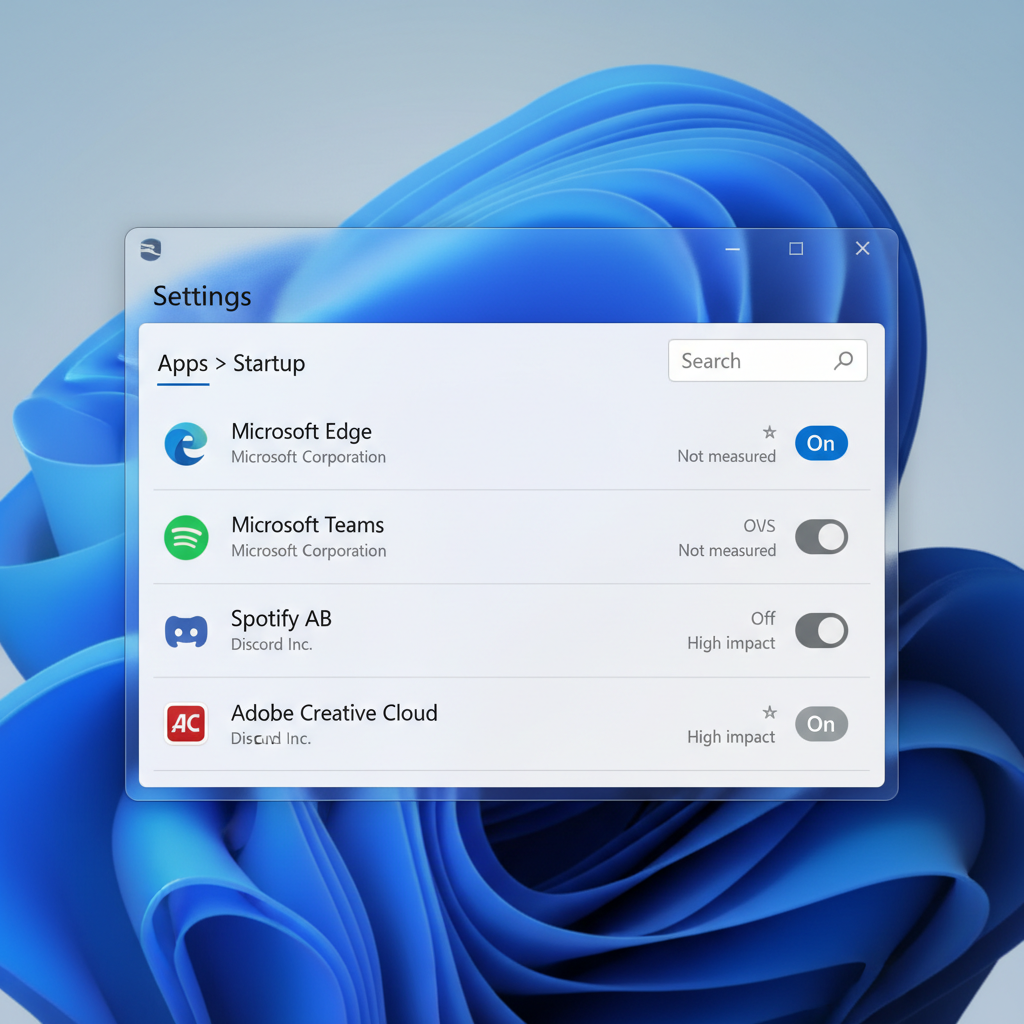
- Go to Apps → Startup.
- Review the list and toggle Off for anything non-essential.
- Restart and see if login feels smoother.
Windows sometimes labels items with a rough impact indicator. Treat it as a hint, not a verdict, because an app can show “Low” and still be annoying if it launches multiple background processes.
Method 2: Use Task Manager for impact and troubleshooting
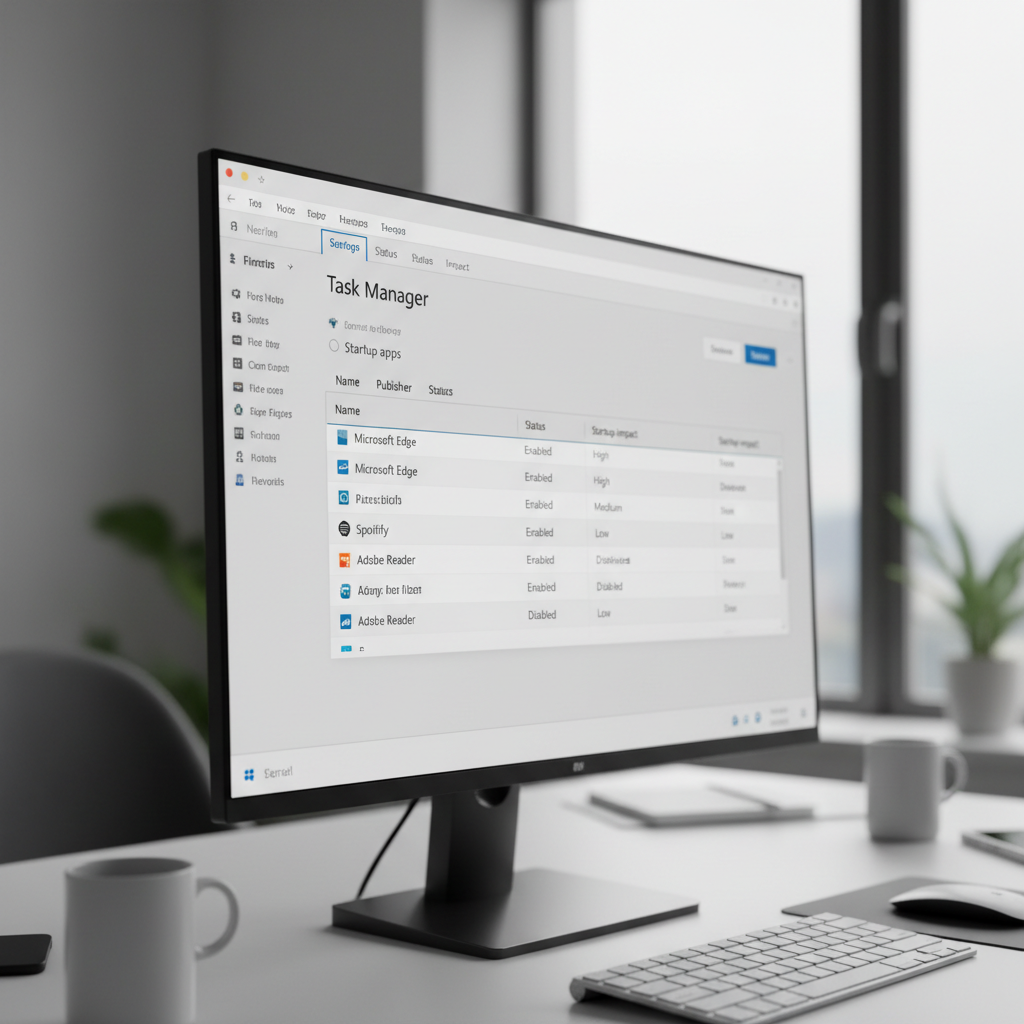
Task Manager gives you a clearer view of what’s enabled, and it’s often better when you want to disable items fast or you suspect an app is being sneaky about startup behavior.
Steps
- Right-click the Start button and choose Task Manager.
- Open Startup apps (or the Startup tab, depending on view).
- Sort by Startup impact or scan for apps you recognize.
- Select an item and click Disable.
Practical tip: if you’re trying to improve boot time quickly, disable one or two “High impact” items first, reboot, and measure the difference before you go on a toggling spree.
Method 3: Check the Startup folder (the “old-school” items)
Not everything shows up cleanly in Settings. Some programs still use the Startup folder to launch shortcuts at sign-in. This won’t cover every startup mechanism, but it’s worth a look when an app keeps popping up.
Steps
- Press Win + R, type shell:startup, press Enter.
- Review shortcuts inside the folder.
- Delete the shortcut (or move it elsewhere) to stop that item from launching.
You can also check the all-users Startup folder via Win + R → shell:common startup. If you’re on a work-managed device, some items may reappear due to policy, that’s normal in many orgs.
What to disable first: a quick priority table
If you want a simple plan, start with the things that create the most friction and carry the least risk.
| Startup item type | Disable first? | Why | What you might lose |
|---|---|---|---|
| Chat/meeting apps | Yes | Often auto-open and run background updates | Miss instant sign-in notifications |
| Game launchers | Yes | Non-essential for most work sessions | Manual launch needed to play |
| Cloud sync clients | Maybe | Can be heavy right after login | Delayed file syncing |
| Printer/scanner utilities | Maybe | Often only needed when you print/scan | Extra steps to scan or monitor ink |
| Audio/graphics driver panels | Usually no | May control hotkeys, enhancements, device switching | Lost shortcuts or features |
| Security software components | No | Protection may rely on early startup | Potential security gap |
Common mistakes that make startup management backfire
There’s a difference between “cleaning startup” and “breaking your workflow.” A few patterns show up a lot.
- Disabling everything at once: if something stops working, you won’t know what caused it.
- Turning off driver-related tools blindly: laptop hotkeys, trackpad gestures, or audio switching can depend on them.
- Confusing startup with background permissions: startup toggle stops auto-launch, but the app may still run background tasks if allowed.
- Chasing tiny wins: if your PC has a slow HDD, startup tuning helps, but storage is still the bottleneck.
If your real issue is overall slowness, consider also checking free disk space and Windows Update status. According to Microsoft Support, keeping Windows up to date can improve stability and performance in many situations.
When you should get extra help (IT, OEM support, or a pro)
Most home users can manage startup apps safely, but a few scenarios deserve a more careful approach.
- Work or school PCs: device management policies might re-enable items, and disabling certain agents can violate policy.
- Unknown entries with no publisher: could be legitimate, could be unwanted software, better to investigate before disabling.
- Repeated crashes after login: you may be dealing with corrupt profiles, driver issues, or malware, not just startup bloat.
- Security concerns: if you suspect malware, consider reputable security guidance and, if needed, consult a professional.
According to CISA (Cybersecurity and Infrastructure Security Agency), keeping software updated and using trusted security tools are core steps for reducing risk, so avoid “random” startup cleaners that promise miracles.
Conclusion: a simple routine that keeps startup under control
If you want a reliable approach to how to disable startup apps windows 11, start in Settings, confirm in Task Manager, and only dig into the Startup folder when something keeps slipping through. Keep security and hardware essentials enabled, then trim everything that just wants attention at login.
Action plan: disable 2–4 non-essential items today, reboot once, then reassess in a week. Startup lists quietly grow over time, so a quick monthly check saves a lot of annoyance.