
Best budget monitors for gaming 144hz are usually the sweet spot for smooth competitive play without paying premium OLED money, but the tricky part is separating “144Hz” marketing from the stuff that actually affects how games feel.
If you’ve ever bought a “fast” monitor and still noticed blur, flicker, or weird tearing, you already know the problem, refresh rate is only one piece. Response performance, VRR support, input lag, and even the stand can make a budget pick feel great or frustrating.
This guide focuses on what to prioritize when shopping in the budget tier, what specs are worth caring about, and how to avoid common traps like “1ms” labels that don’t translate to real-world clarity. You’ll also get a quick comparison table, plus a simple checklist to match the right monitor to your gaming style.
What “budget 144Hz” really means (and what it doesn’t)
In this price range, you’re almost always trading something: contrast, motion clarity, stand quality, HDR performance, or factory calibration. That’s normal, the goal is making sure the trade-off matches how you play.
- 144Hz (or 165Hz) improves smoothness, especially in shooters and fast camera movement, but it won’t fix tearing without VRR.
- “1ms” is usually marketing, often measured with aggressive overdrive that can cause inverse ghosting, so you want balanced settings.
- HDR on budget monitors is often limited, many models accept an HDR signal but don’t have meaningful local dimming or brightness for true HDR impact.
- Resolution matters for your GPU, 1080p is easiest to drive at high FPS, 1440p looks sharper but costs more performance.
According to VESA (the standards body behind DisplayHDR), real HDR performance depends on brightness, black levels, and other requirements, so “HDR-ready” labels on inexpensive displays can be more about compatibility than wow factor.
Key specs that actually affect gameplay feel
If you only have time to compare a few lines on a spec sheet, make them these, they correlate more with day-to-day experience than flashy claims.
VRR support: FreeSync, G-SYNC Compatible, and why it matters
Variable refresh rate (VRR) synchronizes the monitor refresh with your GPU frame output, reducing tearing and smoothing out frame pacing dips. For best budget monitors for gaming 144hz, VRR is often the difference between “good on paper” and “feels right.”
- AMD: Look for FreeSync over DisplayPort (and ideally HDMI VRR if you also use a console).
- NVIDIA: Many FreeSync monitors work as “G-SYNC Compatible” over DisplayPort, but it can vary by model and firmware.
According to NVIDIA, “G-SYNC Compatible” indicates tested VRR performance criteria, but plenty of non-certified monitors still work fine, you just want to watch for flicker at low FPS ranges.
Response performance (real motion clarity, not the label)
Two 144Hz monitors can feel very different in motion. What you’re chasing is clean transitions without heavy blur or overshoot artifacts.
- IPS: Usually better colors and viewing angles, often solid for mixed gaming + work.
- VA: Better contrast, can show dark smearing in some fast scenes depending on the panel.
- TN: Less common now, still can be very snappy, but colors and angles typically suffer.
Input lag (the “control feels immediate” factor)
Input lag is rarely listed clearly, but many gaming monitors perform well here. If you play competitive titles, prioritize models known for low input lag at 144Hz and with VRR enabled, some monitors behave differently across modes.
Ports and bandwidth: don’t get stuck at 120Hz by accident
Check that the monitor has the port you need for the refresh rate you want.
- PC gaming: DisplayPort is the safest bet for 144Hz+ with VRR.
- PS5/Xbox Series: If 120Hz console play matters, look closely at HDMI version and whether 1080p/120 or 1440p/120 is supported.
Quick comparison: what to buy based on your setup
This table is intentionally practical, it won’t name specific models (pricing shifts too fast), but it shows what “good” looks like at different budgets and use cases.
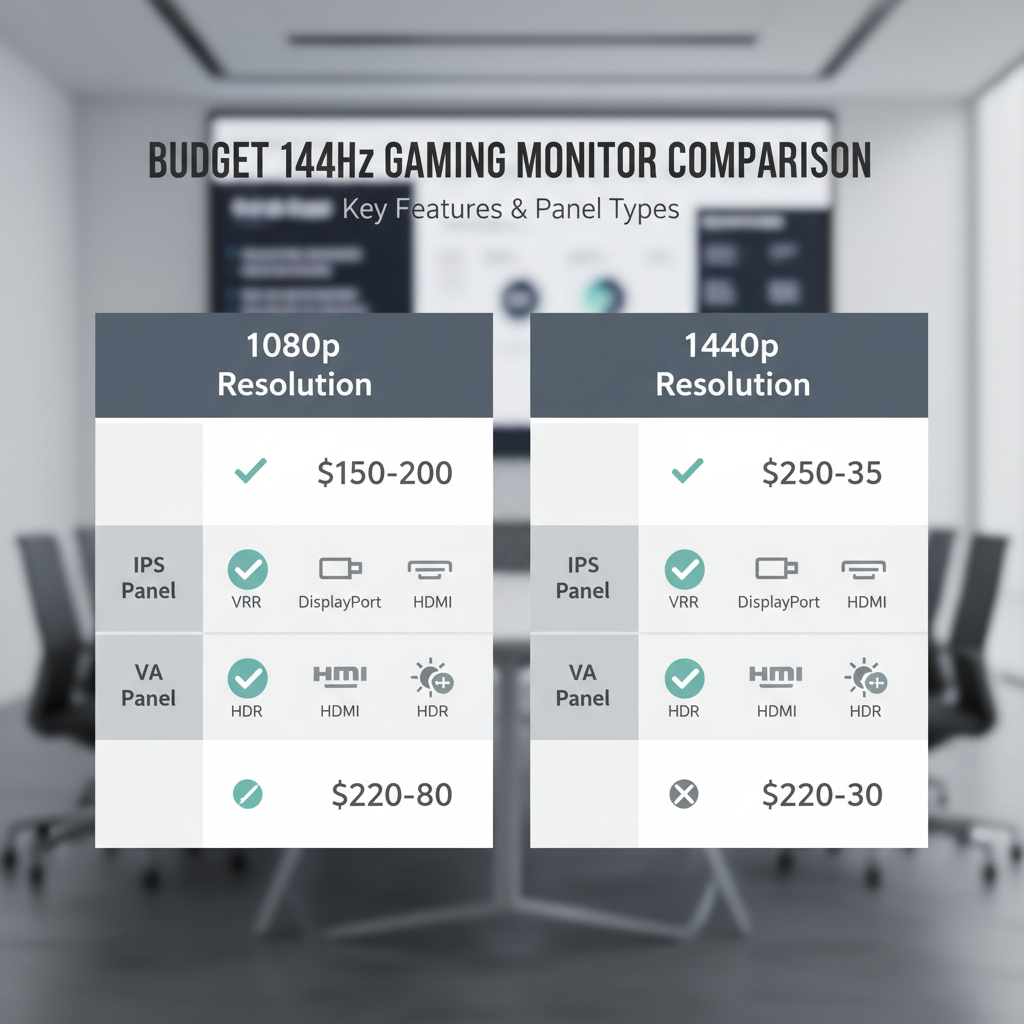
| Use case | Resolution | Panel type | What to prioritize | What you can ignore |
|---|---|---|---|---|
| Competitive FPS (high FPS) | 1080p | IPS or fast TN | VRR range, clean overdrive, low input lag, stable 144/165Hz | HDR branding, built-in speakers |
| Mixed gaming + school/work | 1080p or 1440p | IPS | Text clarity, ergonomics, color accuracy “good enough”, USB hub (optional) | Extreme peak brightness claims |
| Single-player, darker games | 1440p | VA | Contrast, decent response tuning, VRR without flicker | Wide color gamut if it causes oversaturation |
| Console-first (120Hz) | 1080p or 1440p | IPS or VA | HDMI 120Hz support, low latency mode, VRR compatibility | 165Hz+ headroom |
A fast self-check: which budget 144Hz monitor type fits you?
If you’re stuck between a few options, answer these quickly. It sounds basic, but it prevents buying the “wrong kind of good.”
- Your GPU tier: Can you reliably hit 120–165 FPS in your main games, or do you hover around 70–110 FPS?
- Main games: Twitch shooters and esports, or slower single-player and RPGs?
- Room lighting: Bright room where matte coating and brightness matter, or dim room where contrast stands out?
- Desk setup: Do you need height adjustment, or will you mount (VESA 75x75 / 100x100)?
- Console use: Do you need HDMI 120Hz, and does 1440p matter for your console?
If you’re mostly under 120 FPS, don’t panic, that’s exactly where VRR earns its keep, and it’s why many people rate VRR above “165Hz vs 144Hz” differences.
How to shop smarter (and avoid the usual budget traps)
Budget monitor listings can be messy, and retailers often mix similar-looking variants. A few checks can save you a return.
Trap #1: confusing refresh rate with motion clarity
Some panels refresh at 144Hz but smear badly in dark transitions, especially in certain VA models. If your games have lots of dark corridors or night scenes, this is where reviews matter more than specs.
Trap #2: assuming “HDR” means better picture
Many budget displays accept HDR input but can’t produce the contrast and brightness range that makes HDR feel dramatic. If HDR is important, treat it as a bonus, not a requirement, unless the model has a meaningful HDR certification and real performance backing it.
Trap #3: overdrive set too high out of the box
Overdrive can reduce blur, but extreme modes often create bright halos behind moving objects. Plan to spend five minutes testing two or three overdrive settings in your favorite game, that’s usually enough to find the “clean” mode.
Trap #4: buying a monitor that forces awkward scaling
On a 27-inch 1080p screen, text and fine UI can look softer. Some people don’t care, others can’t stand it. If you do productivity tasks, a 24-inch 1080p or a 27-inch 1440p often feels more comfortable.
Practical setup steps after you buy (this is where people lose free performance)
You can buy one of the best budget monitors for gaming 144hz and still run it at 60Hz for weeks, it happens more than anyone wants to admit. Do these steps once and move on.
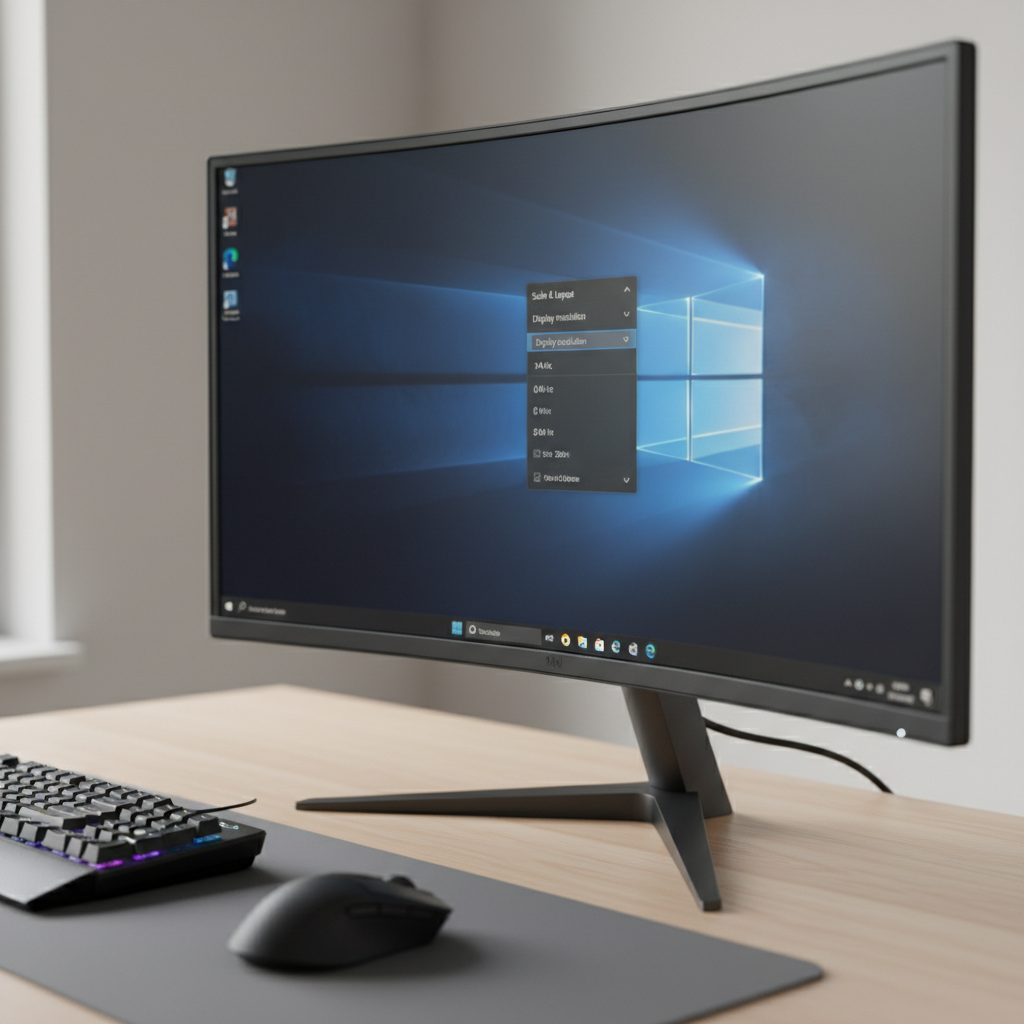
- Set refresh rate: In Windows, go to Advanced display settings and select 144Hz (or 165Hz). On macOS, check Display settings if supported.
- Enable VRR: Turn on FreeSync/Adaptive-Sync in the monitor OSD, then enable it in AMD Adrenalin or NVIDIA Control Panel.
- Use the right cable: Prefer DisplayPort for PC, and use the included cable if it supports the bandwidth you need.
- Calibrate lightly: Lower sharpness if edges look crunchy, set brightness for your room, and pick a reasonable gamma preset.
- Tune overdrive: Start at “Normal/Fast,” avoid “Extreme” unless it’s clean in motion.
Key takeaway: VRR + correct refresh rate + sane overdrive usually delivers 80% of what people want from high refresh gaming, without chasing specs you won’t notice.
When it’s worth spending a little more
“Budget” has limits, and sometimes the upgrade is genuinely noticeable.
- You play in a dim room a lot: Better contrast or a higher-quality panel can reduce that washed-out look in dark scenes.
- You’re moving to 1440p seriously: A cleaner 1440p 165Hz IPS with good VRR behavior can feel like a full setup upgrade.
- You need ergonomics: A good stand or USB hub sounds boring until you use it every day.
- You’re sensitive to blur/overshoot: Some midrange models simply tune motion better.
According to Microsoft (Windows support guidance), using the native resolution and refresh rate helps ensure the display performs as intended, so if your GPU can’t sustain your target, it can be smarter to step back in resolution rather than forcing uneven scaling.
Conclusion: picking the right budget 144Hz monitor without overthinking it
For most people, the “right” choice is a 1080p or 1440p monitor that delivers stable 144Hz, reliable VRR, and motion tuning you can live with, not the one with the loudest box claims. If you focus on VRR behavior, panel type trade-offs, and the ports you actually use, you can land a monitor that feels fast every day.
If you want a simple next step, shortlist 3 models, verify VRR support and the ports you need, then pick based on your primary games and whether you prefer IPS color or VA contrast.
FAQ
What should I look for in the best budget monitors for gaming 144hz besides refresh rate?
VRR support, decent response tuning (without ugly overshoot), and the right ports matter more than small differences like 144Hz vs 165Hz. Those are the things you feel minute to minute.
Is 144Hz worth it if my PC can’t hit 144 FPS?
Often yes, especially with VRR enabled. Even if you float between 80–130 FPS, the experience can look smoother and feel more consistent than a fixed 60Hz setup.
Should I choose IPS or VA for a budget gaming monitor?
IPS is usually the safer all-around choice for color and clarity, VA can look great for contrast in darker games but may show smearing on some panels. If you hate trails in dark scenes, lean IPS.
Do I need HDMI 2.1 for 120Hz console gaming?
Not always. Many monitors can do 1080p/120Hz (and some do 1440p/120Hz) over HDMI 2.0 depending on the implementation, so you need to confirm the exact supported modes rather than relying on the HDMI version alone.
Why does my “1ms” monitor still show motion blur?
Because the “1ms” figure is typically a best-case measurement under aggressive settings, and blur also depends on refresh rate behavior and pixel transition consistency. Try a different overdrive mode and make sure you’re truly running at 144Hz.
How do I know if VRR is actually working?
You can usually confirm in the GPU control panel, and some monitors show an on-screen refresh readout that changes with FPS. If you still see tearing, double-check the in-monitor Adaptive-Sync toggle and the cable/port.
Is HDR worth paying extra for in the budget range?
Sometimes, but many budget monitors offer limited HDR impact. If you care about HDR, look for credible certification and real-world brightness/contrast performance in reviews, otherwise treat HDR as compatibility, not a deciding factor.
If you’re trying to narrow down options fast, a good workflow is to list your GPU/console, pick 1080p or 1440p based on realistic FPS, then only compare monitors that clearly support VRR and your required ports, it cuts the noise without forcing you into a “perfect” choice.