
how to disable ads on android phone without apps often comes down to two things: cutting off where ads enter your phone (notifications, browser pop-ups, sketchy installs) and reducing ad tracking so you see fewer targeted ads.
If you feel like ads “suddenly” got worse, it’s usually not your carrier or Android itself, it’s a setting, a permission, or a site that slipped in. The good news is you can fix a lot of it with built-in tools on Pixel, Samsung, and most Android phones, no extra downloads required.
One quick note before you start: there are different “types” of ads. Some are normal (like in free apps). Others are a red flag, like full-screen pop-ups or random notification ads. This guide helps you tell which one you’re dealing with and what to do next.
Know what kind of “ads” you’re seeing (it changes the fix)
People search how to disable ads on android phone when the experience feels out of control, but the right solution depends on the source.
- Browser pop-ups and redirects: usually caused by a site permission or suspicious site data.
- Notification ads: often caused by a website allowed to send notifications, or a spammy app with notification permission.
- Ads inside a legitimate app: not always removable without paying, but you can reduce frequency with privacy and network controls.
- System-like ads on some brands: certain manufacturers include “recommendations” in their own apps, which you can often toggle off.
According to Google, Android includes protections like Google Play Protect and permission controls that help reduce unwanted behavior, but they work best when you review app permissions and notification access regularly.
Quick self-check: are you dealing with adware, or just normal ads?
Use this fast checklist to figure out whether you should focus on settings, browser cleanup, or removing a bad actor.
- Ads appear even when no apps are open → likely an app pushing overlays or notifications.
- Only happens in Chrome (or one browser) → likely browser pop-ups, site notifications, or cached site data.
- Battery drains and phone gets hot with ads spike → could be a misbehaving app.
- You see a new “cleaner,” “VPN,” “QR scanner,” or “launcher” you don’t remember installing → investigate that app first.
If you’re in the first or last category, the priority is stopping notification permissions and checking recently installed apps. If it’s browser-only, you’ll get relief quickly by tightening Chrome settings.
Turn off spammy notification ads (Android + Chrome)
Notification ads are one of the most common reasons people ask how to disable ads on android phone without apps, because they feel like “system ads” even when they come from a website.
Block website notification spam in Chrome
- Open Chrome → tap ⋮ → Settings → Site settings → Notifications.
- Turn off “Sites can ask to send notifications” (wording varies), or remove specific sites under Allowed.
- Go back to Pop-ups and redirects and make sure it’s blocked.
Stop app notification ads (system-level)
- Open Settings → Notifications → App notifications (or “See all”).
- Sort by Most recent and disable notifications for apps you don’t trust, especially ones that show “deals” or “recommendations.”
- Long-press a bad notification → tap Turn off or open its notification settings.
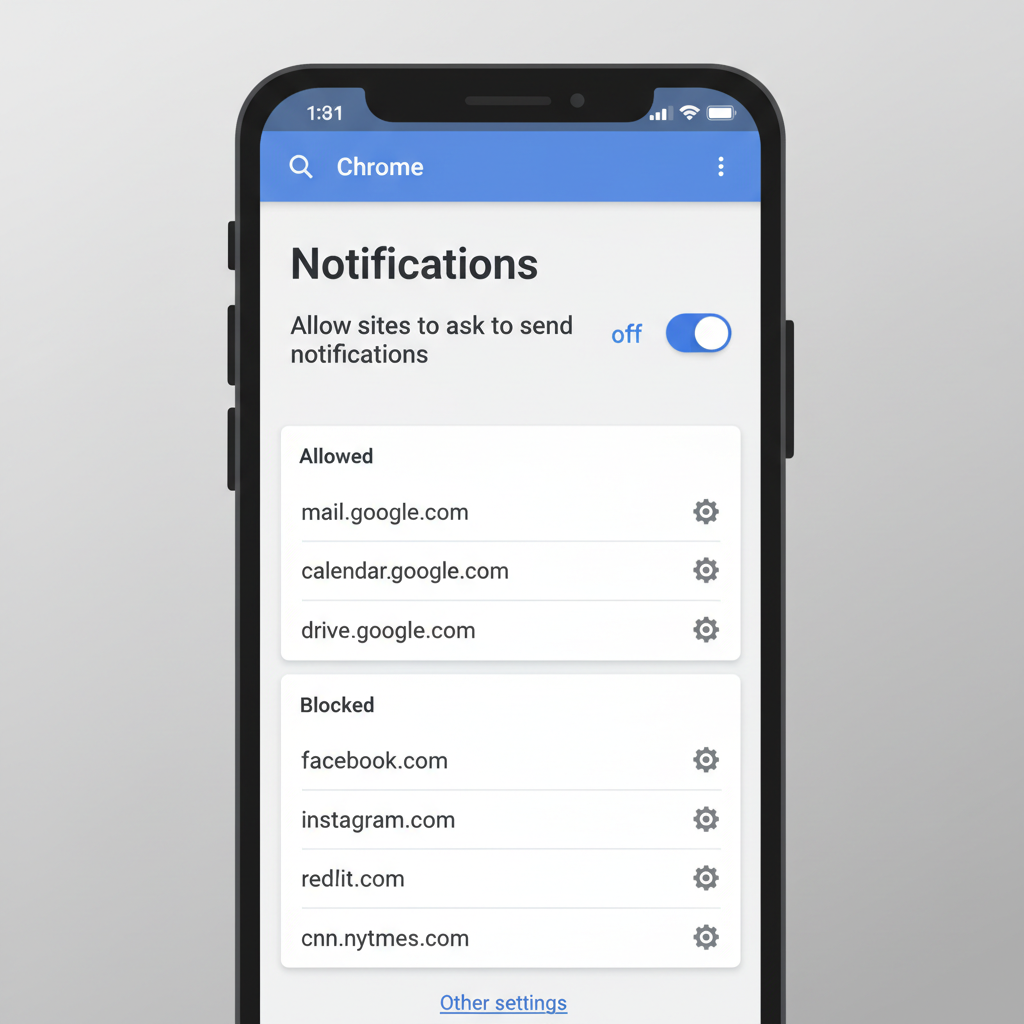
In real life, this step alone fixes a big chunk of “random ads” complaints, because one accidental tap on “Allow notifications” can create days of spam.
Reduce personalized ads (you won’t remove all ads, but you’ll see less targeting)
Disabling ad personalization won’t erase every ad, but it often reduces how “creepy” and persistent they feel, and it’s part of a reasonable approach to how to disable ads on android phone using built-in privacy controls.
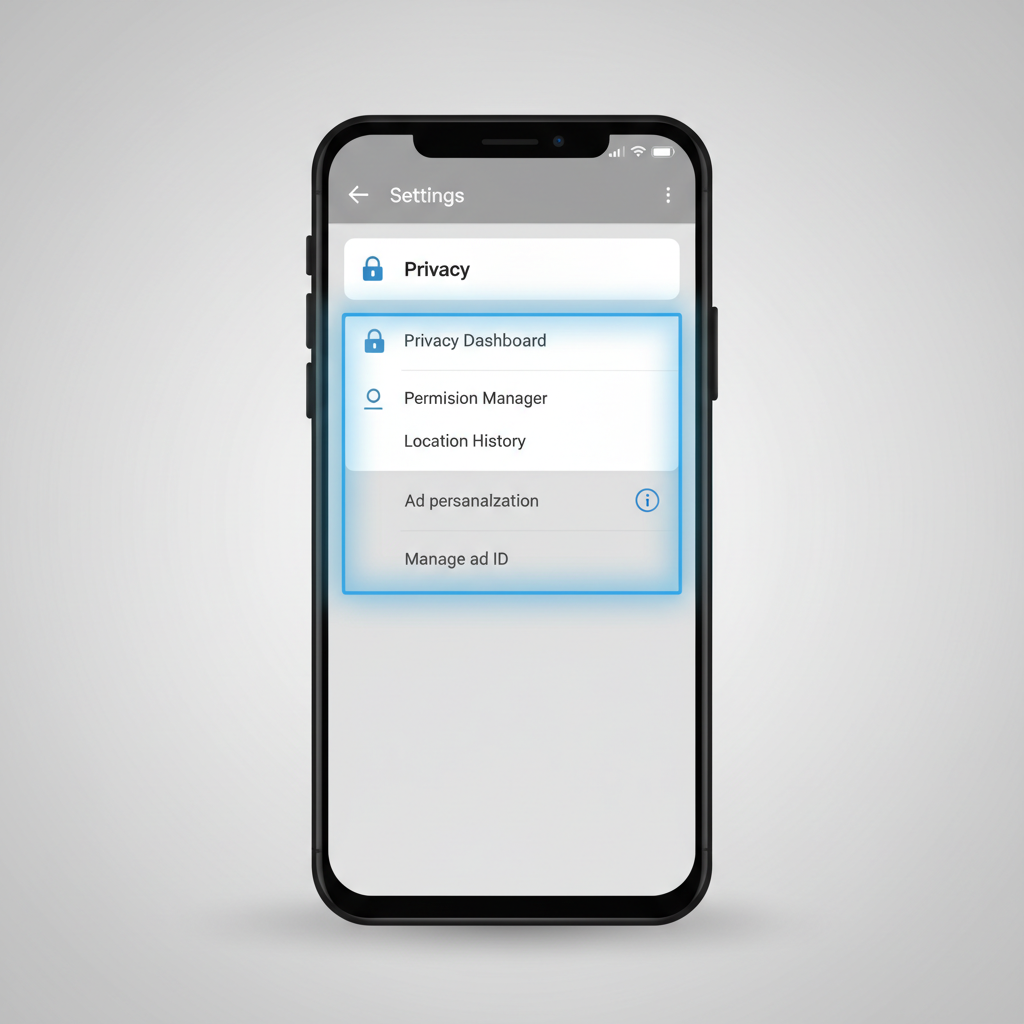
- Open Settings → Privacy (or Google → Ads depending on device).
- Look for Ads or Ad privacy options and turn off ad personalization where available.
- In your Google Account settings, review Ad personalization and switch it off if you prefer.
According to Google, ad controls in your Google Account allow you to limit ad personalization across Google services, though you may still see ads that are contextual (based on the page or app you’re using, not your profile).
Clean up browser data and permissions (especially if you get pop-ups)
If the ads show up as pop-ups, tabs that open by themselves, or constant redirects, treat it like a browser hygiene problem.
Chrome cleanup steps that usually help
- Chrome → Settings → Privacy and security → Clear browsing data (focus on cookies/site data and cache).
- Chrome → Settings → Site settings → review All sites, remove weird entries you don’t recognize.
- Chrome → Settings → Safety check (if available) and follow suggestions.
If you use another browser, look for similar menus: site permissions, notifications, pop-ups, and clearing site data. The labels differ, the idea stays the same.
Find and remove the app that’s injecting ads (without installing any “cleaner” apps)
When ads appear on the home screen, lock screen, or over other apps, it’s often an installed app abusing permissions. You can usually identify it with a calm, methodical check.
What to check
- Recently installed apps: Settings → Apps → sort by recently updated/installed.
- Display over other apps: Settings → Apps → Special access → Display over other apps, disable for anything suspicious.
- Device admin apps: Settings → Security → Device admin apps, make sure nothing unfamiliar is enabled.
If you find an app you don’t trust, uninstall it. If uninstall is greyed out, check device admin access first, then try again.
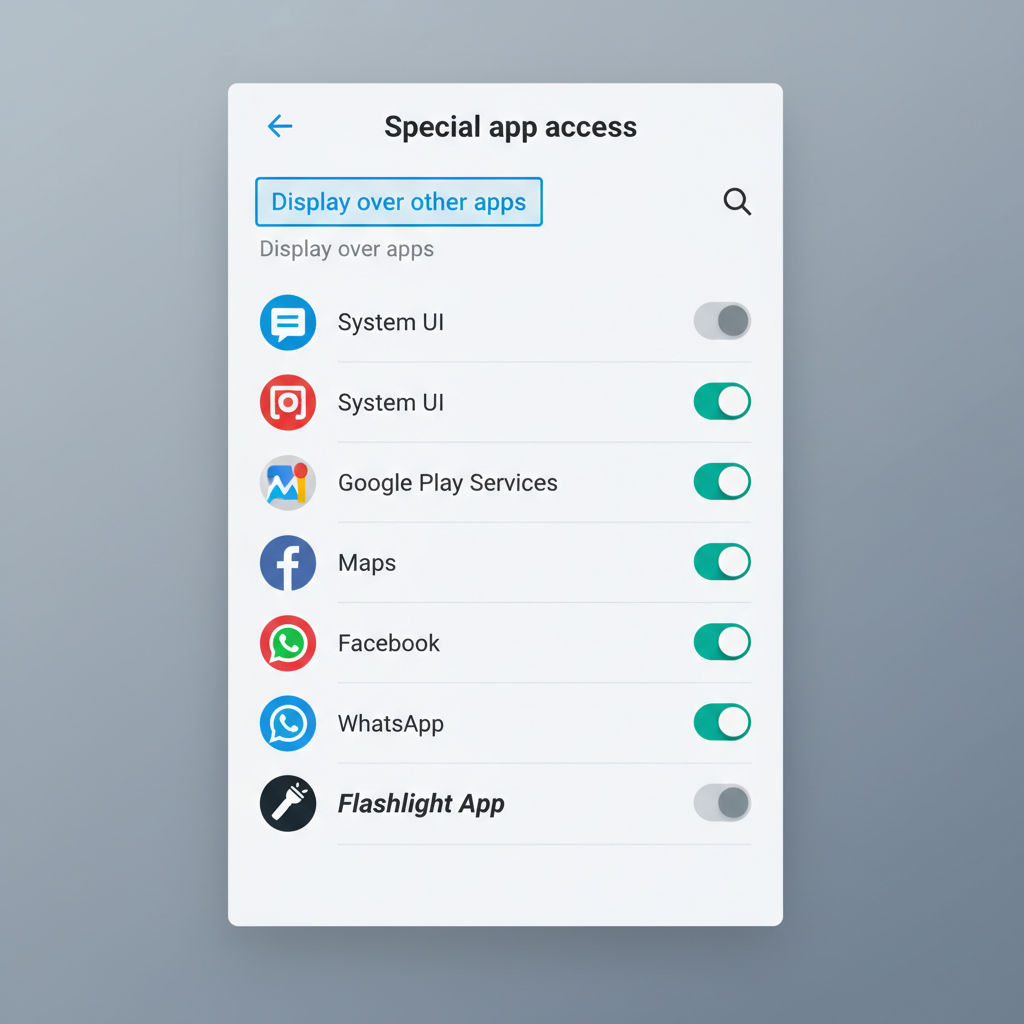
One caution: avoid installing random “ad blocker” or “phone cleaner” apps to solve this. Many are fine, but a noticeable number of ad problems start with those exact categories.
Brand-specific “recommendations” ads (Samsung and others)
Some Android brands show promotional content inside their own system apps. This isn’t the same as malware, but it can still be annoying, and it’s relevant to how to disable ads on android phone for many US users on Samsung devices.
| Where the ads show up | What to look for | Typical fix |
|---|---|---|
| Samsung Weather, Galaxy Store, Samsung Push Service | Marketing notifications, “recommended” content | Disable marketing notifications, turn off customization service where available |
| File manager / system apps on some devices | Banner “suggestions” | Turn off “recommendations” or “personalized services” toggles in that app’s settings |
| Lock screen content services (varies) | Dynamic lock screen images with promos | Switch to standard lock screen, disable content services |
Menus vary by model and Android version, but the pattern is consistent: find “Marketing,” “Customization,” “Personalized,” or “Recommendations,” then turn those off inside the vendor app settings and notification settings.
Practical playbook: a 15-minute cleanup that works in most cases
If you want a simple plan instead of bouncing around menus, do this in one pass.
- Step 1: Turn off Chrome site notifications and pop-ups, remove any allowed sites you don’t recognize.
- Step 2: Check Notifications by most recent, disable noisy apps immediately.
- Step 3: Review “Display over other apps” and switch it off for non-essential apps.
- Step 4: Remove suspicious recently installed apps, especially tools that promise “boost,” “clean,” or “security” with aggressive ads.
- Step 5: Reduce ad personalization in Google/Android privacy settings.
Key takeaway: If the ads are coming from notifications or overlays, you can usually stop them without changing browsers, without installing anything, and without factory resetting.
Common mistakes that keep ads coming back
- Only clearing cache and ignoring notification permissions, the spam simply returns.
- Disabling Wi‑Fi or changing DNS randomly without fixing the source app or site, you lose time and patience.
- Keeping “Allow notifications” on because the prompt looked harmless, that one click matters.
- Assuming all ads are “viruses”, many are just monetization inside free apps, so the realistic goal is reduction, not total disappearance.
When it’s time to get extra help (or use stronger measures)
If you still see aggressive ads after the steps above, you might be dealing with deeper adware or a configuration issue that’s hard to spot.
- If uninstalling suspicious apps doesn’t help, consider backing up and doing a factory reset. This is disruptive, so only do it if the phone feels compromised.
- If a work device is managed by an employer, talk to IT before changing admin settings.
- If you suspect account compromise (unknown logins, settings changed), review your Google Account security and consider professional support.
According to the Federal Trade Commission (FTC), taking steps like securing accounts and reviewing suspicious activity is part of limiting unwanted or deceptive behavior online; if you believe you’ve been scammed, reporting may be appropriate.
Conclusion: fewer ads, more control, no extra apps
how to disable ads on android phone without apps is mostly about permissions and restraint: block spam notifications, stop pop-ups, remove the one app that’s behaving badly, and limit ad personalization so targeting chills out.
If you do just two things today, make them these: revoke notification permissions for unknown sites/apps and check “display over other apps” for anything you don’t fully trust.
FAQ
- Why am I getting ads on my Android home screen?
That usually points to an app using overlay permission or pushing notification ads. Check “Display over other apps” and your recent installs first. - How do I stop Chrome ads popping up on Android?
Block pop-ups and redirects in Chrome settings, then clear site data. Also remove any sites allowed to send notifications, that’s a frequent culprit. - Can I block ads on Android without an ad blocker app?
You can reduce a lot of intrusive ads through permissions, notifications, and browser settings. Ads inside free apps may still appear unless the app offers an ad-free option. - Does turning off ad personalization stop ads completely?
No, it typically reduces targeting rather than eliminating ads. You’ll still see contextual ads based on what you’re viewing. - How do I know which app is causing the ads?
Look for timing (when ads started), check recently installed apps, and review notification history and overlay permission lists. Suspicious utility apps are common offenders. - Are “phone cleaner” apps safe for removing ads?
Some are legitimate, but many are noisy and ad-heavy, and a few create the problem they claim to solve. If you already have one and ads increased, removing it is worth testing. - When should I factory reset my Android phone because of ads?
If you’ve removed suspicious apps and locked down permissions but still see persistent full-screen ads or redirects, a reset may help. Back up important data first and consider getting support if the device is managed.
If you’re still fighting persistent pop-ups after you tighten notifications and permissions, it may help to share what you’re seeing, which phone model you use, and whether it’s happening in one app or everywhere, so you can narrow the source without guessing.