
Free document scanners 2026 are good enough for most everyday needs, as long as you pick an app that nails three basics: clean edge detection, readable text (OCR), and export options that don’t trap your files.
If you’ve ever tried to scan a receipt in a hurry and ended up with a crooked, shadowy image, you already know why this matters, bad scans waste time, and they can cause problems when you submit paperwork for school, work, insurance, or taxes.
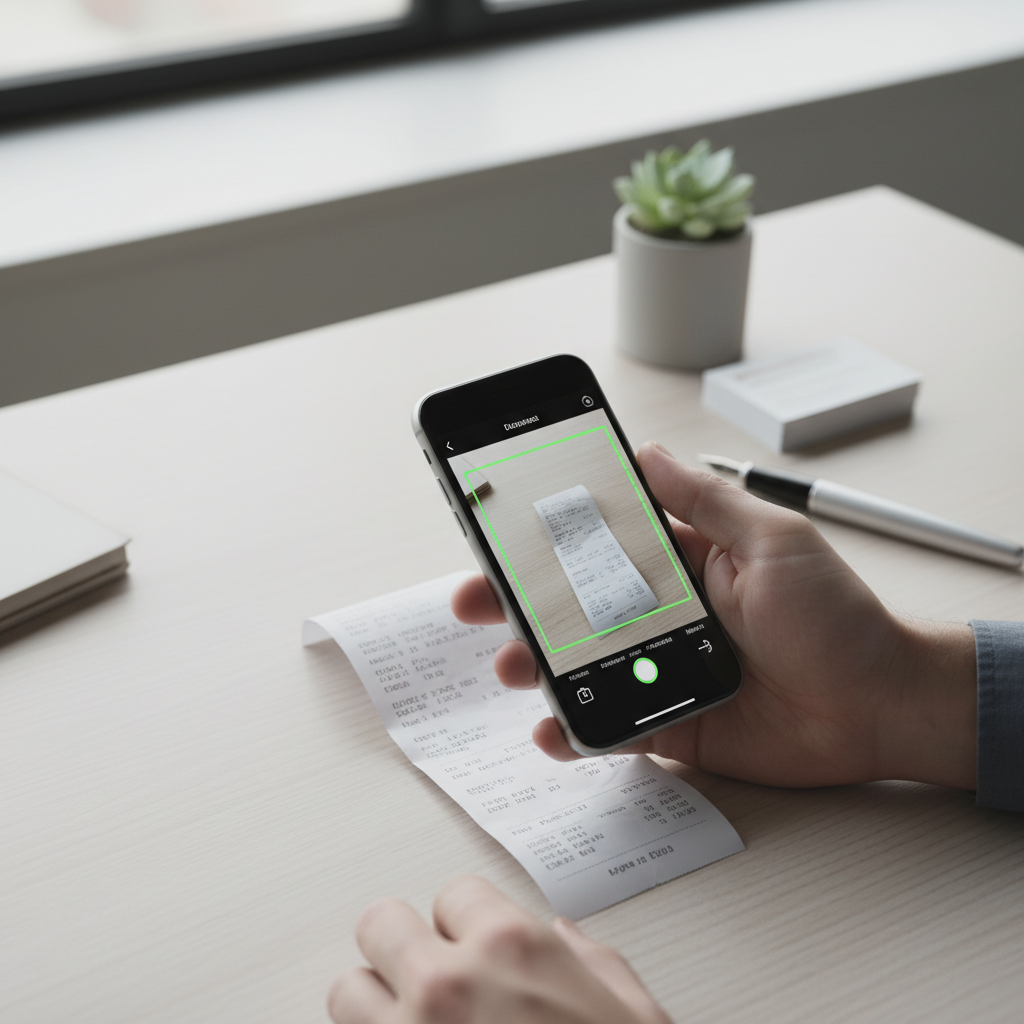
This guide focuses on what’s realistically “free” in 2026, what usually sits behind paywalls, and how to choose based on your scenario, quick receipts, multi-page contracts, or sharing PDFs with a team.
What “free” really means for document scanner apps in 2026
Most scanner apps follow the same pattern: scanning is free, but the stuff you care about long-term may cost money. It’s not always a bad deal, you just want to spot the limits before you commit.
- Usually free: basic scan, auto-crop, perspective correction, simple PDF export, saving to camera roll or Files.
- Often paid: OCR text extraction, batch scanning, higher resolution exports, watermark removal, advanced PDF editing, cloud sync across devices.
- Sometimes restricted: number of scans per day, max pages per PDF, export to Word, and searchable PDF.
According to Apple Support, iPhone users can also scan documents directly in the Notes app, which is a simple “no subscription” fallback when you just need a clean PDF quickly.
Quick comparison table: best free document scanner apps to try
These are commonly recommended options in the US market, and they cover most scanning situations. Features and free tiers can change, so treat this as a starting shortlist rather than a permanent ranking.
| App | Best for | Strengths in the free tier | Watch-outs |
|---|---|---|---|
| Adobe Scan | OCR and clean PDFs | Strong auto-crop, good OCR, easy sharing | Some PDF editing/export features may require sign-in or upgrades |
| Microsoft Lens | Students and Office workflows | Great for whiteboards/docs, exports into Microsoft ecosystem | Best experience if you already use Microsoft apps |
| Google Drive (Scan) | Simple scans into cloud storage | Fast scan-to-Drive, minimal setup | OCR/searchability may be limited depending on workflow |
| Apple Notes (iOS) | “Just scan it” convenience | No extra app, solid crop, easy PDF share | Not built for heavy batch scanning or structured file naming |
| Genius Scan | Reliable multipage scanning | Good image cleanup, quick multipage handling | Advanced exports and integrations may sit behind a paywall |
How to choose: the 60-second checklist that actually matters
When people say an app is “the best,” they often mean it fits their one use case. Use this quick checklist to match your scanning habits to the right tool.
- You scan receipts weekly: prioritize fast capture, auto-enhance, and easy folder naming.
- You scan multi-page documents: look for smooth batch mode, page reordering, and consistent edge detection.
- You need searchable PDFs: confirm the free tier includes OCR or at least searchable output.
- You share with coworkers: check export formats (PDF), link sharing, and whether it forces an account.
- You handle sensitive docs: avoid apps that push “upload by default,” look for local processing options when possible.
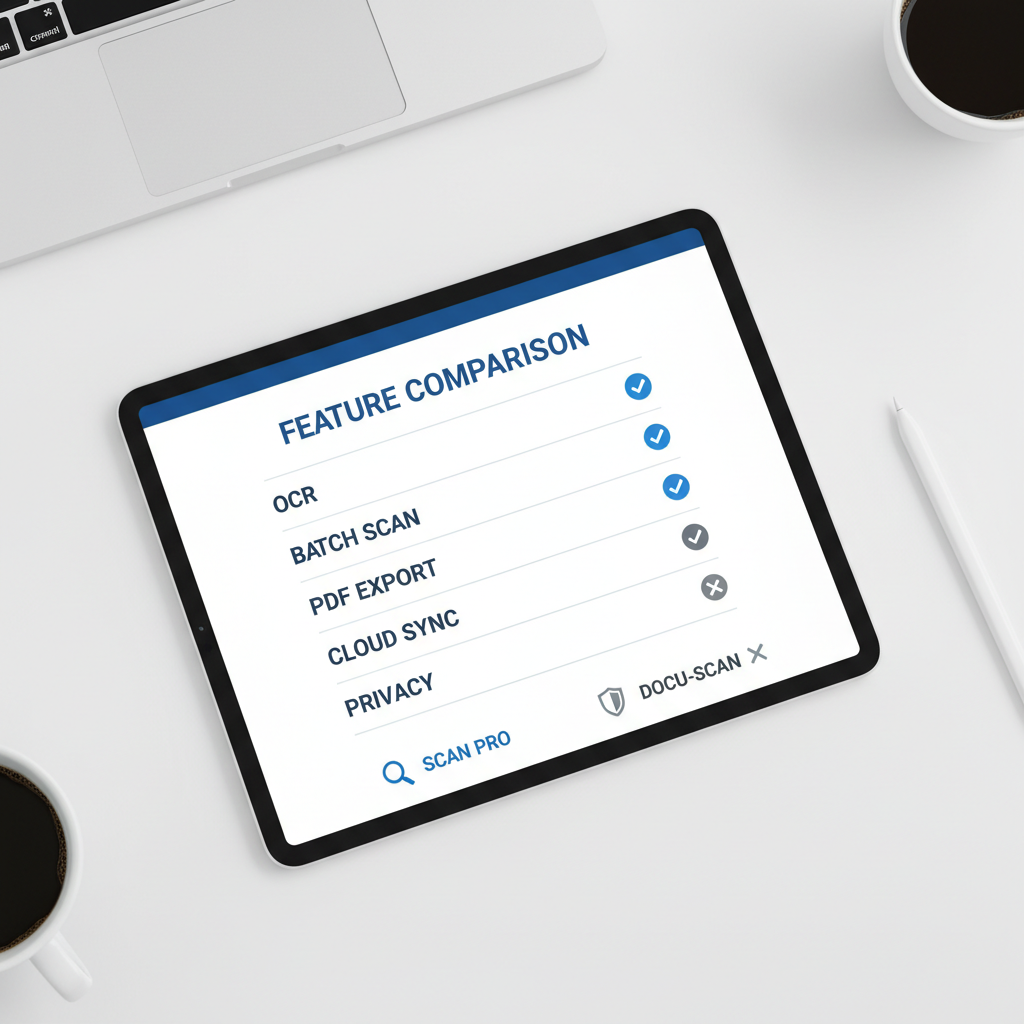
Key point: if you’re building a long-term archive, export flexibility matters more than flashy filters, you want PDFs that stay usable even if you switch apps later.
Best picks by real-life scenario (not by hype)
1) For the cleanest OCR on the free tier
If searchable text is the make-or-break requirement, Adobe Scan is often the first app people test. In many cases, it recognizes text well and produces readable PDFs without much tweaking.
According to Adobe, Adobe Scan uses OCR to help recognize text in scans, which is why it can be a strong choice for turning paper into searchable documents.
2) For school and office documents
Microsoft Lens tends to shine when you’re scanning class handouts, forms, or whiteboards and you already live inside Microsoft tools. It can be a smoother bridge into OneDrive or Office formats, depending on your setup.
According to Microsoft Support, Microsoft Lens is designed to capture notes and information from documents, whiteboards, business cards, and more, which matches the “busy student” and “busy office” scanning reality.
3) For minimal friction and quick backups
Google Drive’s built-in scan feature is underrated when you just want a scan stored somewhere safe, fast. If your main worry is losing paper copies, scan-to-Drive is a practical default.
4) For iPhone users who don’t want another app
Apple Notes is the “it’s already there” option. It’s not fancy, but it’s dependable for occasional scanning, and it avoids the subscription prompts that come with many third-party tools.
5) For multipage scanning that stays organized
Apps like Genius Scan are popular because they treat scanning like a workflow: capture, clean up, name, export. For things like rental paperwork, medical bills, or travel documents, that structure saves time.
Practical setup: how to get crisp scans in under 5 minutes
You can improve scan quality more with technique than with app-switching. These steps work across most free document scanners 2026 options.
- Light beats filters: face the document toward a window or bright lamp, avoid overhead glare on glossy paper.
- Flatten the page: folds and curls confuse edge detection, use a book or your hand to hold corners down.
- Fill the frame: move closer so the page occupies most of the camera view, text becomes sharper.
- Use multipage mode: scan everything in one session, then reorder and crop once.
- Name files immediately: “2026-04 Dentist Bill” beats “Scan_1042” when you search later.
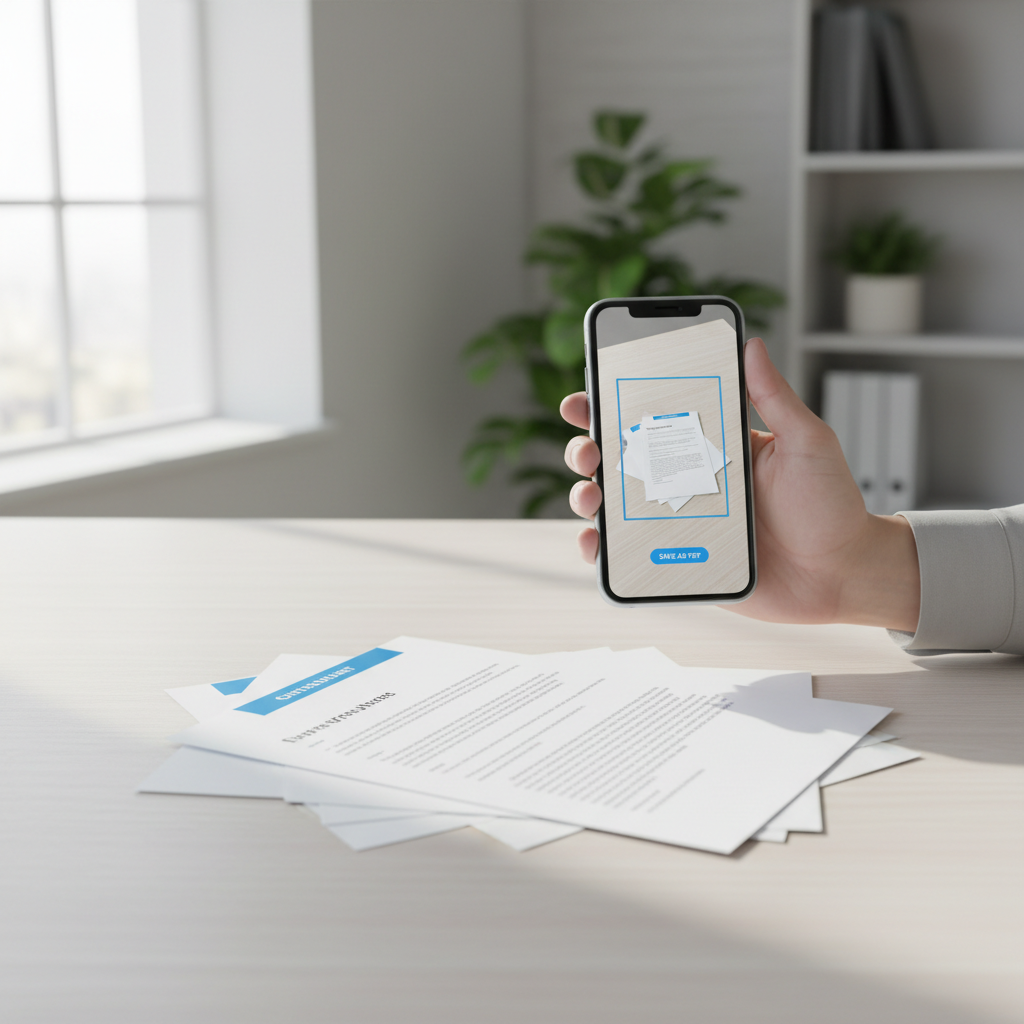
If you’re scanning IDs, medical records, or tax documents, think twice before enabling auto-upload to a third-party cloud, policies vary by product and region. When in doubt, export locally and then upload to your trusted storage.
Common mistakes that make “free” scanners feel bad
- Chasing the highest DPI setting: huge files become painful to email, a clean, well-lit scan often beats a massive one.
- Relying on OCR for everything: OCR can misread low-contrast text or unusual fonts, spot-check names and numbers.
- Saving only as JPGs: single images get lost, PDFs are easier to archive and share.
- Ignoring export lock-in: if an app makes it hard to export clean PDFs without paying, you may feel stuck later.
- Scanning sensitive docs on shared devices: thumbnails and recent files can linger, clear history and local caches when needed.
When you should consider paying, or getting help
Free tiers are great until your scanning becomes a routine. Paying can make sense if your time costs more than the subscription, especially for batch OCR and searchable archives.
- Consider upgrading if you scan dozens of pages per week, need automatic naming, or require editable PDFs.
- Talk to IT or a records specialist if you scan regulated documents at work, retention rules and access controls matter.
- Consult a tax professional if you’re scanning tax documents and unsure what to keep or how long to retain records, requirements vary by situation.
Conclusion: a simple way to choose today
If you want a fast, low-drama pick, start with the app already on your phone (Apple Notes or Google Drive), then test one “power” option like Adobe Scan or Microsoft Lens for a week. Most people find the right fit by scanning the same three documents in each app and comparing results side by side.
Action you can take now: scan one receipt and one multi-page document today, export as PDF, and confirm you can find it again in 30 seconds, that’s the real test.
FAQ
- What are the best free document scanners 2026 for iPhone?
For quick, occasional scans, Apple Notes is usually enough. If you need better OCR or sharing workflows, Adobe Scan is a common next step, but check what features require an account. - Do free scanner apps include OCR in 2026?
Some do, some limit it. OCR is frequently used as a premium feature, so verify whether the free tier produces searchable PDFs or only image-based PDFs. - Is it safe to scan sensitive documents with free apps?
It depends on where processing happens and how the app stores files. If the app auto-uploads, review its privacy settings, and consider exporting locally before uploading to a cloud you trust. - Why do my scanned PDFs look blurry?
Blurriness usually comes from low light, motion, or the camera not focusing on the page. Improve lighting, hold steady, and move closer so text fills more of the frame. - What’s better for receipts: scanning or taking a photo?
Scanning apps usually straighten edges and boost contrast, which helps with readability and filing. Photos can work, but they often create skewed images that are harder to manage later. - Can I scan multiple pages into one PDF for free?
Often yes, but some apps cap the number of pages per document on the free plan. Test with a 5–10 page doc before you rely on it for something important. - Which app is best if I use Microsoft 365?
Microsoft Lens is typically the smoothest fit, especially if your files live in OneDrive or you share within Teams. It’s less about “best scanner” and more about fewer steps after the scan.
If you’re trying to build a tidy digital filing system, not just scan once and forget, it helps to pick one app and one storage destination, then standardize filenames. If you need a more hands-off workflow, look for a scanner that exports clean PDFs and integrates with the tools you already use, that’s usually where the real time savings show up.