
how to fix no sound on android phone issues usually comes down to one of three things: volume routing (wrong output), a settings toggle (like Do Not Disturb), or an app or system glitch that hijacks audio.
If your Android suddenly goes quiet, it’s more than an annoyance, you can miss calls, alarms, navigation prompts, even emergency alerts. The good news is most “no sound” cases can be narrowed down in under 10 minutes if you test audio in a smart order.
This guide walks you through quick checks first, then deeper fixes if the problem sticks, plus a simple table to match symptoms to likely causes. I’ll also call out the spots where you should stop troubleshooting and consider professional help.
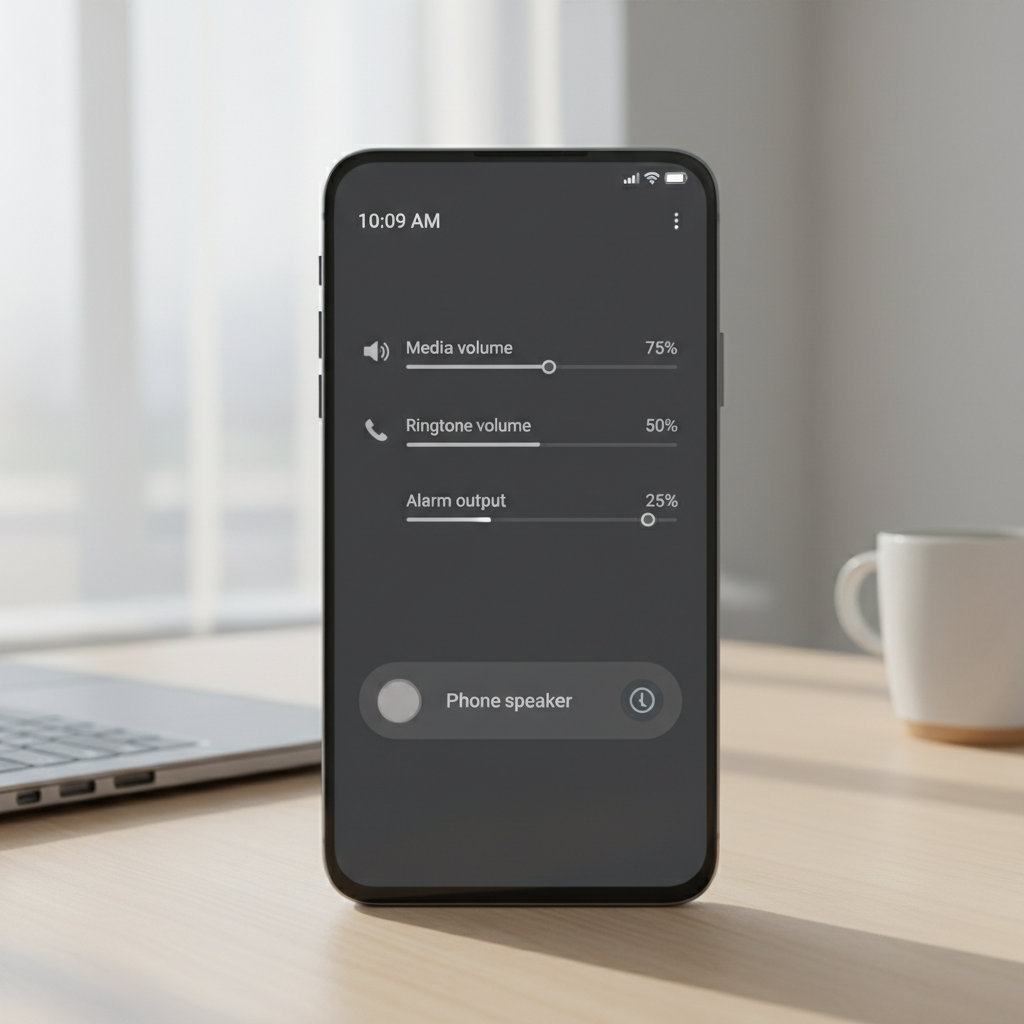
Start with the “one-minute” checks (they fix more than you think)
Before you change a bunch of settings, confirm the basics. Many “no audio” reports are simply sound going to the wrong place, or a silent mode that isn’t obvious.
- Press volume up, then tap the three dots or slider panel to view Media, Ringtone, and Alarm volumes, set each to a clearly audible level.
- Disable Silent or Vibrate, then toggle Do Not Disturb off.
- Open a known-good source like YouTube or the system ringtone preview, test more than one app.
- Check Bluetooth: turn Bluetooth off, then try audio again. Your phone may still be routing sound to earbuds or a car system.
- Plug/unplug wired headphones once, then test. A stuck “headset mode” happens sometimes, especially with dusty ports.
According to Android Help (Google), sound and notification behavior can change based on volume levels, Do Not Disturb, and connected devices, so confirming routing and modes early saves time.
Match your symptom to the most likely cause (quick diagnosis table)
If you want to fix this efficiently, don’t treat every “no sound” problem the same. Calls, media, alarms, and notifications can fail for different reasons.
| What’s not working | Common causes | Fastest tests |
|---|---|---|
| Media audio (videos/music) | Bluetooth routing, app audio focus, corrupted cache | Toggle Bluetooth off, test another app, reboot |
| Ringtone / incoming calls | Silent/DND, ringtone set to none, per-contact settings | Check DND, ringtone selection, call volume during a test call |
| Alarms | Alarm volume low, alarm app restrictions, bedtime modes | Raise alarm slider, test default Clock app, check Battery optimization |
| Notifications | Per-app notification channels muted, DND schedules | App notification settings, channel volume, DND exceptions |
| No sound anywhere | System glitch, accessibility settings, hardware speaker issue | Safe Mode, speakerphone test, hardware diagnostics |
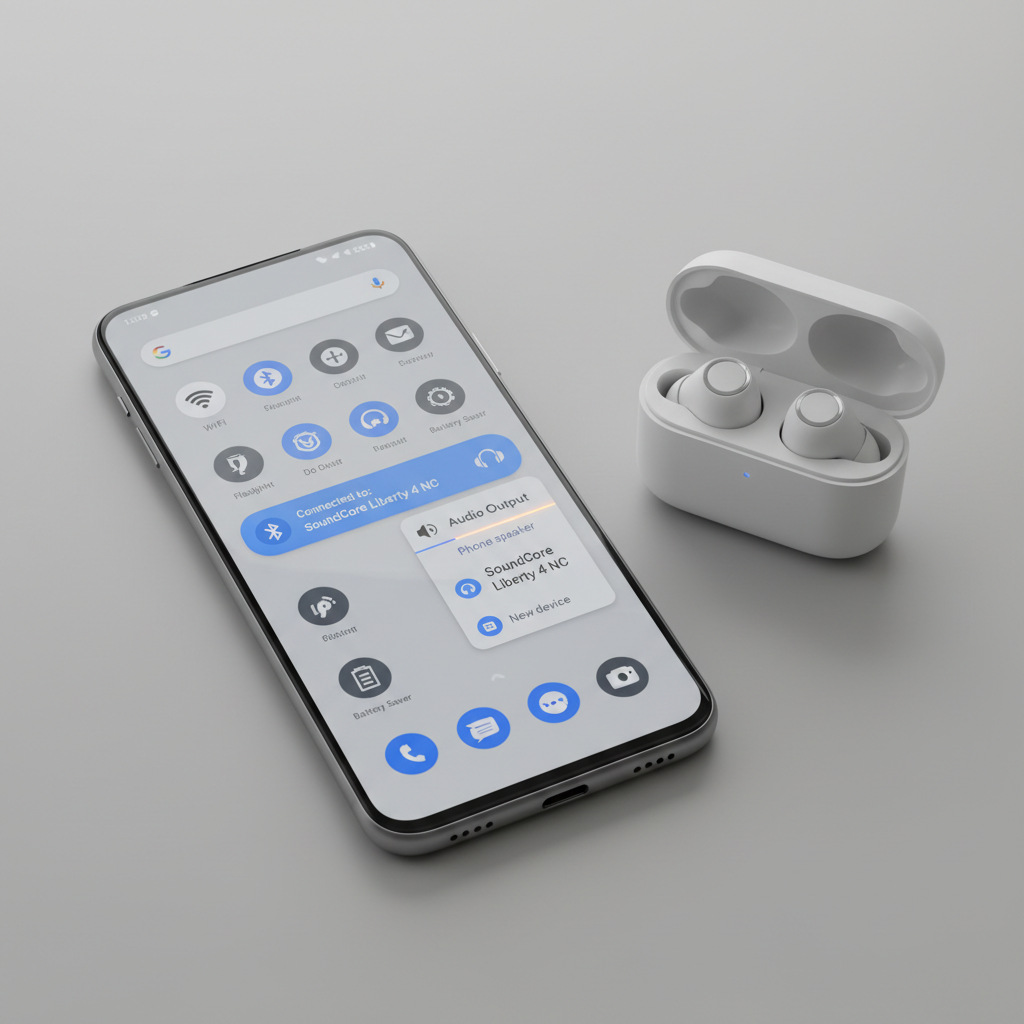
Fix audio routing and “audio focus” problems (Bluetooth, earbuds, app conflicts)
When people search how to fix no sound on android phone, the hidden culprit is often routing: the phone is playing sound, just not through the speaker you expect.
1) Force audio back to the phone speaker
- Turn Bluetooth off and retry media audio.
- In your media player, tap the cast/output button and select Phone speaker if available.
- If you use hearing aids or multi-device earbuds, open their companion app and disconnect.
2) Close apps that “take over” sound
Some apps keep a hold on audio in the background. It’s common with voice recorders, meeting apps, gaming chat, or camera apps.
- Open the app switcher, close all apps.
- Reopen only one audio app and test.
- If the issue returns when a specific app runs, update it or uninstall temporarily.
3) Reset Bluetooth and connection behaviors (when it keeps happening)
- Forget the device: Settings → Bluetooth → your device → Forget.
- Restart both phone and headphones, then pair again.
- If your Android has it, consider Reset Wi‑Fi, mobile & Bluetooth under reset options.
Check Android sound settings that silently block audio
This is the “it worked yesterday” category. A single toggle can mute parts of the phone while everything else looks normal.
Do Not Disturb and schedules
- Settings → Notifications (or Sound) → Do Not Disturb, turn it off.
- Check schedules like “Sleeping” or “Bedtime mode” and disable temporarily.
- Review exceptions: allow calls from anyone while testing.
Per-app notification channels (Android’s sneaky mute)
Android lets you mute specific notification categories inside the same app. You can be “unmuted” in general but silent on the channel you care about.
- Settings → Apps → select the app → Notifications.
- Open the channel list, ensure the important channel is on, pick a sound.
Accessibility settings that affect audio
- Settings → Accessibility → look for audio-related options such as Mono audio or hearing features, toggle back to default if you’re unsure.
- If you use a hearing aid profile, confirm it didn’t become the default output.
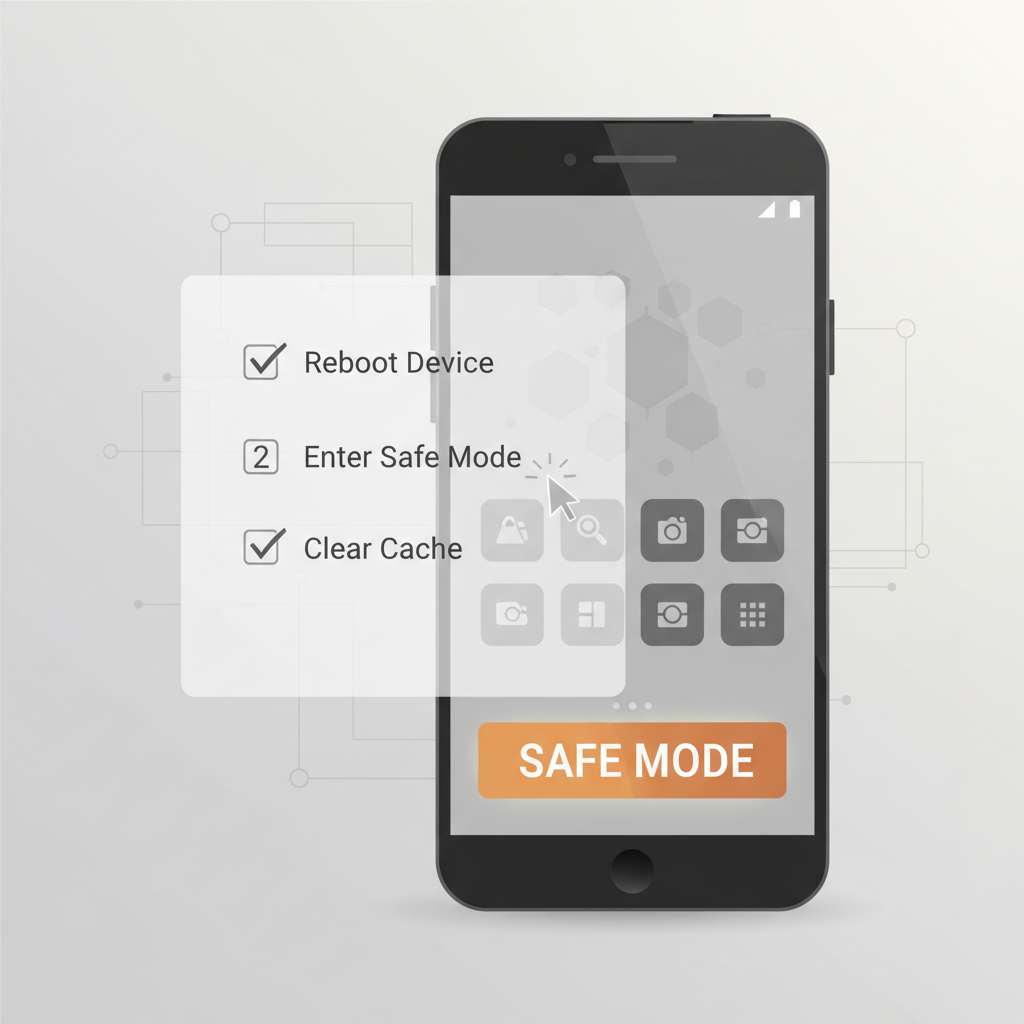
System-level fixes when sound is still missing
If basic checks don’t work, you’re probably dealing with a software glitch, a corrupted cache, or a setting that won’t reset until you reboot properly.
1) Restart the phone (the right way)
- Power off fully, wait 20–30 seconds, power back on.
- Test sound before opening many apps.
2) Boot into Safe Mode (to catch third‑party app issues)
Safe Mode runs Android with core apps only. If sound returns in Safe Mode, a third‑party app is likely interfering.
- Press and hold the power button, then press and hold Power off until Safe Mode appears (steps vary by brand).
- Test calls and media.
- Restart to exit Safe Mode, then uninstall suspicious or recently installed apps.
3) Clear cache for the problem app (or system media services, if available)
- Settings → Apps → pick the app (YouTube/Spotify/Phone) → Storage → Clear cache.
- Avoid “Clear storage” unless you accept losing app data.
4) Update Android and key apps
- Install pending system updates, then update core apps from Google Play.
- If the issue began right after an update, check if your device maker has a follow-up patch.
5) Last resort: back up and consider a reset
A factory reset can fix deep software corruption, but it’s disruptive. If you go this route, back up photos, messages, and authenticator apps first, and confirm your Google account credentials.
Practical “self-check” list to pinpoint your exact scenario
If you’re stuck, run this checklist once, and write down what changes the result. That pattern usually reveals the cause.
- Speaker works on speakerphone? If yes, the issue may be call routing, DND, or a headset mode problem.
- Sound works with headphones but not speaker? This points to speaker blockage, speaker hardware, or a system routing bug.
- Only one app is silent? Likely app settings, notification channels, or app cache.
- Only alarms are silent? Often alarm volume, bedtime modes, or battery restrictions on the clock app.
- Safe Mode restores sound? A third-party app conflict becomes the prime suspect.
When you search how to fix no sound on android phone, this step matters because it prevents random trial-and-error, and helps you avoid “fixes” that don’t match your symptom.
Common mistakes that waste time (or make sound problems worse)
- Testing only one app: you might misdiagnose an app bug as a hardware failure.
- Ignoring notification channels: turning notifications “on” is not the same as enabling the right channel with a sound.
- Cranking volume without checking output: if audio routes to Bluetooth, the phone speaker stays silent no matter what.
- Using aggressive cleaning: poking speaker grills or charging ports with sharp tools can cause damage. If you suspect debris, gentle cleaning is safer, and a repair shop may be the better move.
When to get professional help (or contact the manufacturer/carrier)
Some signs suggest a hardware issue or a deeper system problem where DIY steps stop being efficient.
- No sound anywhere, even after Safe Mode, updates, and resets.
- Speaker sound is distorted, crackling, or cuts in and out, especially after drops or water exposure.
- The phone shows headphone mode permanently and won’t clear with basic steps.
- You rely on the phone for medical or safety alerts; in that case, it’s reasonable to seek professional service sooner rather than later.
If water damage is possible, powering the phone off and consulting a repair professional is often safer than repeated testing. For carrier devices, your carrier store can also run diagnostics and check warranty options.
Key takeaways (so you can fix this fast next time)
Most Android audio failures are fixable without tools: confirm volumes and modes, verify where sound routes, isolate apps with Safe Mode, then move to updates and resets only if needed. If symptoms suggest speaker or port damage, stop forcing it and get it checked.
If you want one simple action plan: test Bluetooth off, raise media/ringtone/alarm sliders, reboot, then try Safe Mode. That sequence solves a large share of cases without risking your data.
FAQ
- Why is my Android phone volume up but no sound?
Often the sound is routed to Bluetooth, a cast device, or a stuck headset mode. Turn Bluetooth off, unplug any accessories, then test with a different app. - How do I fix no sound on Android phone during calls only?
Check call volume during a live call, toggle speakerphone, and review Do Not Disturb exceptions. If speakerphone works but earpiece stays silent, the earpiece speaker may have an issue. - Why do notifications vibrate but don’t play a sound?
This is commonly a notification channel or DND schedule setting. Go to the app’s notification channels and confirm the specific channel has a sound assigned. - How can I tell if it’s a hardware speaker problem?
If headphones play audio reliably but the phone speaker never does, even after reboot and Safe Mode, hardware becomes more likely. Distortion after drops or water exposure is another clue. - Does Safe Mode delete anything?
No, Safe Mode is a diagnostic boot mode. It temporarily disables third-party apps, and you can reboot to return to normal. - Should I factory reset to fix Android audio?
Only after routing checks, settings review, Safe Mode, and updates. A reset can help with deep software issues, but it’s disruptive, back up first. - What if my alarm has no sound but everything else is fine?
Raise the alarm volume slider, test with the default Clock app, and check bedtime or sleep schedules. Also review battery optimization settings for the clock app if alarms are unreliable.
If you’re still dealing with how to fix no sound on android phone and you want a more “no guessing” approach, list what’s silent (calls, media, alarms, notifications) and what tests changed the outcome, then bring that note to your carrier or a repair shop, it usually speeds up diagnosis and avoids unnecessary resets.