
How to fix low microphone volume on pc usually comes down to a handful of settings Windows quietly changes, plus a couple of app-level and hardware gotchas that make your voice sound far away.
If you’re on Zoom, Teams, Discord, or recording a quick voice note and people keep asking you to repeat yourself, the problem is rarely “your mic is bad.” More often, it’s input level, mic boost, privacy permissions, or an app grabbing the wrong device.
This guide walks you through fast checks first, then deeper fixes if you’re still stuck. You’ll also see when it’s time to stop tweaking settings and consider a different mic, interface, or a quick help from IT.
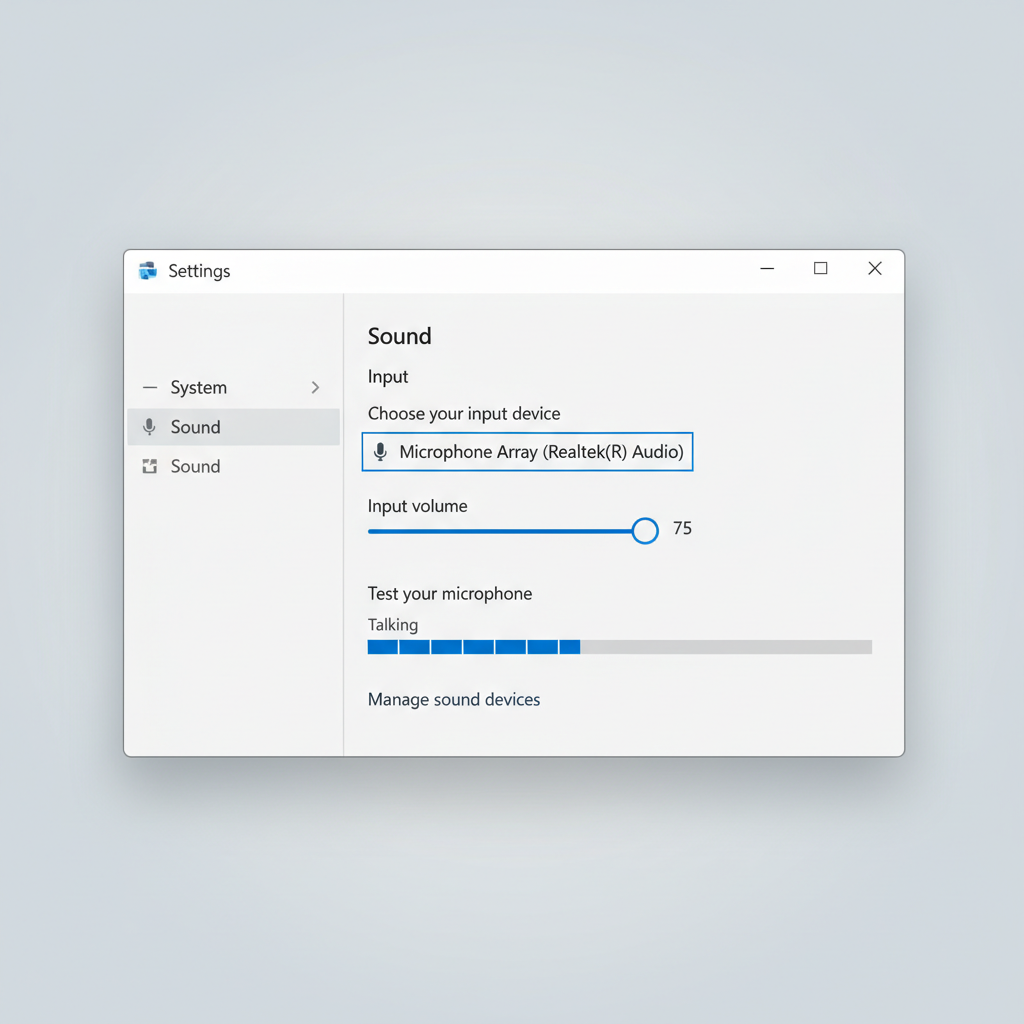
Quick reality check: is it Windows, the app, or the mic?
Before you change ten settings, spend two minutes isolating where volume drops. A “quiet mic” can be Windows input gain, an app slider, or even a headset inline wheel turned down.
- Test in Windows: Settings > System > Sound > Input, speak and watch the input meter.
- Test in a second app: try Voice Recorder (Windows) or a browser mic test page.
- Try another port/device: move USB mics to a different USB port, swap headset, or test a known-good mic.
If Windows input meter barely moves, your issue is system-side or hardware. If Windows looks healthy but Zoom/Discord is quiet, it’s usually app settings or permissions.
Fix 1: Set the correct microphone and raise Input volume (Windows 10/11)
This sounds obvious, but it’s the #1 cause. Windows may be listening to a laptop mic across the room while you’re speaking into a headset mic.
Windows 11 steps
- Open Settings > System > Sound.
- Under Input, pick your microphone from the dropdown.
- Raise Input volume (start around 80–100) and speak to check the meter.
Windows 10 steps
- Open Settings > System > Sound > Input.
- Select your mic and raise Device properties volume.
Practical target: for normal speaking distance, you usually want peaks that land comfortably in the meter’s upper middle, without slamming the top constantly.
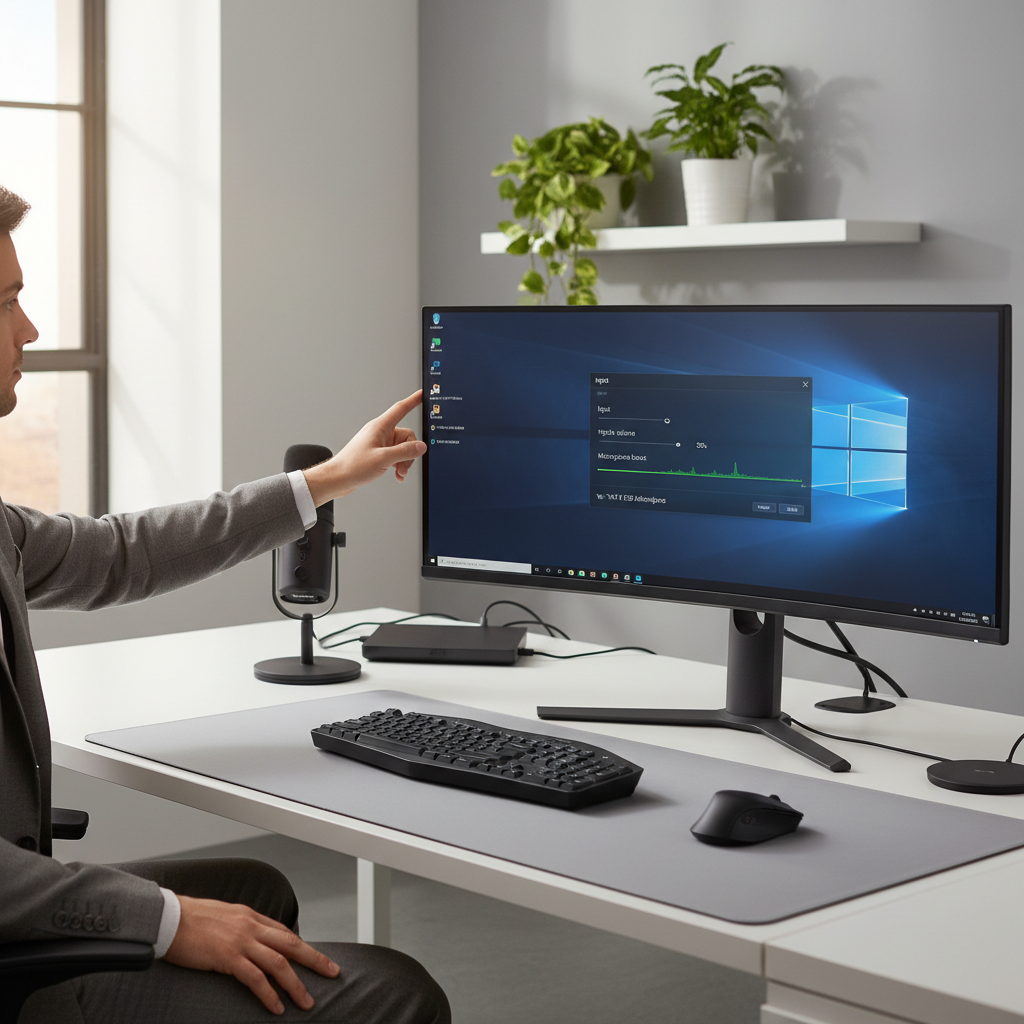
Fix 2: Check Microphone Levels and “Microphone Boost” (Control Panel)
Windows Settings doesn’t always surface the older level controls. If your mic is low across everything, these sliders matter.
- Right-click the speaker icon > Sound settings > More sound settings (or open Control Panel > Sound).
- Go to Recording tab, select your microphone, click Properties.
- Open Levels tab and adjust:
- Microphone: usually 80–100 for quiet setups.
- Microphone Boost: add a small amount first (+10 dB). Too much boost often adds hiss and keyboard noise.
Don’t chase “louder at all costs.” If boosting makes you loud but noisy, it’s often better to move the mic closer or switch to a better-positioned mic than crank boost.
Fix 3: Disable audio “enhancements” that can make you sound quieter
Some drivers enable noise suppression, echo cancellation, or “communications” behaviors that unintentionally drop volume. This varies by PC brand and audio chipset.
- Control Panel > Sound > Recording > mic Properties.
- Look for tabs like Enhancements or Advanced.
- Try toggling Disable all enhancements (if present), then test again.
Also check Windows’ communications behavior. According to Microsoft Support (Windows sound settings documentation), Windows can reduce volumes during communications activity. In Control Panel > Sound > Communications, set it to Do nothing and retest your mic in a call.
Fix 4: App-level input settings (Zoom, Teams, Discord, browsers)
This is where many people waste time, because Windows looks fine, but the app uses its own input device, its own gain, and sometimes its own “auto” controls.
| App | Where to check | What to change |
|---|---|---|
| Zoom | Settings > Audio | Select the correct mic, raise input level, try disabling/adjusting “Automatically adjust microphone volume” |
| Microsoft Teams | Settings > Devices | Pick correct mic, run a test call, confirm noise suppression isn’t overly aggressive |
| Discord | User Settings > Voice & Video | Select correct input, adjust input volume, consider turning off Auto Gain Control if it fights your setup |
| Chrome/Edge | Site permissions + Windows privacy | Allow mic access, choose correct input in site/app, avoid “wrong mic” selection |
If you’re searching how to fix low microphone volume on pc because only one app sounds quiet, treat Windows as “good,” then stay inside that app until it matches.
Fix 5: Privacy permissions and exclusive control (the quiet culprit)
When permissions get blocked, some apps fall back to a different input device, or they capture audio in a degraded mode that sounds low.
Check Windows mic privacy
- Settings > Privacy & security > Microphone.
- Turn on Microphone access and Let apps access your microphone.
- Confirm the specific app has access (if listed).
Check “Exclusive Mode”
- Control Panel > Sound > Recording > mic Properties > Advanced.
- Try unchecking Allow applications to take exclusive control, then test.
Exclusive mode can be helpful for some pro audio setups, but in mixed everyday apps it can cause weird side effects, including level mismatches.
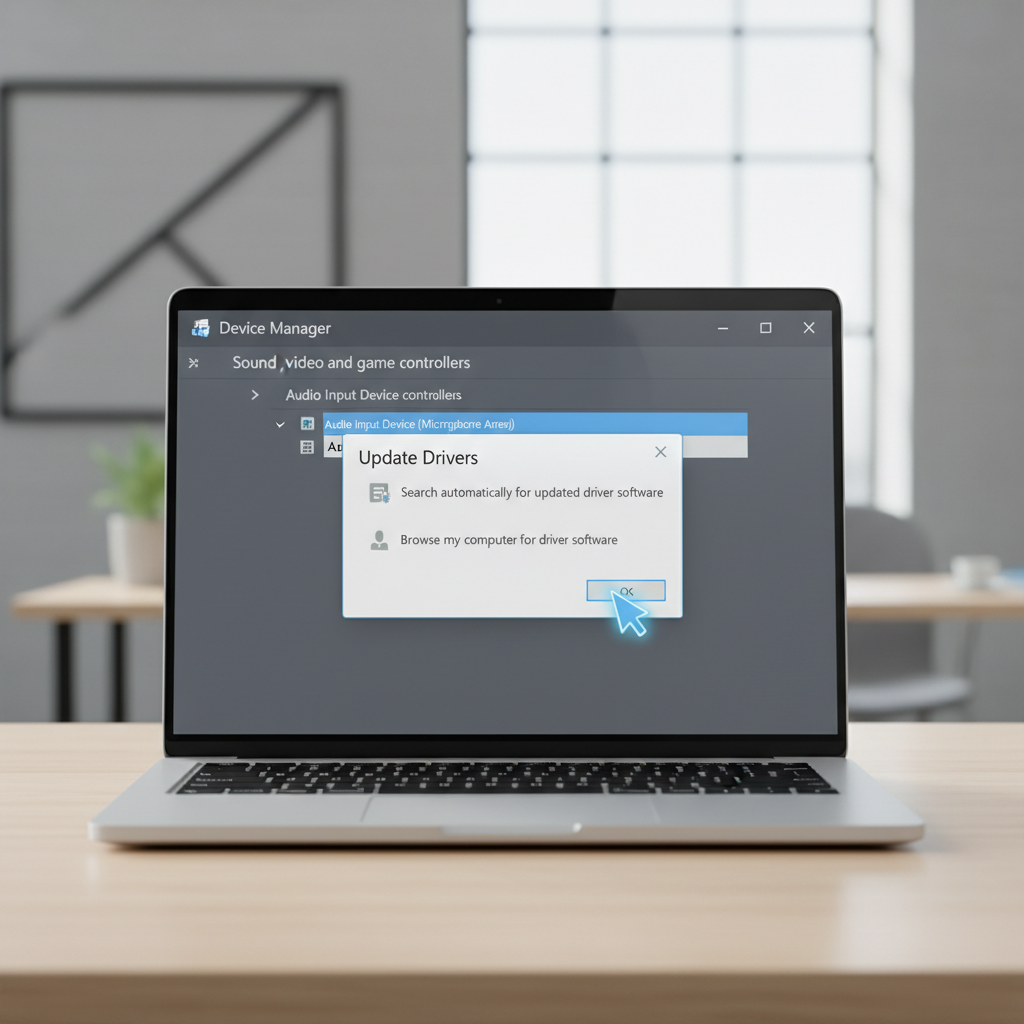
Fix 6: Drivers, firmware, and hardware checks that actually matter
If your levels are low everywhere, and sliders are already high, it’s time to suspect drivers, ports, adapters, or the mic itself.
- Update audio drivers: Device Manager > Sound, video and game controllers (and Audio inputs/outputs) > update driver.
- USB mic: try a different USB port, avoid unpowered hubs, and check the mic’s own gain knob (if it has one).
- 3.5mm headset: confirm you’re using the right jack (TRRS combo vs separate mic/headphone), and avoid cheap splitters that can cut mic level.
- Bluetooth headsets: “Hands-Free” mode can sound thin/quiet; if possible, test a wired mic or a dedicated USB mic for calls.
According to Microsoft Support (Windows microphone troubleshooting guidance), driver and device selection issues are common causes of microphone problems. In plain terms: if Windows “sees” the mic but audio is still weak, reinstalling or updating the driver can be a legitimate fix, not a superstition.
Practical tuning: a simple checklist for clear, consistent volume
Once you’ve found a setup that’s “not quiet,” you want it stable across calls and recordings. Here’s a tuning flow that tends to work in real life.
- Position first: keep the mic closer rather than boosting aggressively, many mics sound better at 4–8 inches.
- Windows level next: set input around 80–100, then add small boost only if needed.
- App gain last: adjust in Zoom/Teams/Discord so you’re comfortably heard without clipping.
- Do a 10-second recording: if you hear hiss, back off boost and move closer, or use a mic with better noise handling.
Key point: if you keep adding boost to “fix” distance, your PC will also amplify room noise. That’s why “loud enough” and “clear” aren’t always the same thing.
Common mistakes that keep the mic volume low
- Raising the wrong slider: output volume and input volume are different, and many apps show both.
- Using the wrong mic: laptop array mic selected while wearing a headset is classic.
- Letting apps auto-adjust forever: auto gain can be helpful, but it can also pin you low if background noise confuses it.
- Overusing boost: it can make you louder but worse, people then say “you sound noisy and far.”
- Assuming one fix fits all: what works for a USB podcast mic may not work for a Bluetooth headset.
When to get extra help (or upgrade) instead of fighting settings
If you’ve tried Windows input level, mic boost, app selection, and drivers, and you still need maxed-out sliders just to be barely heard, you may be hitting hardware limits.
- Work laptops with managed policies: your IT team may enforce privacy, drivers, or Teams settings.
- Audio interface or XLR mic: gain staging gets more complex, a quick consult with an audio-savvy colleague or technician can save hours.
- Persistent distortion or crackling: could indicate a failing cable/port or power issue, swapping components is faster than endless tweaking.
If you’re unsure, keep changes minimal and reversible, and consider asking a professional (IT support or an audio technician) to verify the hardware path.
Conclusion: the fastest path to a louder mic on Windows
If you want the shortest route, start by confirming the correct input device in Windows, set input volume high enough, then use Control Panel Levels to fine-tune and add only modest mic boost. After that, lock in the app’s input device and turn off any auto-gain feature that keeps pulling you down.
If you take one action today, do this: record a 10-second test in Windows, then compare it to your call app. That comparison usually reveals whether you need a Windows fix or an app fix.
And if you keep searching how to fix low microphone volume on pc because nothing sticks, it’s often worth testing a different mic or connection type, because some “quiet” problems are really hardware constraints in disguise.
FAQ
- Why is my microphone volume low only on Zoom but fine elsewhere?
Zoom may be using a different input device than Windows, or its auto microphone adjustment can hold levels down. Check Zoom’s Audio settings and explicitly select your mic. - How do I increase mic volume on Windows 11 without adding noise?
Move the mic closer first, then raise Windows input volume, and only add a small amount of Mic Boost. Big boost jumps often raise hiss and room noise more than your voice. - Is Mic Boost safe to use?
Generally yes, but it can make background noise more noticeable and may cause distortion if you speak loudly. Small changes and quick recordings help you avoid overdoing it. - Why does my Bluetooth headset microphone sound quiet or muffled on PC?
Bluetooth headsets often switch to a hands-free profile with lower quality. For important calls, a wired headset or USB mic is frequently more consistent. - What’s the difference between input volume and output volume?
Output controls what you hear from speakers/headphones, input controls what others hear from your microphone. Mixing these up is a common reason fixes don’t work. - How to fix low microphone volume on pc if Windows input meter barely moves?
That points to device selection, driver issues, a bad port/cable, or a mic hardware problem. Try another port or mic, then update/reinstall drivers if needed. - Should I disable exclusive mode for my microphone?
In many everyday call setups, disabling exclusive control can reduce conflicts between apps. If you do pro audio work, you might prefer leaving it on and managing routing more carefully.
If you’re troubleshooting for work calls and want a more “set it and forget it” setup, consider using a dedicated USB microphone or a certified business headset, then keep Windows input level stable and do only small app tweaks per platform.