
How to boost wifi signal in large house usually comes down to two things: where your Wi‑Fi is coming from, and what’s blocking it before it reaches the rooms you care about. If you’re dealing with dead zones, buffering in bedrooms, or video calls that drop the moment you walk upstairs, you’re not alone.
Big homes make Wi‑Fi harder than people expect, even with “fast” internet. Square footage, multiple floors, older building materials, and device overload can turn a strong plan into a weak experience. The good news is you can often improve coverage without guesswork, as long as you diagnose the bottleneck first.
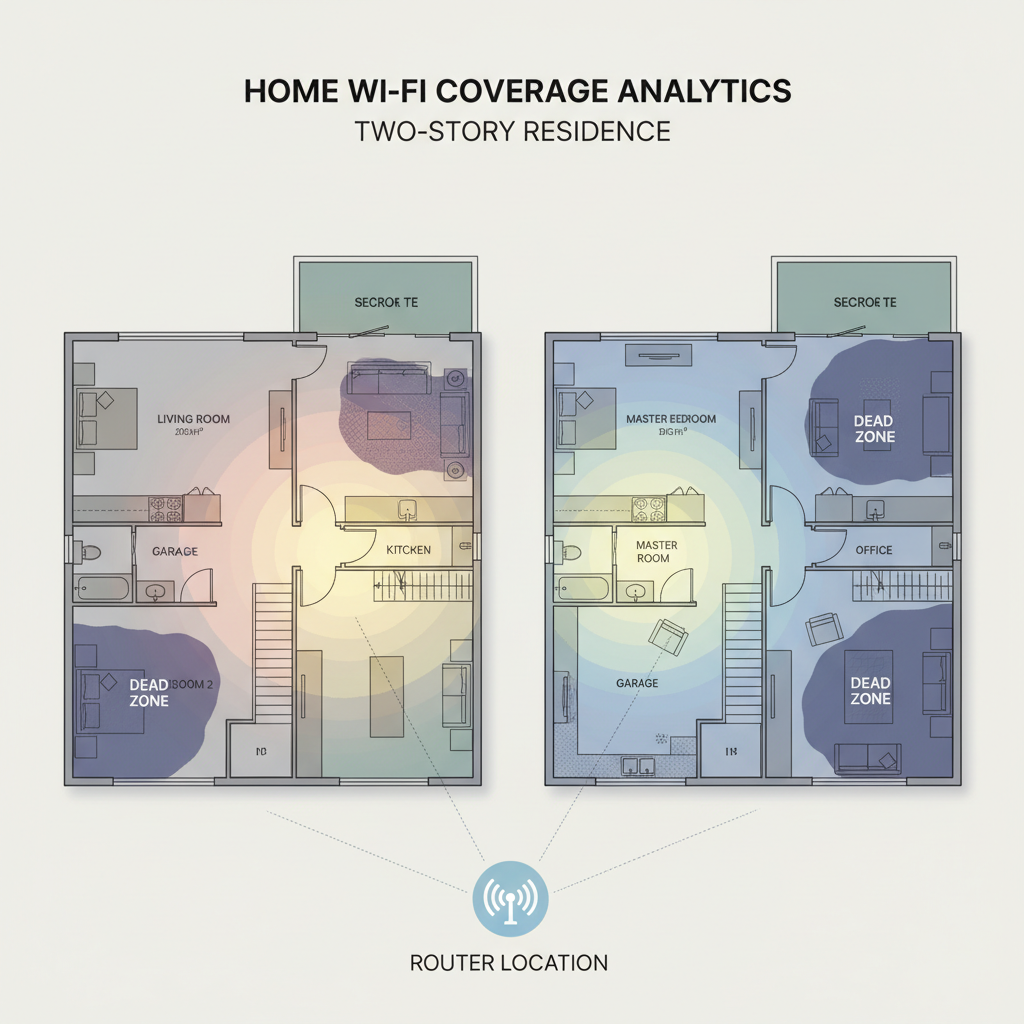
This guide focuses on practical fixes: placement, settings that actually matter, mesh vs extenders, and when to use Ethernet. You’ll also get a quick checklist, a comparison table, and a few “don’t waste your time” callouts.
What’s really causing weak Wi‑Fi in a large house
Most large-home Wi‑Fi problems aren’t about your internet plan, they’re about signal physics and layout. A few common culprits show up again and again.
- Distance and floors: Every wall and floor reduces signal strength, and second-floor corners tend to suffer most.
- Dense materials: Brick, plaster, concrete, tile, radiant barriers, and metal ducting can swallow Wi‑Fi fast.
- Bad router location: Routers tucked in a closet, basement, or behind a TV often “work,” but coverage collapses at range.
- Channel congestion: In many neighborhoods, 2.4 GHz is crowded. Interference can look like “weak signal” even at medium range.
- Too many devices: Smart TVs, cameras, doorbells, and laptops add up. Older routers can struggle with lots of simultaneous connections.
According to the Federal Communications Commission (FCC), building materials and device placement can significantly affect wireless performance, which is why “same router, different house” produces totally different results.
Quick self-check: identify your bottleneck in 10 minutes
Before buying hardware, figure out whether your issue is coverage, capacity, or your ISP line. This saves money and prevents “I bought a mesh and nothing changed.”
Step 1: Compare speeds near the router vs the problem room
- Run a speed test next to the router.
- Run the same test in the worst room.
- If speed drops dramatically, it’s a coverage/penetration problem.
- If both locations are slow, it may be ISP/modem/router performance.
Step 2: Check if it’s only one device
- If one laptop struggles but your phone is fine in the same spot, the device Wi‑Fi card or drivers may be the limiter.
- If all devices struggle, focus on the network setup.
Step 3: Notice patterns
- Slow only at night: likely neighborhood congestion or heavy household usage.
- Fine until you start a call/game: could be latency or poor roaming between nodes/extenders.
- Outdoor patio drops: walls plus distance, often needs a dedicated node or access point placement.
Start with the “free” fixes: placement and settings that move the needle
If you’re searching how to boost wifi signal in large house, start here. These changes are boring, but they’re often the highest ROI.
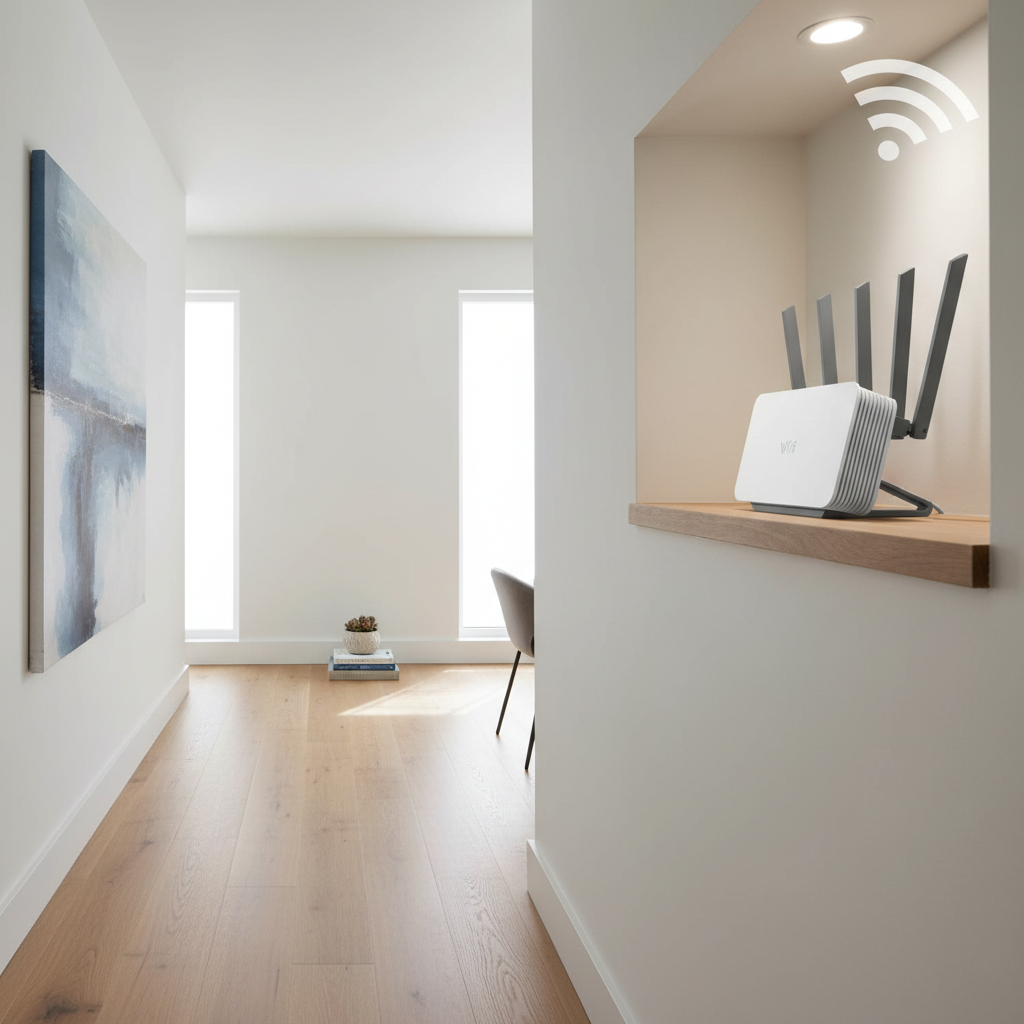
Place the router like you actually want coverage
- Go central and higher: middle of the home, on a shelf, not the floor.
- Keep it open: avoid cabinets, utility rooms, and behind large TVs or mirrors.
- Avoid interference: don’t park it next to microwaves, baby monitors, or Bluetooth-heavy hubs.
One detail people miss: if your modem is stuck in a corner because of the cable jack, you can often move the router anyway by using a longer Ethernet cable between modem and router.
Split or steer bands thoughtfully (2.4 GHz vs 5 GHz)
- 2.4 GHz: longer range, slower, more interference.
- 5 GHz: faster, shorter range, better for same-room streaming and gaming.
Many routers use band steering (one network name). That can be fine, but in larger homes it sometimes causes “sticky” devices that cling to a weak 5 GHz signal. If your router allows it, testing separate SSIDs for 2.4 and 5 can make troubleshooting easier.
Update firmware and enable modern standards
- Update router firmware (security and stability fixes matter).
- Use WPA2/WPA3 appropriately; avoid legacy modes unless a device forces it.
- If available, enable QoS or “video call/gaming” prioritization, but keep it simple and test.
According to the Cybersecurity and Infrastructure Security Agency (CISA), keeping router firmware up to date is a key baseline step for home network security, and it often improves stability too.
Mesh vs extender vs access point: what works best in big homes
This is where most people spend money, so it’s worth getting the tradeoffs straight. If your home is truly large, a single “bigger router” is sometimes not enough.
| Option | Best for | Pros | Cons |
|---|---|---|---|
| Mesh Wi‑Fi system | Multi-floor homes, roaming coverage | Easy setup, smooth handoff, scalable nodes | Can be pricey, wireless backhaul can limit speed |
| Wi‑Fi extender | One dead zone, light usage | Cheap, quick to try | Often adds latency, may halve throughput, roaming can be messy |
| Wired access point (AP) | Maximum performance, stable coverage | Best speed and reliability, great for work/gaming | Needs Ethernet or professional wiring, more configuration |
If you’re serious about how to boost wifi signal in large house, mesh or wired access points usually beat extenders. Extenders can still help, but they’re easier to outgrow.
Placement rules for mesh nodes (and why “one per floor” isn’t always right)
Mesh works when nodes can “see” each other well enough. People often put a node directly in the dead zone, which feels logical, but can backfire if the node itself receives a weak signal.
- Place the first node halfway: between router and the weak area, not at the far edge.
- Mind the backhaul: if nodes connect wirelessly, each hop can reduce real-world speed.
- Stagger vertically: on multi-floor homes, placing nodes slightly offset can outperform stacking them directly above each other.
- Test with a call: walk around on a video call to confirm smooth roaming, not just speed tests.
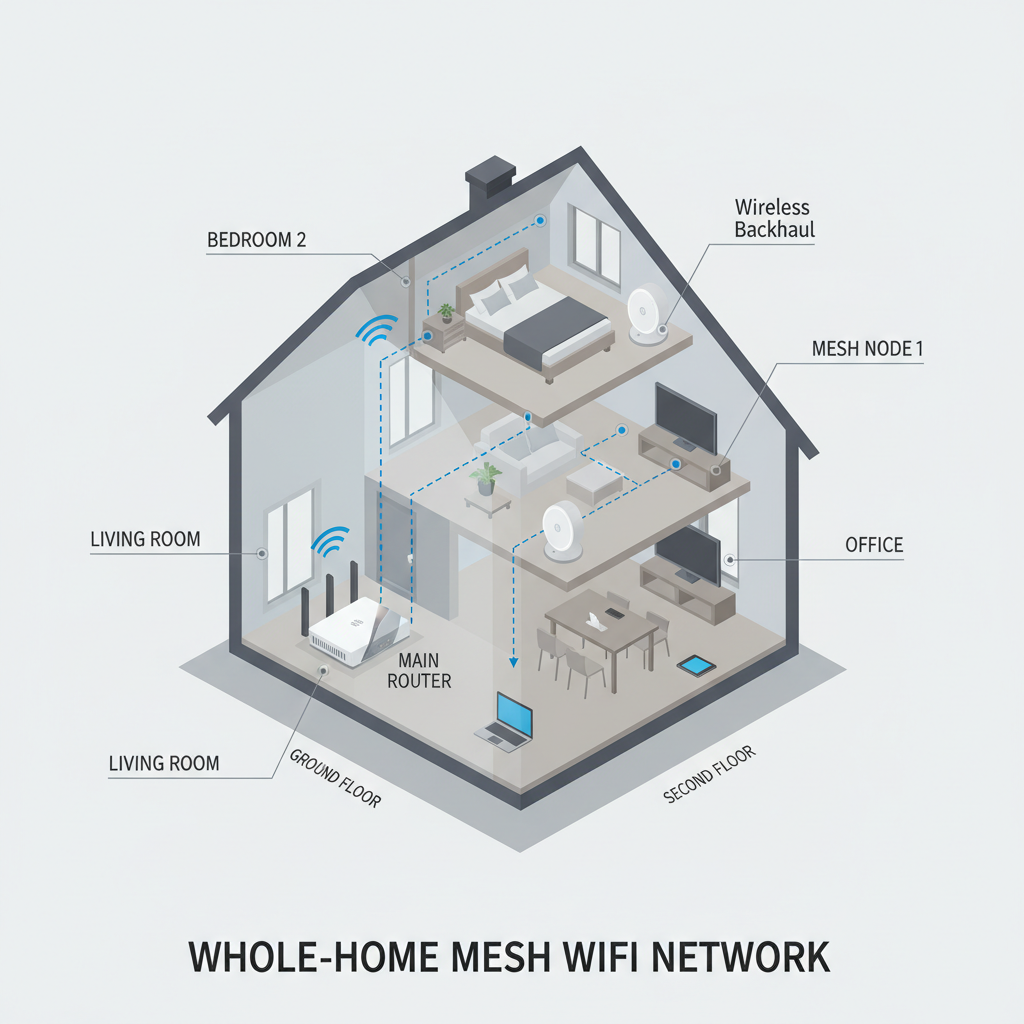
Key point: if your mesh system supports Ethernet backhaul and you can run a cable (even just to one node), do it. In many homes, that single change makes the network feel “new.”
High-impact upgrades: wired backhaul, MoCA, and smart compromises
When Wi‑Fi must cross multiple rooms and floors, “more signal” is less effective than “less wireless distance.” That’s why partial wiring often wins.
Option A: Ethernet backhaul (best when feasible)
- Run Ethernet from router to a mesh node or access point.
- Put the wired node near the area with heavy use: office, media room, game room.
- Then let Wi‑Fi cover short distances from that node.
Option B: MoCA over coax (often the sleeper hit)
If your house has coax outlets (common in the US), MoCA adapters can turn that coax into a wired-like connection for a mesh node or access point. It’s not universal, and compatibility depends on your coax layout and splitters, so check your wiring or ask a technician if you’re unsure.
According to CableLabs, MoCA is designed to provide reliable in-home networking over existing coaxial cables, which is why it’s frequently used when Ethernet runs are hard.
Option C: Powerline (works sometimes, but test before committing)
Powerline adapters can be convenient, but performance varies a lot by electrical wiring and circuit layout. If you try it, buy from somewhere with easy returns and validate with real usage, not only a quick speed test.
Common mistakes that waste time (and what to do instead)
- Buying a “stronger router” and keeping it in the same bad spot: relocate first, then upgrade if needed.
- Placing extenders at the edge of coverage: move them closer to the router so they can relay a clean signal.
- Chasing top speed while ignoring stability: for work calls and gaming, low latency and consistent signal matter more.
- Mixing too many Wi‑Fi brands/modes: one coherent system (or a planned router + AP setup) is easier to tune.
- Assuming “my ISP is bad” without testing: compare wired speed at the modem/router to separate ISP issues from Wi‑Fi issues.
If your goal is to learn how to boost wifi signal in large house without endless tweaking, pick one path, implement it cleanly, and test again before adding more gear.
When it’s time to call in help (or at least escalate)
Some homes have layouts that make DIY Wi‑Fi frustrating: thick masonry walls, foil-backed insulation, unusual floorplans, or a need for outdoor coverage. If you’ve tried placement, firmware, and a properly placed mesh node and you still see frequent drops, it may be time to escalate.
- Consider a low-voltage networking installer if you want Ethernet drops or ceiling-mounted access points.
- Talk to your ISP if wired speeds at the modem are inconsistent or far below your plan.
- Consult a pro if you’re mixing advanced gear (VLANs, multiple APs) and roaming becomes unreliable.
Also, if you suspect equipment overheating, damaged cables, or electrical issues, it’s safer to stop and ask a qualified technician rather than improvising.
Conclusion: a simple plan that usually works
If you want a clean way to proceed, do this: validate speed near the router, fix placement, then decide between mesh and a wired approach based on how “spread out” your usage is. Most large-house Wi‑Fi wins come from better topology, not magical settings.
Action steps: move the router to a more central, open spot this week, then test one well-placed mesh node (or a wired backhaul option) before buying a whole pile of add-ons.
FAQ
How do I boost Wi‑Fi signal in a large house without buying anything?
Start with router placement: central location, elevated, and away from cabinets and electronics. Then update firmware and confirm your devices connect to the most appropriate band for the room.
Is a Wi‑Fi extender good enough for a big house?
It can be, if you have one small dead zone and light usage. For multi-floor coverage or lots of devices, mesh or a wired access point tends to be more consistent.
Where should I place a mesh node to fix a dead zone?
Usually not inside the dead zone. Put it about halfway between the main router and the weak area, where it still receives a strong signal, then re-test coverage.
Will upgrading to Wi‑Fi 6 or Wi‑Fi 6E automatically fix range?
Not automatically. Newer standards can improve capacity and efficiency, but walls and distance still matter. You may still need additional nodes or an access point for coverage.
Why is my Wi‑Fi full bars but still slow in certain rooms?
That’s often interference, congestion, or the device stuck on a crowded channel or weak backhaul path. Try switching bands, checking channel settings, or improving node placement.
Does Ethernet backhaul really make a difference with mesh?
In many setups, yes. It reduces reliance on wireless hops, which can improve stability and real-world speeds, especially across floors.
Can my internet plan be the problem instead of my Wi‑Fi?
Yes. If speeds are poor even next to the router (or via a wired test), the bottleneck may be the modem, line quality, or your ISP service, so it’s worth troubleshooting that separately.
If you’re trying to boost coverage quickly and would rather not experiment with multiple products, a simple home layout check plus a recommendation on mesh node count and placement can save a lot of back-and-forth, especially in multi-floor or older-build houses.