
Smart speaker setup guide problems usually come down to Wi‑Fi quirks, account mismatches, or one privacy setting you didn’t realize you turned on, and the fix is often simpler than it feels in the moment.
If you’ve ever unboxed a speaker, plugged it in, and still couldn’t get music to play, you’re not alone, most home setups fail at the same few steps, and they’re easy to miss when the app keeps sending you in circles.
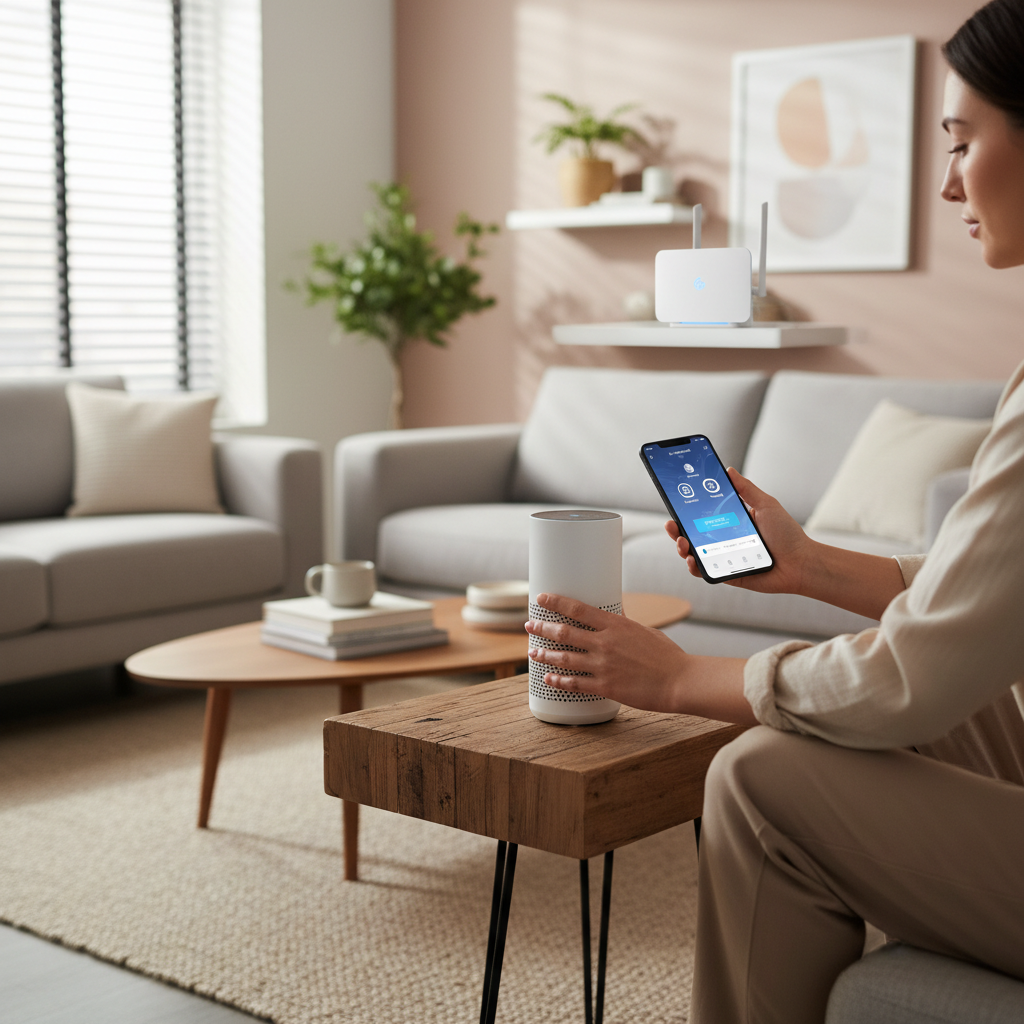
This article keeps it practical, you’ll learn what to do before you start, how to connect cleanly, how to tune privacy without breaking features, and how to troubleshoot the common “it says connected but nothing works” situation.
Before you plug anything in: what to gather and decide
Most frustration comes from starting the setup without the few details the app will inevitably ask for, so do a quick reset of expectations and prep your basics.
- Phone and OS: Have the companion app installed and updated on iOS or Android, outdated apps can fail during Bluetooth handoff or Wi‑Fi provisioning.
- Wi‑Fi name and password: Sounds obvious, but many homes have multiple networks, guest networks, or extenders with slightly different names.
- Account decision: Pick which household account owns the device, switching “owner” later is doable but often annoying, especially for shared calendars, shopping lists, and kid settings.
- Placement: Put the speaker where it can hear you and also see stable Wi‑Fi, kitchens and living rooms work well, tucked behind TVs or inside cabinets usually doesn’t.
Key takeaway: If your home network has both 2.4 GHz and 5 GHz, decide which one you want the speaker to use, many models prefer 2.4 GHz for stability and range.
Connect the speaker to Wi‑Fi the right way (and avoid the most common fail)
Follow your device’s app flow, but keep these practical checks in mind, they solve most “can’t connect” loops without doing anything fancy.
Step-by-step connection checklist
- Plug in the speaker and wait for the “ready to set up” sound or light pattern.
- Turn on Bluetooth and location permissions on your phone, many apps need both to discover the device.
- Join the same Wi‑Fi network on your phone that you want the speaker to use.
- In the app, add a new device, confirm the correct speaker shows up, then select your Wi‑Fi and enter the password carefully.
- Let the firmware update finish if prompted, pulling power mid-update is where setups get weird.
If you’re stuck on discovery, try moving your phone closer, disabling any VPN, and temporarily switching off “Private Wi‑Fi Address” or “MAC randomization” if your router has trouble with it, not every router cares, but when it does, it can block onboarding.
According to the Federal Communications Commission (FCC), devices that use Wi‑Fi and Bluetooth can be affected by interference and placement, so if your speaker is near microwaves, thick walls, or crowded electronics, relocating it a few feet can help stability.
Placement, audio quality, and listening comfort (small changes, big difference)
After the smart speaker setup guide basics are done, placement becomes the difference between “it technically works” and “this feels good to use every day.”

Here are the placement rules that usually hold up across brands:
- Give it breathing room: A few inches from walls reduces boomy bass and helps microphones.
- Avoid corners: Corners can exaggerate low frequencies and make voice pickup less consistent.
- Mind noise sources: Dishwashers, range hoods, and box fans can drown out wake words.
- Height matters: Counter height in kitchens is often ideal, too low can muffle audio.
If your model supports room EQ or “adapt sound,” run it once after final placement, then resist the urge to tweak endlessly, most people overcorrect bass when they listen at low volume.
Privacy and security settings you should touch on day one
Smart speakers are built around microphones, so it’s worth setting privacy in a way you can live with, not in a way that breaks half the features and frustrates everyone.
- Microphone mute: Learn the physical mute button and what the indicator light means, use it for guests or private conversations.
- Voice history: Review whether recordings are stored, and how long, many services let you auto-delete after a period.
- Purchases and voice shopping: Add a voice PIN or disable purchasing if kids or visitors might trigger orders.
- Contacts and calling: Only enable calling/messaging if you plan to use it, it reduces permission sprawl.
According to the Federal Trade Commission (FTC), reviewing privacy controls and limiting unnecessary data sharing is a sensible baseline for connected devices, especially when microphones and household routines are involved.
Practical compromise: If you worry about always-on listening, keep the mic on for normal use, but set auto-delete for voice history and mute during sensitive moments, that balance tends to stick better than an all-or-nothing approach.
Multi-room audio, groups, and smart home routines without the headache
Once one speaker works reliably, expanding to a second room is straightforward, but consistency matters more than speed.
Make multi-room less fragile
- Keep all speakers on the same Wi‑Fi network name, mixing guest networks often breaks grouping.
- Name rooms like a human would say them out loud, “Living Room” beats “LR Speaker 2.”
- Create one music group for daily use, then add specialty groups later, too many groups confuses households.
- For smart lights and plugs, add devices in the smart home app first, then link to the speaker platform, that direction tends to reduce duplicates.
Routines are where voice assistants become genuinely useful, start with one or two that save real effort, like “Good night” to turn off lights and lower volume, or “I’m home” to start a playlist and set a timer.
Troubleshooting: quick fixes by symptom (use this table)
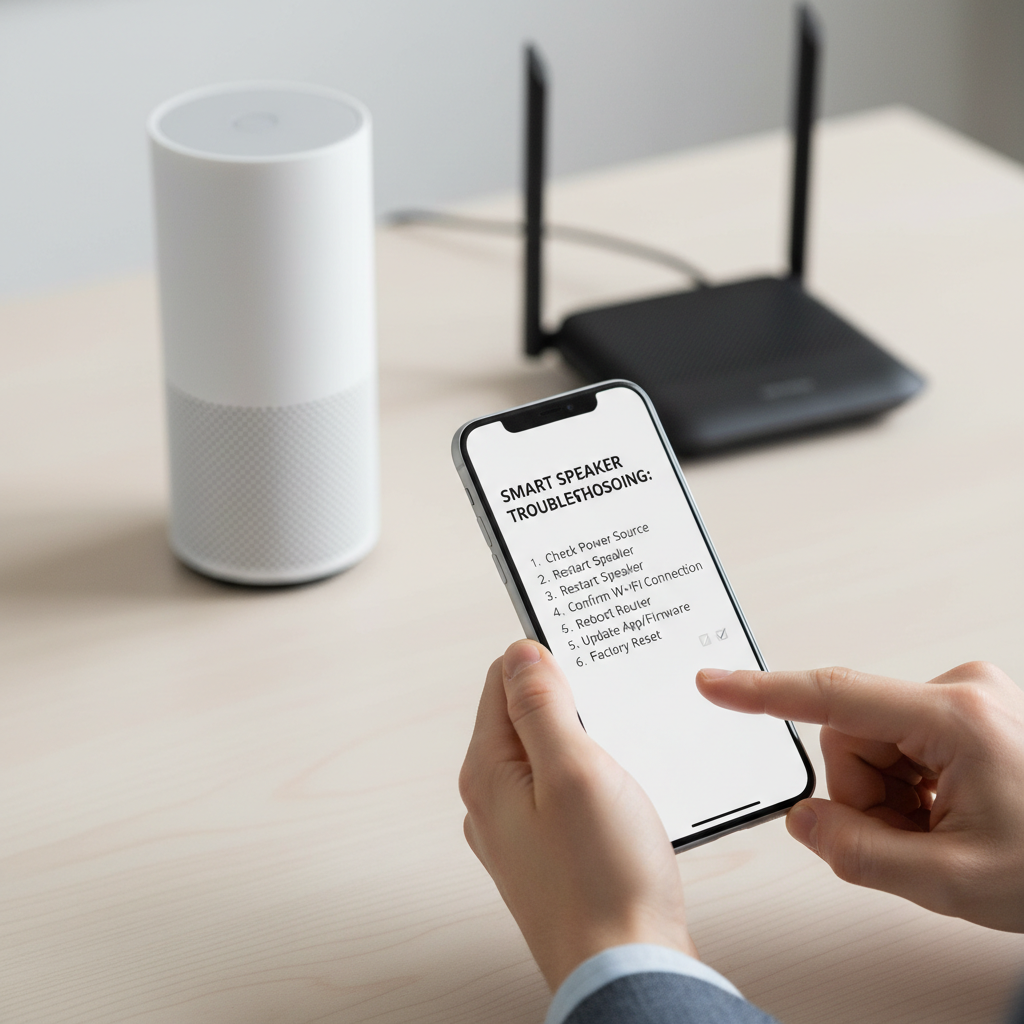
When people search a smart speaker setup guide, they’re often already stuck, so here’s a fast way to match the symptom to a realistic next step.
| Symptom | Likely cause | What to try next |
|---|---|---|
| Speaker not discovered in app | Permissions, Bluetooth, or wrong account | Enable Bluetooth + location, close/reopen app, confirm you’re on the intended account |
| Connects, then drops offline | Weak Wi‑Fi, band steering, or router limits | Move closer to router, use 2.4 GHz, reboot router, check if router blocks new devices |
| Plays music but won’t hear commands | Mic muted or too much ambient noise | Check mic button/light, reduce nearby noise, reposition away from walls |
| Wrong device responds in another room | Similar wake-word pickup, messy room naming | Rename devices clearly, lower sensitivity on the far speaker, adjust placement |
| Smart lights show twice or not at all | Duplicate integrations or mixed ecosystems | Remove duplicate link, re-link one platform at a time, standardize by room |
If none of the above works, a factory reset is reasonable, but do it deliberately, remove the device from the app first when possible, then reset, then add it back like it’s brand new, half-resets create “ghost” devices that keep failing.
Practical setup plan you can follow in 30 minutes
If you want a simple flow without rabbit holes, use this order and stop when it’s “good enough,” you can always add extras later.
- Minute 0–5: Install/update the app, confirm Wi‑Fi password, decide the owner account.
- Minute 5–15: Add the speaker, finish Wi‑Fi join, allow firmware updates.
- Minute 15–20: Place it in its final spot, run room EQ if available, test voice commands.
- Minute 20–25: Set privacy basics, voice history, purchasing controls.
- Minute 25–30: Add one routine or one music service, don’t overbuild on day one.
Key points to remember: stable Wi‑Fi beats fancy features, one clean account beats shared chaos, and privacy settings are most effective when the household will actually keep them enabled.
Conclusion: get it working first, then make it smarter
A smart speaker rarely fails because you “did something wrong,” it usually fails because the network and permissions are finicky, and the app doesn’t explain what it needs, so treat setup like a short checklist, not a puzzle.
Tonight, pick one reliable location, finish the connection without skipping updates, then set two privacy controls you feel good about. After that, add one routine you’ll use daily, that’s where the convenience starts to feel real.
FAQ
- Why does my smart speaker say it’s connected but won’t play music?
Many times it’s signed into the wrong music service account, or the speaker is on a different Wi‑Fi network than your phone. Confirm both are on the same network, then re-link the music service inside the app. - Do I need 2.4 GHz or 5 GHz Wi‑Fi for smart speakers?
It depends on the model, but 2.4 GHz often works more consistently across longer distances and through walls. If your speaker supports 5 GHz and sits close to the router, 5 GHz can be fine, but stability matters more than speed. - What should I do if the app can’t find the speaker during setup?
Check Bluetooth, location permissions, and whether a VPN is running. If it still fails, power-cycle the speaker, restart the phone, and try again with the phone within a few feet of the device. - Is it safe to leave a smart speaker plugged in all the time?
In many households it’s normal to keep it plugged in, but use a surge protector and avoid overloaded power strips. If you have concerns about wiring or heat near outlets, it’s reasonable to consult a qualified electrician. - How do I stop my kids from ordering things by voice?
Turn on a purchase confirmation method like a PIN, or disable voice purchasing entirely. Also review which accounts are linked, shopping permissions can differ by platform and household profile. - Why does the wrong speaker respond from another room?
This often happens when two devices hear the wake word at similar volume. Rename rooms clearly, adjust microphone sensitivity if available, and place the “too sensitive” speaker farther from open doorways. - Should I factory reset if I change routers or Wi‑Fi names?
Usually yes, changing SSID or password can confuse stored settings. Removing the device from the app and re-adding it tends to be cleaner than trying to patch settings.
If you’re setting up a whole-home system and you’d rather not troubleshoot Wi‑Fi, groups, and privacy settings piecemeal, a simple plan is to map rooms first, standardize your network names, then add one speaker at a time so you can spot what changes when something breaks.