
best budget usb c hubs for multiple devices are usually the fastest way to stop playing “port Tetris” when your laptop has only two USB-C ports and you still need a monitor, keyboard, mouse, storage, and charging.
The tricky part is that “budget hub” can mean very different things: some are fine for basic peripherals, others quietly choke on 4K displays, fast SSDs, or power-hungry accessories. A low price is only a win if the hub matches how you actually work.

This guide focuses on what matters for 2026 shopping: the ports you’ll really use, realistic display and charging expectations, and a simple way to pick a hub without overpaying for features you won’t touch. I’ll also call out a few common marketing “gotchas” that tend to waste money.
What “budget” should still include in 2026
Even in the budget tier, there are a few baseline features that keep a USB-C hub from becoming a drawer item in two weeks.
- USB-C upstream compatibility: Your laptop port matters, USB-C is a connector, not a promise. If your port lacks video or high data rates, the hub cannot magically add them.
- PD pass-through (Power Delivery): Many hubs can pass charging from your USB-C charger to the laptop. For most people, 60W pass-through is the practical floor, 100W is nicer if you run a bigger laptop.
- At least one HDMI output: For a second screen, HDMI is still the most universal. Display capabilities vary a lot, so treat “4K” claims carefully.
- USB-A ports that are actually usable: Keyboards and mice don’t care, but external SSDs do. You want at least one fast USB-A port for storage if you move files often.
- Reasonable build and strain relief: A rigid cable, wobbly ports, or a flimsy shell is where many budget hubs fail first.
According to USB-IF (USB Implementers Forum), USB-C is just the connector shape and devices can support different USB generations and features, so it’s normal to see confusing specs. In practice, you shop for the capabilities, not the shape.
Quick decision checklist: figure out what you need before you compare hubs
If you buy based on a product photo alone, you’ll likely miss the one feature that matters to you. This checklist takes two minutes and saves real frustration.
- One monitor or two? If you want dual displays, confirm your laptop supports it over USB-C, and know that many budget hubs only do one HDMI.
- 4K at 60Hz or “just works”? Office use feels better at 60Hz, but many cheap hubs top out at 30Hz for 4K.
- Do you charge through the hub? If yes, you’ll care about PD pass-through limits and heat.
- Do you use fast external storage? Look for USB 3.2 Gen 1 (5Gbps) at minimum for an SSD workflow. If you edit video off an external drive, you may want more than “basic budget.”
- Ethernet needed? If your Wi‑Fi is unreliable at home or in a hotel, a hub with Gigabit Ethernet is often worth a few extra dollars.
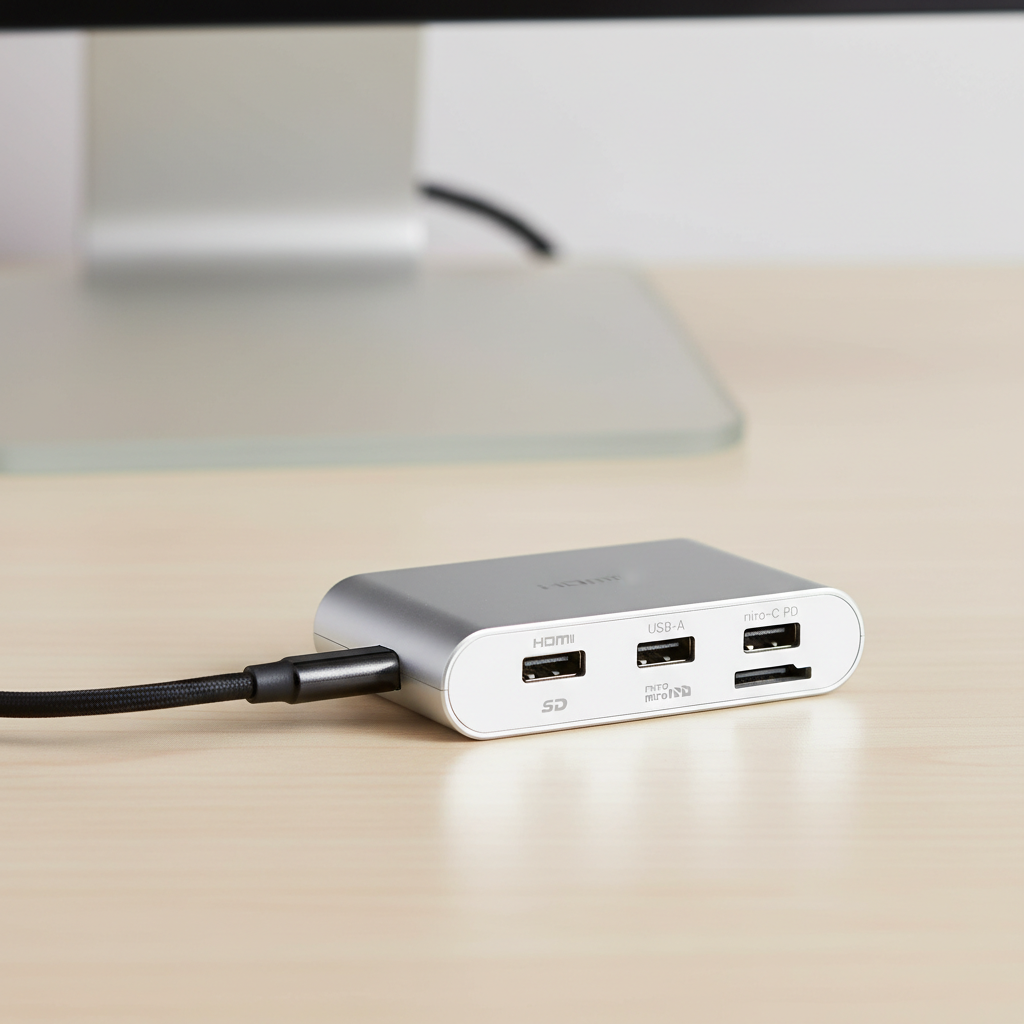
If you only connect “low drama” accessories like a keyboard, mouse, USB headset dongle, and a 1080p monitor, you can stay firmly in the budget lane. If you’re driving a 4K monitor and moving big files daily, “budget” still exists, but your acceptable tradeoffs shrink fast.
The features that drive price (and which ones you can skip)
Most of the price jump comes from a handful of components, not from brand name alone.
Display support (HDMI/DisplayPort)
Higher refresh rates and higher resolutions require more bandwidth and better internal design. A hub advertised as 4K can mean 4K at 30Hz, which is fine for email and spreadsheets, but less pleasant for lots of scrolling or motion.
- Okay to save money: 1080p or 1440p monitor, or 4K at 30Hz for light use.
- Don’t cheap out: 4K at 60Hz as a daily driver, or any setup that needs two monitors.
Data speed (USB generation)
Budget hubs commonly give you 5Gbps USB ports, which is plenty for peripherals and decent for many SSD tasks. If a hub lists USB 2.0 ports, assume they’re meant for mouse/keyboard, not storage.
Power Delivery pass-through
Some hubs advertise “100W PD” but only deliver a lower amount to the laptop because the hub consumes power too. This is normal. What you want is clarity on input vs output, and a hub that stays stable under load.
Extra readers and Ethernet
SD/microSD and Gigabit Ethernet can be surprisingly useful in a budget hub, especially for students, photographers, and remote workers. They also add complexity, so you’ll want to check return policies if you’re unsure.
Comparison table: common budget hub types and who they fit
Instead of chasing one “best” product, it’s more realistic to pick a hub type that fits your device count and workload, then shop within that lane.
| Hub type | Typical ports | Best for | Common tradeoff |
|---|---|---|---|
| Compact 6-in-1 | HDMI, 2x USB-A, USB-C PD, SD/microSD | Students, travel, light home office | Often limited display refresh or fewer high-speed ports |
| Ethernet-focused 7-in-1 | HDMI, 2-3x USB-A, USB-C PD, Ethernet | Remote work, hotels, unstable Wi‑Fi | Slightly bulkier, sometimes warmer under load |
| “Creator” budget 8-in-1 | HDMI, SD/microSD, 3x USB-A, USB-C PD | Camera offload, occasional SSD use | Card reader speed varies, cable strain can be a weak point |
| Entry dock-style (more ports) | HDMI/DP, Ethernet, more USB-A, audio | Fixed desk setup with many devices | Not as “budget” once you demand 4K60 + stable charging |
If your goal is truly “multiple devices,” the compact 6-in-1 or Ethernet-focused 7-in-1 tends to be the sweet spot: enough ports to feel like a real workstation, without paying for premium multi-display features you may not use.
How to choose a hub for your setup (practical steps)
Here’s a selection flow that mirrors how people actually plug things in at a desk.
- Start with your must-have connection: monitor output, Ethernet, or charging. If the hub fails there, nothing else matters.
- Count “always-on” devices: receiver dongle, keyboard, mouse, webcam, audio interface. If you’re already at 3 USB-A devices, don’t buy a hub with two USB-A ports and hope.
- Decide where your fast storage lives: if you frequently plug in an SSD, reserve the fastest port for it, and keep slower ports for peripherals.
- Check laptop limits: some laptops support only one external display over USB-C, others cap bandwidth when charging and driving a monitor. Your hub can’t override the host device.
- Plan for cable stress: if your laptop sits on a stand, a short tether cable can pull at an angle. A slightly longer, more flexible cable often lasts longer.

One more real-world tip: if you routinely connect many high-draw devices, a small hub can run hot. Heat by itself isn’t always a problem, but random disconnects are. When stability matters, paying a bit more for a better-designed hub is usually cheaper than losing time troubleshooting.
Common mistakes that make budget hubs feel “bad”
Most negative experiences come from mismatched expectations, not from a hub being universally terrible.
- Assuming every USB-C port supports video: plenty of laptops have USB-C ports that are data-only.
- Believing “100W PD” equals “100W to my laptop”: the hub often reserves some power for itself and attached devices.
- Plugging an SSD into the slow port: many hubs mix USB 2.0 and USB 3.x ports, and the slow one looks identical.
- Expecting a hub to replace a full dock: once you need dual 4K monitors, stable Ethernet, lots of high-speed USB, and full-power charging, you’re typically in dock territory.
- Ignoring cable and placement: dangling hubs put constant torque on the USB-C connector, which can cause intermittent dropouts over time.
According to Microsoft Support, USB device issues can also be caused by power management settings or driver/firmware behavior on the host PC, so if a hub is flaky across multiple ports, it’s worth checking updates and power settings before declaring the hub defective.
When it makes sense to step up from “budget”
There’s nothing wrong with buying an inexpensive hub, but certain setups tend to punish cheap designs.
- You rely on 4K at 60Hz every day and notice flicker, black screens, or random resolution drops.
- You need two external displays and your current hub can’t do it without weird workarounds.
- Your laptop needs higher wattage and you see slow charging under load.
- You do paid work off external drives and transfers feel inconsistent or fragile.
In those cases, a more robust hub or a real dock can be the less annoying choice long-term. If your workflow is mission-critical, it may be worth asking your IT team or a qualified technician to sanity-check compatibility, especially in mixed Windows/macOS environments.
Conclusion: a smart “budget” buy is about fit, not features
Shopping for best budget usb c hubs for multiple devices goes smoothly when you pick the hub type that matches your real setup, then verify three things: display needs, charging pass-through, and how many USB ports you’ll fill on a normal day. That’s the difference between “cheap and cheerful” and “cheap and annoying.”
If you want a simple next step, write down your top three must-have connections and your one “dealbreaker” issue, then choose a hub that’s explicit about those specs and has a return window you’re comfortable using.
Key takeaways
- USB-C describes the connector, not guaranteed speed or video support.
- Budget hubs often work great for peripherals and one monitor, but specs around 4K60 and dual displays can be limiting.
- Look for realistic PD pass-through and a port mix that matches your “always plugged in” devices.
FAQ
What should I look for in the best budget usb c hubs for multiple devices?
Prioritize the ports you’ll use daily: HDMI (or DP), enough USB-A for your peripherals, and USB-C PD pass-through if you charge through the hub. Then confirm your laptop’s USB-C port supports the features you expect, especially video output.
Will a budget USB-C hub charge my laptop and run a monitor at the same time?
Many can, but the experience varies by laptop and hub design. If you see slow charging or disconnects under load, you may need a higher-wattage charger, a hub with better power handling, or fewer power-hungry devices on the hub.
Why does my hub say 4K but the display feels laggy?
“4K” sometimes means 4K at 30Hz. That refresh rate can feel choppy when scrolling or moving windows. If smoothness matters, look specifically for 4K at 60Hz support and verify your laptop can output it over USB-C.
Do USB-C hubs work the same on Mac and Windows?
Often yes for basic ports, but multi-display behavior can differ. Some hubs rely on specific display technologies, and some laptops limit external display modes. If you’re mixing devices, check the hub’s compatibility notes and your laptop’s specs.
Is it safe to leave a USB-C hub plugged in all the time?
Usually it’s fine, but heat and cable strain are the two practical concerns. If the hub runs very warm or sits in a position that bends the cable sharply, consider a different placement or a hub with a better cable design.
What’s the difference between a USB-C hub and a docking station?
A hub is typically compact and bus-powered, meant to add a handful of ports. A dock is often larger, may have its own power supply, and tends to handle higher-end needs like more ports, stronger display support, and better stability for a fixed desk setup.
My external SSD is slow through the hub, is the hub the problem?
Sometimes it’s just the port you used. Many hubs include at least one slower USB 2.0 port meant for peripherals. Try a different USB-A port, use a short quality cable, and confirm the hub supports USB 3.x speeds on that port.
If you’re trying to connect a monitor, charging, and a handful of peripherals every day and you want a more “set it and forget it” setup, it can help to shortlist hubs by your exact port needs first, then compare a few models side by side instead of chasing the lowest price.