
how to fix netflix not working smart tv usually comes down to three buckets: the TV itself (memory, firmware, HDMI/DRM), your network (Wi‑Fi, DNS, congestion), or the Netflix app/account (cache, sign-in, regional hiccups). The good news is you can narrow it down in minutes if you test in the right order.
If you jump straight to random fixes, you can waste an hour rebooting everything, or worse, change settings that create new problems. A smarter approach is to confirm whether Netflix is down, isolate whether the issue is device-specific, then apply the fix that matches the symptom.
Below is a practical workflow: quick checks, a symptom-to-fix table, then step-by-step actions for the most common failure modes. You’ll also see what not to do, because a few “popular” tips can backfire on smart TVs.
Quick triage: confirm what’s actually broken
Before you reset anything, figure out whether the problem is Netflix, your internet, or your smart TV. This saves time and helps you choose the right fix.
- Check if Netflix is down: try Netflix on your phone using cellular data, or on a different device at home. According to Netflix Help Center, service interruptions can happen and can affect sign-in or playback in specific regions.
- Check if the TV has internet: open a different streaming app (YouTube, Hulu, etc.). If nothing loads, you’re likely dealing with a network or TV connectivity issue.
- Check if only one profile/title fails: if a single show won’t play, it can be a temporary title-specific issue, audio setting mismatch, or a handshake problem with HDMI devices.
- Note the exact error code/message: Netflix codes often point to network vs. device storage vs. sign-in. Write it down before you start closing screens.
Key takeaway: if other apps stream fine and only Netflix fails, focus on app/device/account steps; if nothing streams, prioritize internet and router steps.
Common symptoms and the fastest fix (use this table)
Most “Netflix not working” complaints repeat the same patterns. Match your symptom, then do the fix in the next section.
| What you see | Likely cause | Best first move |
|---|---|---|
| Netflix app won’t open / crashes | App cache, low TV memory, outdated app | Power cycle TV, then clear cache or reinstall Netflix |
| Stuck on loading / spinning | Network DNS, weak Wi‑Fi, Netflix handshake stalled | Restart router, test wired Ethernet, refresh DNS |
| Error code about network | Internet drop, captive portal, ISP hiccup | Run TV network test, reboot modem/router |
| Black screen but audio plays (or vice versa) | HDMI/HDCP issue, display/audio settings | Remove HDMI devices, reboot, retry; adjust TV audio output |
| Netflix says “Cannot connect” but other apps work | Netflix app session corrupted | Sign out of Netflix, relaunch, sign in again |
| Buffering every few seconds | Congestion, weak signal, bandwidth limits | Move closer to router, switch to 5 GHz, lower stream quality temporarily |
Do the “clean reboot” the right way (it’s not just turning it off)
If you only do one thing first, do this. Many smart TVs don’t fully clear memory with the remote power button, they go into a standby state.
Step-by-step power cycle (TV + network)
- Unplug the smart TV from power.
- Unplug your modem and router (or gateway).
- Wait 60 seconds so residual memory clears and the modem lease refreshes.
- Plug the modem back in, wait until it’s fully online.
- Plug the router back in, wait 1–2 minutes.
- Plug the TV back in, open Netflix, try a known popular title.
This “clean reboot” fixes a surprising number of cases where people are searching how to fix netflix not working smart tv, because it refreshes both the app environment and the network session.
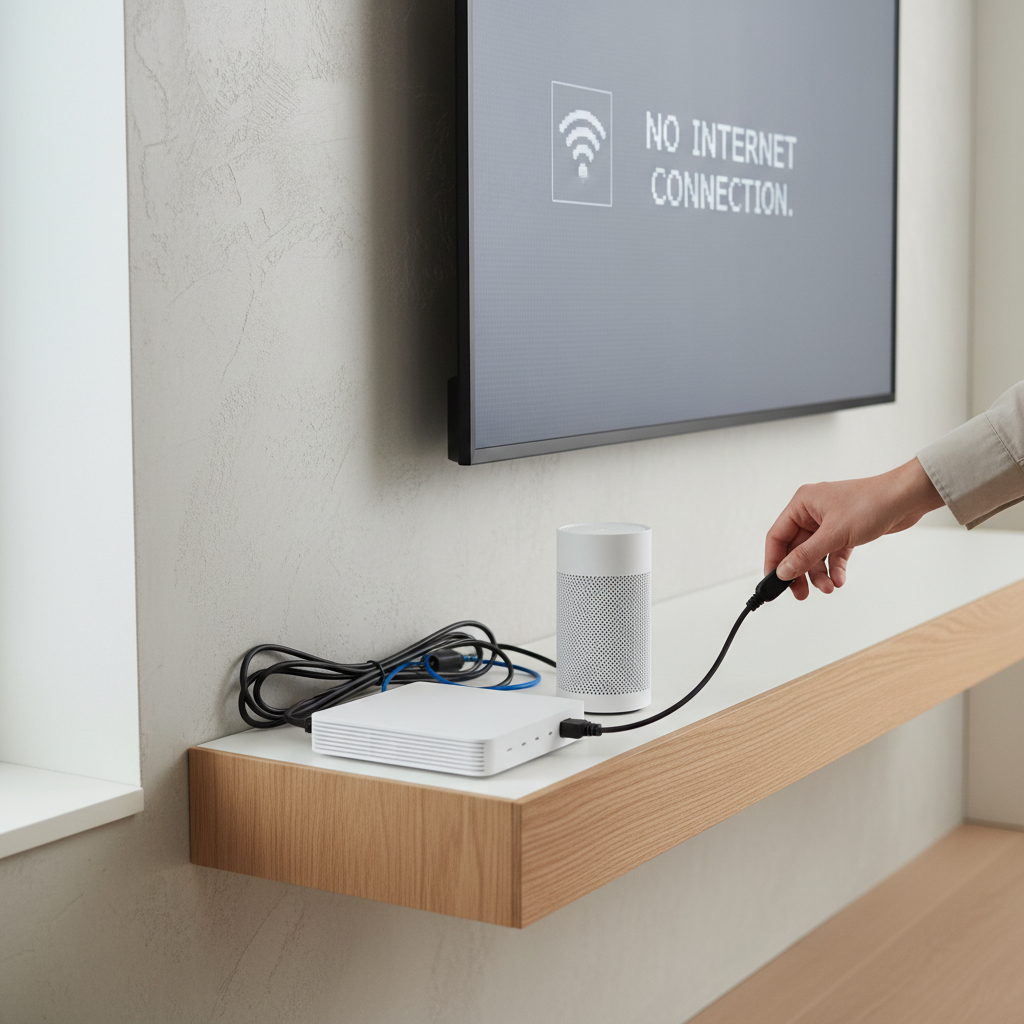
If this works temporarily but the problem returns, that’s a hint you’re dealing with network stability, TV firmware, or low storage, not a one-off glitch.
Fix the Netflix app: cache, updates, reinstall, and sign-in reset
When other apps work but Netflix acts weird, treat it like a corrupted app session. Smart TVs are basically small computers with limited storage, and Netflix is sensitive to stale cached data.
What to try in order
- Force close Netflix: on many TVs, you can open the app switcher and close it; if not, restarting the TV accomplishes a similar result.
- Sign out and sign back in: inside Netflix, go to Get Help > Sign Out. If you can’t open Netflix, remove the app and reinstall, which also clears the session.
- Update Netflix and the TV app store apps: an outdated build can break after backend changes.
- Clear cache (Android TV / Google TV): Settings > Apps > Netflix > Clear cache. Avoid clearing data unless you’re okay signing in again.
- Reinstall Netflix: uninstall, restart TV, install again. This is often the most reliable “app-level” reset.
Small but real gotcha: if your TV storage is nearly full, Netflix can fail to launch or update. Deleting a few unused apps can be more effective than repeated reinstalls.
Fix your connection: Wi‑Fi signal, DNS, and router settings that trip Netflix
Even when “Wi‑Fi is connected,” streaming can fail due to weak signal, packet loss, or DNS issues. Netflix tends to show this as endless loading or network errors.
Fast checks that tell you a lot
- Move the TV test: if your phone streams Netflix fine next to the router but the TV is far away, it’s likely a coverage issue.
- Try Ethernet: if your TV supports wired, plug in a cable for a quick A/B test. If Ethernet fixes it, focus on Wi‑Fi quality, not Netflix.
- Run the TV’s network test: many smart TVs show signal strength and gateway reachability, which is more useful than “connected.”
Wi‑Fi improvements that usually help
- Switch between 2.4 GHz and 5 GHz: 5 GHz is faster but shorter range; 2.4 GHz reaches farther but can be crowded.
- Reposition router (higher, less blocked), or consider a mesh node closer to the TV.
- Restart router and check for firmware updates in the router admin app.
- If your router has “security” or “parental control” filters, temporarily disable them to test, then re-enable with proper allow rules.
DNS reset (when Netflix loads slowly or fails to start)
DNS is the system that translates Netflix domains into addresses. If DNS is flaky, Netflix can stall while other apps appear “fine.” You can test by switching the TV or router DNS to a well-known public DNS provider. If you’re not comfortable changing router settings, your ISP support can often guide you.
According to FCC consumer guidance on broadband, home network factors like router placement and interference can affect streaming quality, even when your plan speed looks adequate on paper.
Smart TV system fixes: updates, time settings, and storage
If Netflix keeps breaking after you fix the app and network, your TV OS may be the real bottleneck. This is common on older smart TVs where app updates outpace system resources.
High-impact system checks
- Update TV firmware: Settings > Support/Software Update. Firmware updates often include streaming and DRM fixes.
- Check date and time: incorrect time can break secure connections on some platforms. Set it to Auto if available.
- Free up space: uninstall unused apps, clear cache on heavy apps, and reboot.
- Disable energy-saving “quick start” temporarily: some TVs keep apps in a semi-suspended state, which can cause repeated Netflix launch failures.
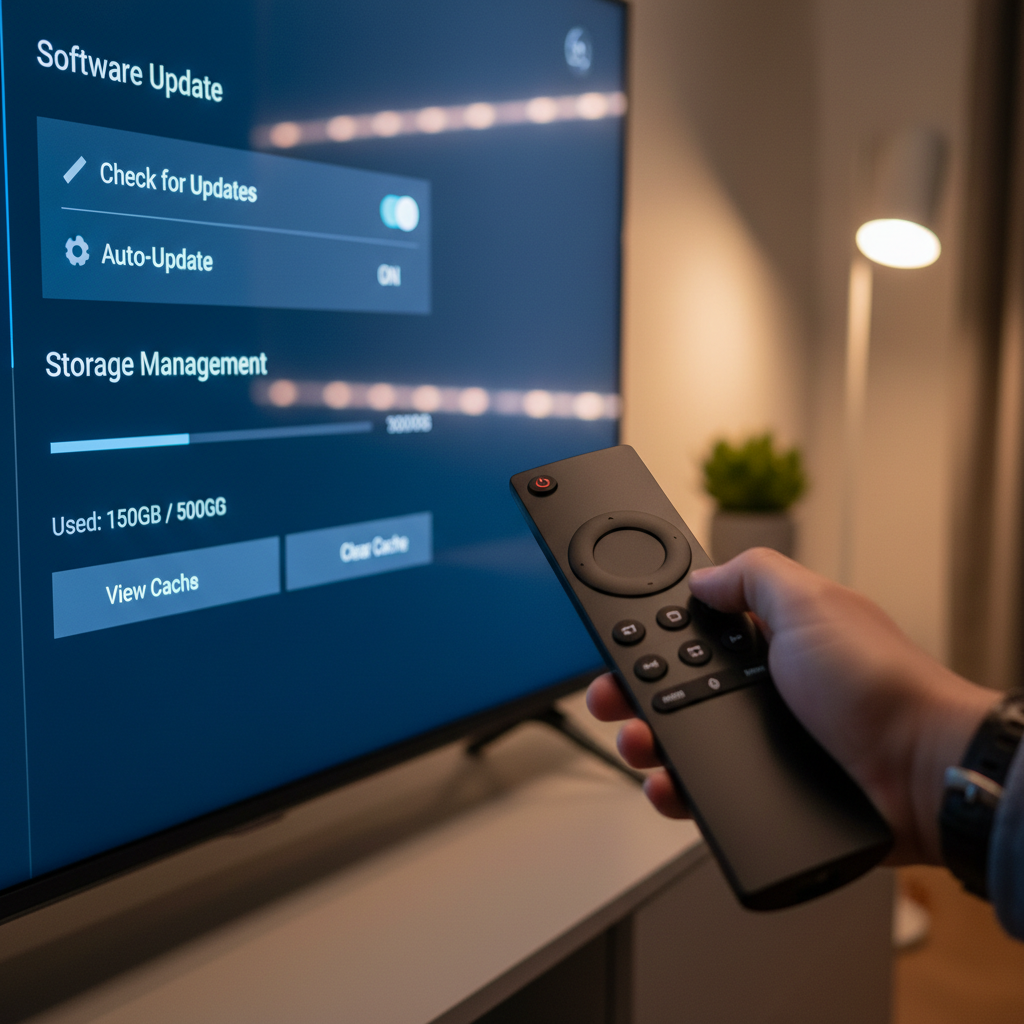
Reality check: some very old smart TV models stop receiving app support. In that case, Netflix issues may keep returning, and using a dedicated streaming device can be the most stable path.
Edge cases: black screen, HDMI/HDCP issues, and sound problems
Not every Netflix failure is “the app.” If you use a soundbar, AVR, or external HDMI switch, HDCP (copy protection handshake) can cause a black screen, flashing, or audio-only playback.
What to do when you suspect HDMI/HDCP
- Temporarily disconnect HDMI accessories (AV receiver, switch, capture device) and run Netflix directly on the TV.
- Power cycle the TV and the accessory device, then reconnect.
- Try a different HDMI port, and if you can, a different cable rated for your resolution.
- Turn off picture enhancements that can cause handshake issues (some motion smoothing modes can be finicky), then test again.
If audio is the problem
- Set TV audio output to a simpler format (PCM) as a test, then move back to Dolby options once stable.
- Check if the title has multiple audio tracks and switch tracks.
According to Netflix Help Center, audio/video issues can relate to device settings and connections, not only the Netflix service itself.
What not to do (common mistakes that waste time)
- Don’t factory reset immediately: it’s time-consuming and usually unnecessary unless the TV OS is unstable across multiple apps.
- Don’t keep reinstalling without checking storage: low space will cause repeat failures.
- Don’t ignore error codes: even a generic “cannot connect” message can include a code that points you to network vs. sign-in.
- Don’t change five router settings at once: you won’t know what helped, and it’s easy to break other devices.
When to escalate: Netflix support, TV manufacturer, or your ISP
If you’ve done the clean reboot, tested another device, and reinstalled Netflix, you’re no longer in “basic troubleshooting.” At that point, it’s reasonable to ask for help, and you’ll have better info to share.
- Contact Netflix support if error codes persist across networks, or if sign-in/account issues show up on multiple devices.
- Contact your TV manufacturer if multiple apps crash, the TV reboots, or firmware updates fail.
- Contact your ISP if streaming fails on multiple devices, especially during certain hours, or if modem logs show frequent disconnects. According to FCC guidance, intermittent connectivity and congestion can be factors, and the ISP can test the line.
For households with complex setups, like mesh networks, managed Wi‑Fi from the provider, or AV receivers, a local technician can be helpful, especially if you suspect an HDMI/HDCP chain issue.
Conclusion: a simple order that usually gets Netflix back
If you’re still working through how to fix netflix not working smart tv, stick to this order: confirm Netflix isn’t down, do the full power cycle, then fix the app (sign out, clear cache, reinstall), then tighten your network (Ethernet test, Wi‑Fi band change, router update), and only then dig into TV firmware, storage, and HDMI edge cases.
Action you can take right now: do the clean reboot, then reinstall Netflix if the issue returns. If Ethernet works but Wi‑Fi doesn’t, stop blaming Netflix and focus on signal quality, that’s where the real fix usually lives.